In this article, you'll learn what each section in the + Add a section picker does, and how to add, style, move and remove sections on a page of your website. Every page on your site is a stack of sections. Once you know what's in the picker, you can build a page that says what you want.
To open a page's sections:
- In the dashboard menu, click Website.
- The Pages tab opens first. Find the page you want and click Edit. Your home page is already open.
Add a section
- Scroll to the bottom of the page's sections and click + Add a section.
- Pick a section from the list. Each one shows its name and a short line about what it does.
- The new section goes to the bottom of the page. Click its name to open it, then fill it in.
- Click Save changes.
If you change your mind before you pick one, click Cancel.
Style, move and remove sections
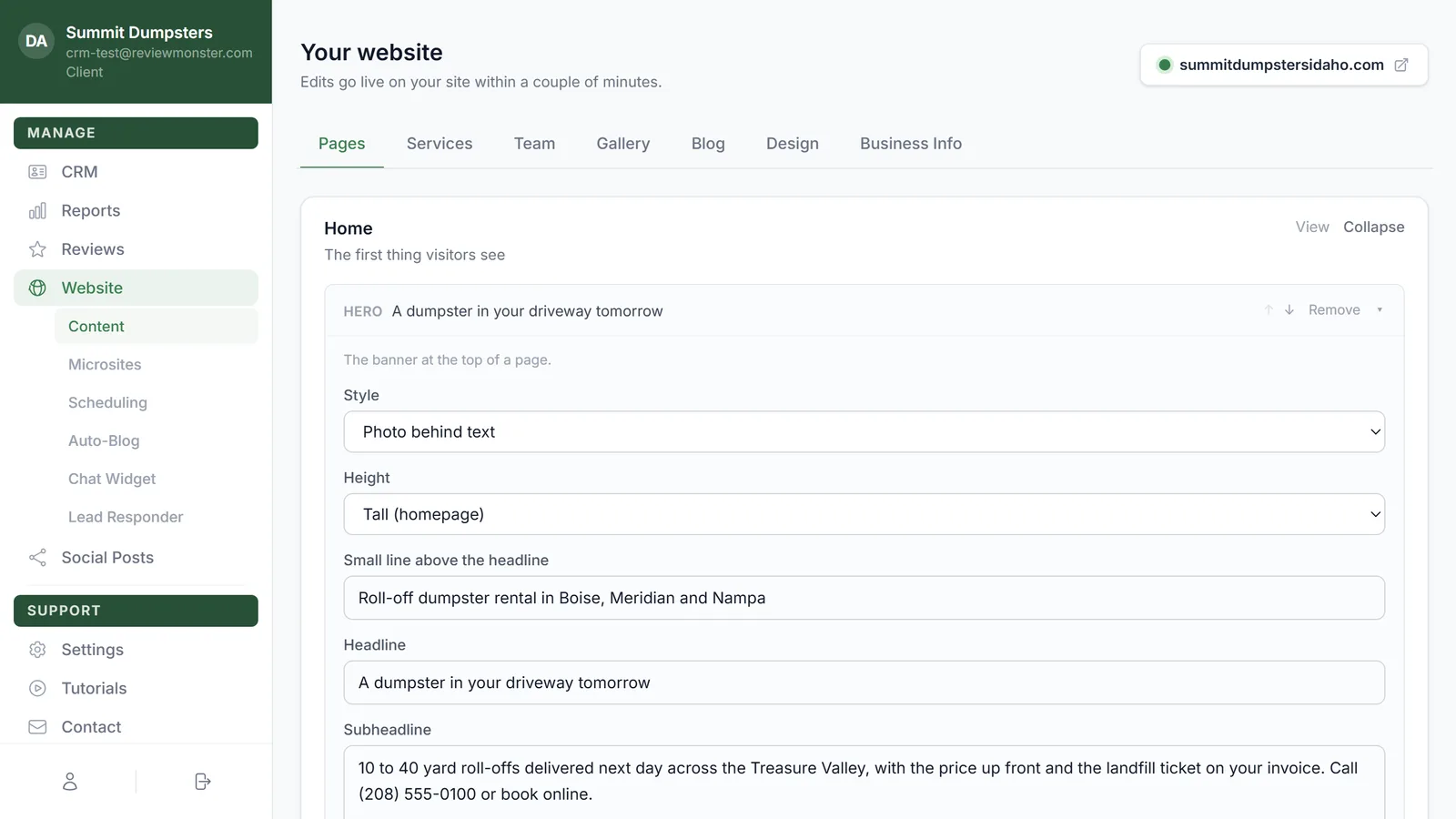
- Click a section's name (or the small arrow on the right) to open or close it.
- Click ↑ or ↓ to move a section up or down the page.
- Click Remove to take a section off the page.
- Many sections have a Style menu at the top with a few looks to choose from, like Photo cards or Simple list for Services.
- Sections with a list (questions, coupons, pairs of photos) have their own + Add button, like + Add question. Each item in the list has its own ↑, ↓ and Remove.
Your live site doesn't change until you click Save changes.
Note: Some pages show a section marked Original section. That's a part of your site kept exactly as it was built. You can move it or remove it here, but its words are changed on request.
Note: If a page says it's shown as the sections it currently renders, save it once and its sections become editable from then on.
Sections that fill themselves in
These sections pull from other places, so you mostly set a heading and they handle the rest. Keep those places up to date and the section updates with them.
- Services: a card for each service on your Services tab, as photo cards, a simple list or compact tiles.
- Team: the people on your Team tab.
- Photo gallery: photos from your Gallery tab. You can show one category only, or limit how many show.
- Latest posts: your newest posts from the Blog tab.
- Google reviews: your live Google rating and newest reviews. Until Google has reviews, it can show your saved testimonials instead.
- Reviews: quotes from your customers, three across, in a scrolling row, or as one big quote.
- Areas we serve: a card or chip for each city on your service-area list.
- Service-area band: a colored band listing every city on your service-area list, with a photo and a button.
- Find us: your address, phone, email, hours and service areas beside a Google map.
- Contact form + details: your phone, email, address and hours beside a message form.
- Sub-page links: cards linking to the pages under this one. Turn off List sub-pages automatically to add your own links instead.
Sections you write yourself
- Hero: the banner at the top of a page, with a headline, photo and up to two buttons.
- Trust bar: a thin strip of badges either side of your live Google rating.
- Quote bar: a get-a-quote band where visitors leave a name, phone, message and photos.
- Text + photo: a heading and paragraphs with an optional photo beside them.
- Text: plain paragraphs in a readable column. Good for longer pages.
- Feature list: short points with a title and a line each, as cards, a checklist or numbered steps.
- Numbers: a row of big numbers, like years in business.
- FAQ: questions and answers, either click-to-open or all open.
- Before & after: before and after photos, as a drag-to-compare slider or pairs side by side.
- Pricing: packages or price tiers, with one you can highlight.
- Load-size pricing slider: visitors drag across load sizes to see what fits and a typical price.
- Instant quote: a three-step price estimator that shows a range and asks for a name and number to lock it in.
- Coupons: coupon cards with an amount, the fine print and a button.
- Benefits + photo: a checklist of benefits, a price line and buttons beside a photo. Handy for a membership or maintenance plan.
- Link cards: a row of cards that each link somewhere.
- Call to action: a strong prompt to call or get a quote.
- Call / quote / contact buttons: three quiet buttons in a row. You can show all three or just one.
- Request service form: the message form on its own, with a heading.
- Embed: a map, video or booking widget from another site, using its embed address.
Tip: Leads from the Quote bar and Instant quote go to the people on your lead notification list.