In this article, you'll learn how to add a new page to your website and how to delete one you don't need. It's handy when your site needs a page it doesn't have yet, like financing, a FAQ or a seasonal offer.
To open your pages:
- In the dashboard menu, click Website.
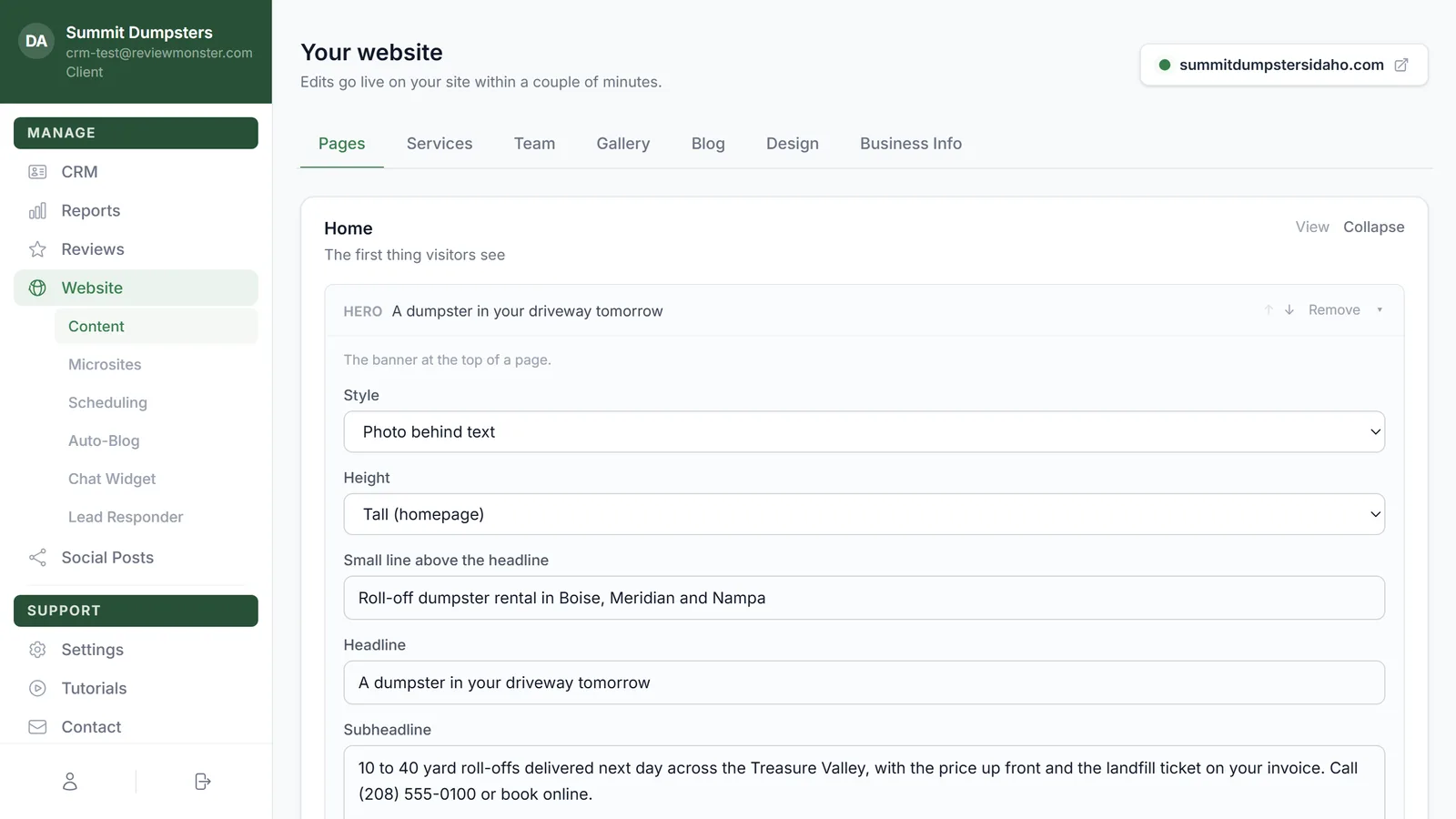
- Make sure the Pages tab is selected. It's the first tab, and it opens by default.
Every page on your site has its own card here. Each card shows the page's address and has View (which opens the page on your live site), Edit and, for pages you've added yourself, Delete.
Add a page
- Scroll to the bottom of the Pages tab and click + Add a page.
- In Page name, type what the page is called, like Financing.
- Check the Address. It fills itself in from the page name, but you can change it. Use letters, numbers and dashes.
- Leave Show in the site menu ticked if you want the page in your site's menu. Untick it if you'd rather link to it from somewhere else.
- Click Create page.
The new page shows up as a card in the list. Changed your mind before creating it? Click Cancel at the top of the New page box.
Making a sub-page
A slash in the address puts the page under another one. For example, an address of resources/faq makes a FAQ page that sits under your Resources page, at yoursite.com/resources/faq.
If the address won't work
Some addresses already belong to built-in parts of your site, so a new page can't use them. That includes blog, book, services, cities-served, privacy and terms, along with anything that starts with them (services/financing won't work either). If you pick one, or use characters other than letters, numbers, dashes and slashes, you'll see "That address isn't available — use letters, numbers and dashes".
If another page already uses the address, you'll see "A page already lives at that address". Pick a different address and click Create page again.
Fill in the new page
A new page starts with just a heading (your page name) and an empty text section, so there isn't much on it yet.
- On the new page's card, click Edit. The page opens up on the card, and the button changes to Collapse.
- Add your words to the text section, or click + Add a section to add other sections, like photos or a call to action.
- Click Save changes. You'll see Saved next to the button.
Click View on the card to see the page on your site. Give it a couple of minutes if your change isn't showing yet.
Delete a page
- On the page's card, click Delete.
- You'll see Delete this page? Click Yes, delete to remove it, or Cancel to keep it.
Pages you can't delete
Your main pages are part of how the site is built, so they don't have a Delete button: Home, About, Contact, Services, Gallery, Cities served and Resources. You can still edit what's on them. Their Page settings also don't have the Show in the site menu box, so they can't be taken out of the automatic menu.
Related articles
- Editing the pages on your website
- Sections you can add to a website page
- Customizing your website's menu
- Website overview