In this article, you'll learn how to read the Microsites page in your dashboard. A microsite is one of your satellite sites, a small site that's separate from your main website and has its own tracking number. This page shows how each one ranks in Google, how much traffic it gets, and every form, text and call it brings in, so you can see which sites are earning their keep.
To open Microsites:
- In the dashboard menu, click Website.
- In the list that opens under it, click Microsites.
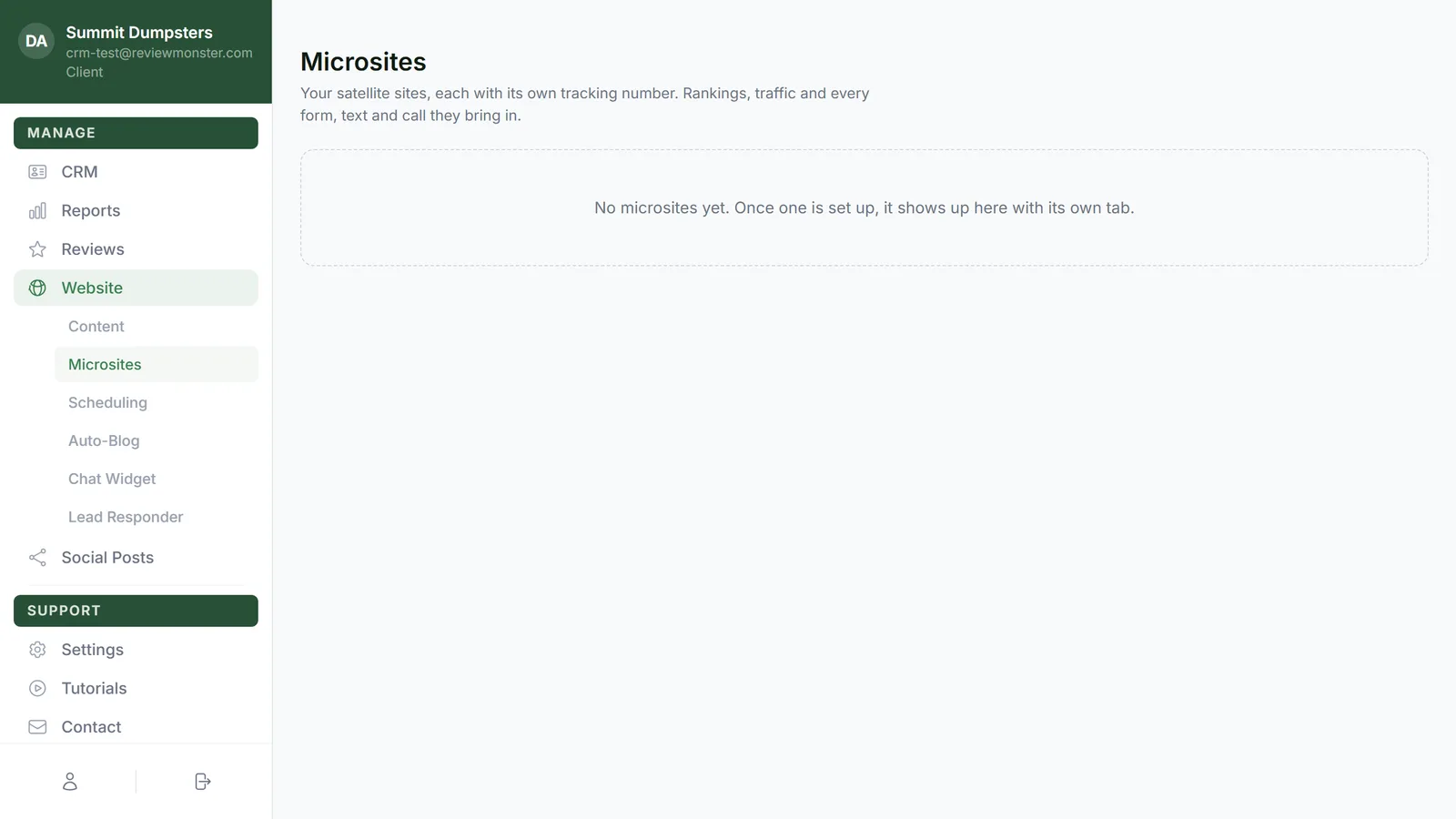
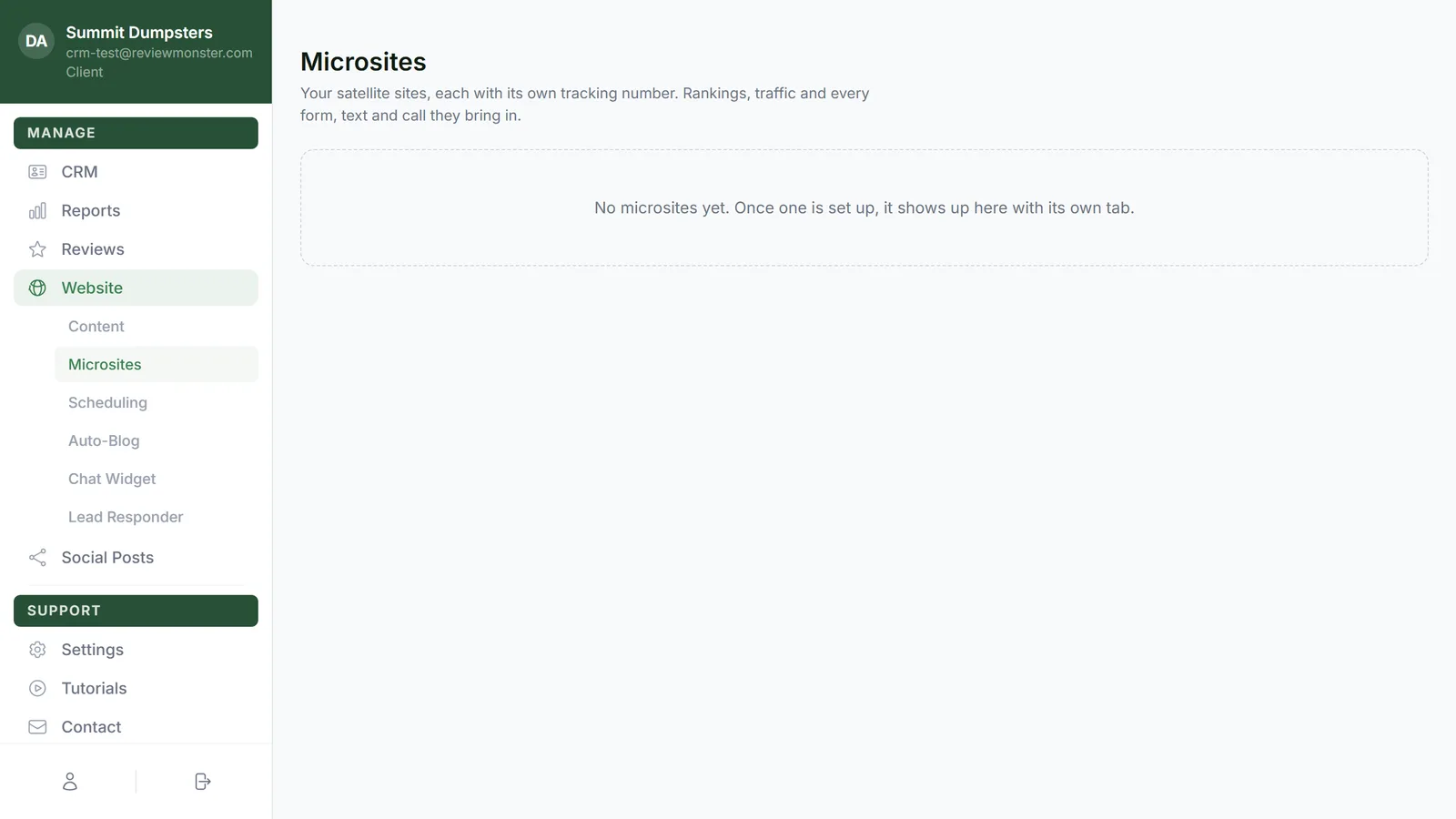
If your main website isn't set up yet, the page tells you so. Your microsites show up here once it's live. If none of your microsites have been set up, you'll see "No microsites yet" instead.
Switching between your microsites
Each microsite has its own tab across the top of the page. A tab shows:
- The site's name
- A status pill: live, building or retired
- The site's domain, or "no domain yet" if it doesn't have one
Click a tab to see that site. The first one opens on its own.
The site card
The first card is named after the site, with its status pill on the right. It lists:
- Domain: the site's web address. Click it to open the site in a new tab.
- Tracking number: the phone number shown on that site. If it hasn't been set up yet, it says "Not yet".
- Calls ring: where calls to that number go. Either "The CRM, like your main line", or the phone number they forward to. If a whisper is set, you'll see the words you hear before the call connects.
Traffic, ranking and top queries
Under the site card are three cards with Google Search numbers for that site:
- Traffic: clicks and impressions from Google Search by day, with totals for Clicks, Impressions and Click-through rate. The arrows compare this range with the one before it.
- Ranking: the site's Average position in Google, with lines for the top queries behind it. Lower is better.
- Top queries: what people searched to find the site, with clicks, impressions and position for each, plus how each one moved against the previous window.
Changing the date range
- In the top right of the Traffic or Ranking card, click a range: 28 days, 3 months, 6 months, 12 months or 24 months.
- All three cards update. The page starts on 3 months.
Form & lead submissions
This card lists everything the site's forms sent to your CRM: When, Name, Phone, Email, Message and Source. The last column shows the lead's number.
- Find the submission you want.
- Click its lead number. The CRM's Leads page opens, already searched for that lead.
Texts
This card shows messages to and from the site's tracking number: When, Direction, From, To and Message. If a text had photos, you'll see how many attachments it had. Texts only show up once the site has a tracking number.
Calls
This card shows calls that came through the site's tracking number: When, Direction, Caller, Duration, Outcome and Recording. If the caller's name is known, it shows under their number.
- Find the call you want.
- In the Recording column, click Listen. The recording opens in a new tab.
A dash means there's no recording for that call. Like texts, calls only show up once the site has a tracking number.
Seeing older activity
Each of the three activity cards loads the most recent activity first. If there's more, a Load more button sits at the bottom of the card. Click it to add the next batch.
Changing a microsite
This page is for watching how each site performs. You can't edit a microsite's pages from here. If you'd like something changed on one of your microsites, get in touch with us.