In this article, you'll learn your way around the Website section of your dashboard. It's where you change what's on your site, from pages and photos to your hours and colors, without waiting on anyone. Once you know where things are, small updates take a few minutes.
To open your website:
- In the dashboard menu, click Website.
- The Content page opens. That's the site editor.
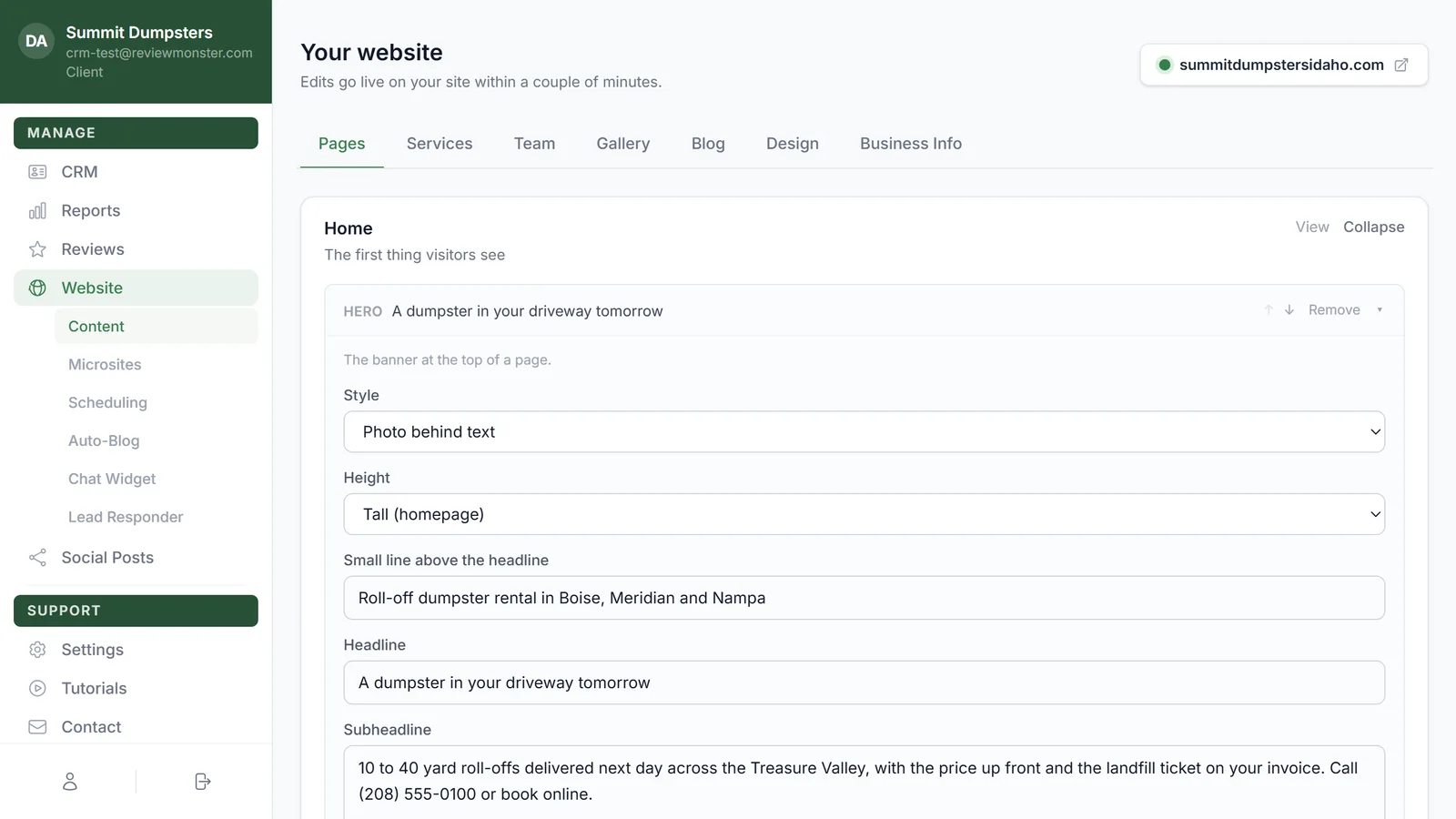
The header and your live site
At the top of the page you'll see Your website, with a short line under it: Edits go live on your site within a couple of minutes. So when you save something, give it a moment before you check.
On the right is your site's address with a small green dot beside it. Click it to open your live site in a new tab. It's the quickest way to see how a change came out.
The seven tabs
Under the header is a row of tabs. Each one edits a different part of your site:
- Pages: the pages on your site and the sections on each one.
- Services: the services your site lists.
- Team: the people shown on your site.
- Gallery: the photos in your site's gallery.
- Blog: blog posts you write yourself. Posts written for you by Auto-Blog don't show here.
- Design: your colors, fonts, layout and menu.
- Business Info: your logo, contact details and hours.
The page opens on Pages. Click any other tab to switch. While a tab is loading you'll see Loading your website… for a second.
The Website sub-menu
When Website is open in the menu, a short list slides open under it. Each item is its own page:
- Content: the editor described above.
- Microsites: your extra sites, if you have any. This one only shows once we've turned it on for your account.
- Scheduling: where your website sends leads and bookings.
- Auto-Blog: the blog posts written and published for you.
- Chat Widget: the chat box on your site.
- Lead Responder: the automatic replies someone gets after filling out a form on your site.
Some accounts don't see every item. If one you expect is missing, ask us and we'll check your setup.
Where your website numbers went
Ranking and traffic used to live on a Metrics page under Website. They've moved to Reports › Website, on plans that include a website report. If you have an old bookmark to the Metrics page, it takes you there automatically.
If your website isn't set up yet
Until your site is live, the Content page just shows Website and a message: Your website isn't set up yet. Once it's live, you'll manage every page, photo, and blog post right here. There's nothing to do on this page until then. Once your site is live, the tabs show up on their own.
Related articles
- Editing the pages on your website
- Updating your logo, contact details and hours on your website
- Changing your website's colors, fonts and layout
- Understanding your microsites
- Reading the Website report