In this article, you'll learn how to reopen any of your onboarding steps after setup is done. That's handy when you want to change an answer, connect a different Google account or hook up Facebook later.
To open your onboarding steps:
- In the dashboard menu, find the Support group and click Settings.
- Under Settings, click Onboarding.
Onboarding always opens on Your business, the first step.
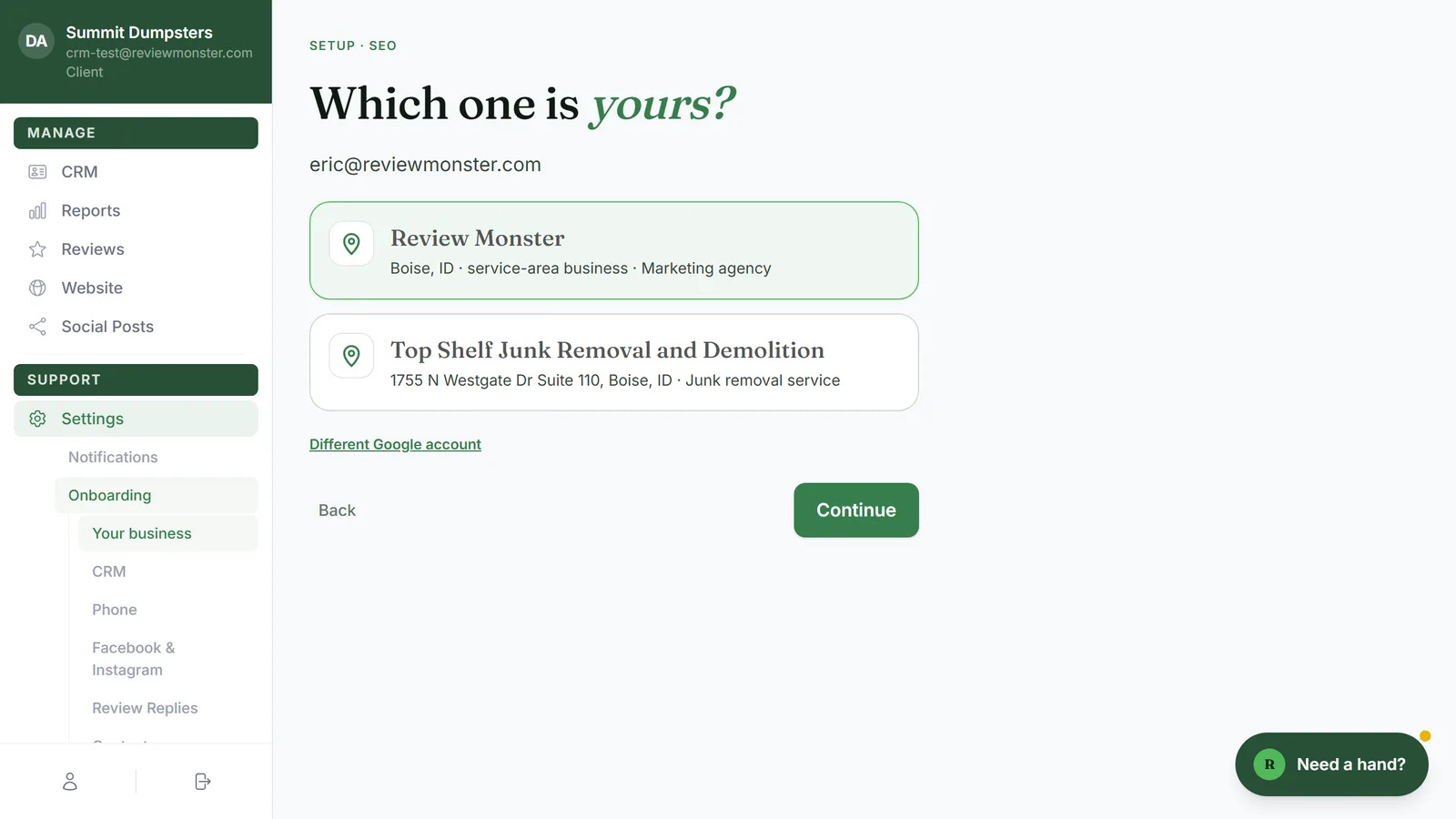
What's in the list
When Onboarding is open, the menu lists every step for your plan under it. You'll only see the steps that apply to you, so your list may be shorter than this:
- Your business
- CRM
- Phone
- Facebook & Instagram
- Review Replies
- Contacts
- Leads & bookings
- Chat
- Services & cities
- Searches
- Photos & videos
- Agreements
- Onboarding call
Each one opens right inside the dashboard. There's no Welcome screen like the first time, and your menu stays on the left the whole time.
Jumping to a step
- Click the step's name in the menu.
- Make your changes on that screen.
You don't have to go in order. Click whichever step you need.
Moving between steps
Each screen has the same buttons you used during setup:
- Continue saves the screen and moves you to the next step.
- Back takes you to the step before.
As you move, the highlight in the menu moves with you, so you can always see where you are.
Reconnecting Google
- Click Your business in the menu.
- If you see your filled-in details, click Change next to your listing.
- Pick your listing again, or go Back to connect a different account.
- Click Connect Google (or Connect a different Google account if one is already connected) and follow Google's window.
Connecting or reconnecting Facebook
- Click Facebook & Instagram in the menu.
- Click Connect Facebook and follow Facebook's window.
- Click Continue once it's connected, or Not now to leave it for later.
Changing an answer
Open the step, change what you need and click Continue to save it. The rest of your setup stays as it was.
Getting help on a step
The Need a hand? button sits in the bottom-right corner of every step, just like it did during setup. Click it to ask a question about the screen you're on. It explains things and points you to the right button, but it doesn't change anything for you. Click Close to put it away.
Related articles
- Onboarding overview
- Connecting your Google Business Profile
- Connecting Facebook and Instagram for posts
- Checking your business details
- What happens when you finish onboarding