In this article, you'll learn how your website's menu gets built and how to take it over yourself. Most sites never need to: the menu fills itself in from the pages you have. But if you want a different order, shorter names or a dropdown, you can set every link by hand.
To open the menu settings:
- In the dashboard menu, click Website.
- Click the Design tab.
- Scroll past Look & feel to the Menu card.
The automatic menu
When the Menu card says "The menu is built automatically from the pages you have," the site works the menu out for you. It shows Services and About, then Areas We Serve if you have city pages, Resources if you have a resources page, Gallery, Blog once you have posts or Auto-Blog is on, and Book Online if online booking is switched on. Any of your own pages you've marked for the menu come next, and Contact is always last.
Because it's built from what you actually have, you never get a link to a page that doesn't exist.
Putting one of your own pages in the automatic menu
Each page you add yourself has its own menu setting.
- Click the Pages tab.
- Click Edit on the page.
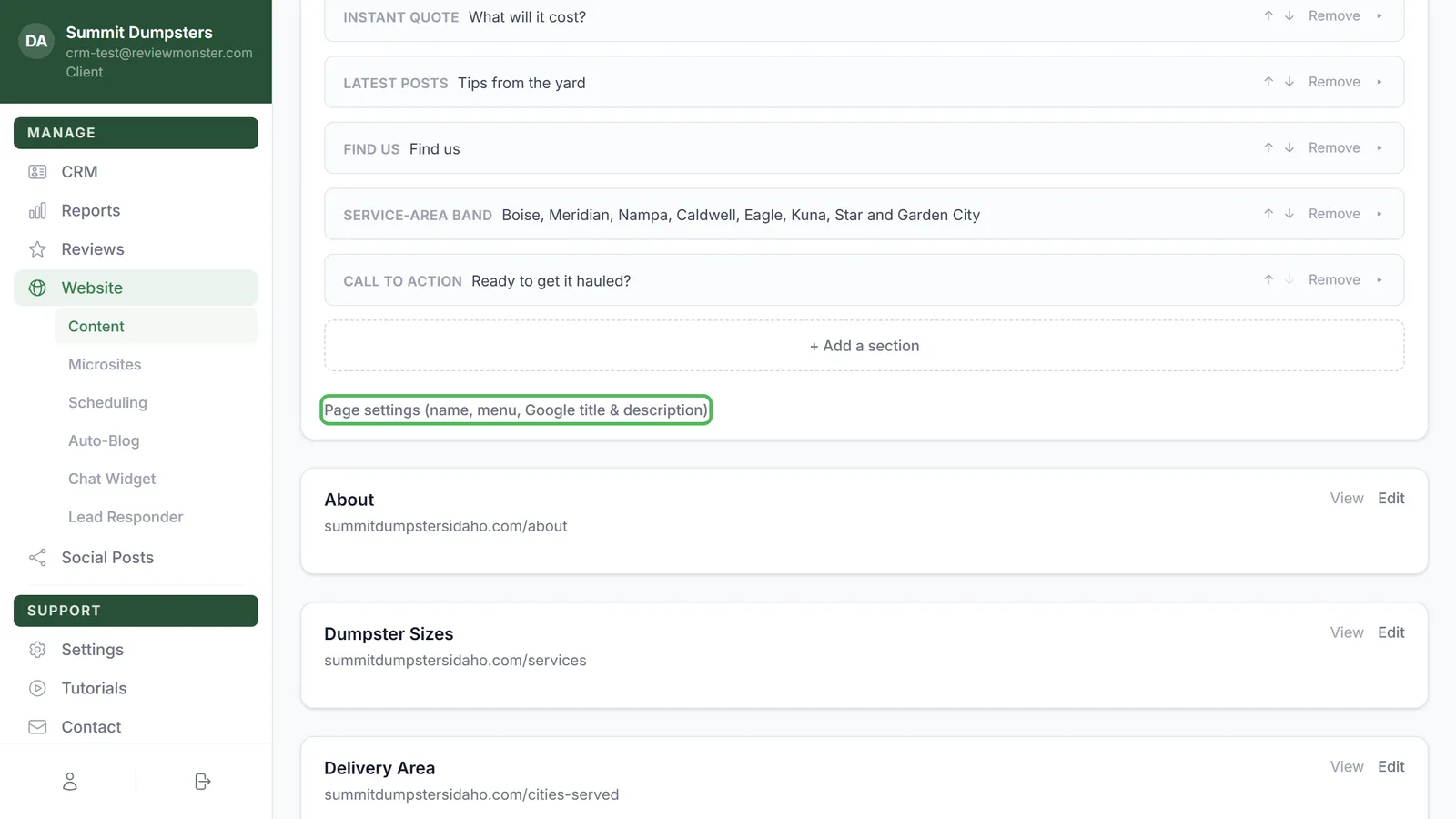
- Click Page settings (name, menu, Google title & description).
- Tick Show in the site menu.
- Type a shorter name in Menu label if you want one. Leave it blank and the menu uses the page name.
- Click Save changes.
Untick Show in the site menu to take a page back out. When you add a new page with + Add a page, the same box is ticked for you.
Choosing the menu yourself
- On the Menu card, click Customize.
- The card fills in four starter links: Services, About, Gallery and Contact. Edit them however you like.
- Click Save changes.
Once you've saved, the card says "You're choosing the menu by hand," and your list replaces the automatic menu completely.
Editing a link
Each link has two boxes:
- Label is the word visitors see in the menu.
- Link is where it goes. Use a page on your site like /services, a full address starting with https://, or leave it blank if this link should only open a dropdown.
A link with no label is dropped when you save, and so is one with no link and no dropdown items.
Adding a dropdown
- Under the link you want the dropdown on, click + Add a dropdown item.
- Fill in Dropdown label and Link for the item.
- Repeat for each item, then click Save changes.
A dropdown item needs both a label and a link, or it's left out. To drop one item, click Remove next to it.
Adding, moving and removing links
- Click + Add a link at the bottom to add another link to the menu.
- Use the up and down arrows at the top right of a link to move it earlier or later.
- Click Remove next to the arrows to delete the link and its dropdown.
You can have up to 12 links, each with up to 12 dropdown items. Click Save changes when you're done. Changes show on your live site within a couple of minutes.
Going back to the automatic menu
- On the Menu card, click Back to automatic.
- Click Save changes.
Your hand-picked links are cleared and the site goes back to building the menu from your pages.