In this article, you'll learn how to read the Invoices report: what the numbers at the top mean, how the two tables break things down, and how to change the dates it covers. It's the quickest way to answer "how much have I billed, and how much of it have I actually been paid?"
The Invoices report is on the web version of the CRM.
To open the Invoices report:
- In the menu, click Reports.
- Click the Invoices tile.
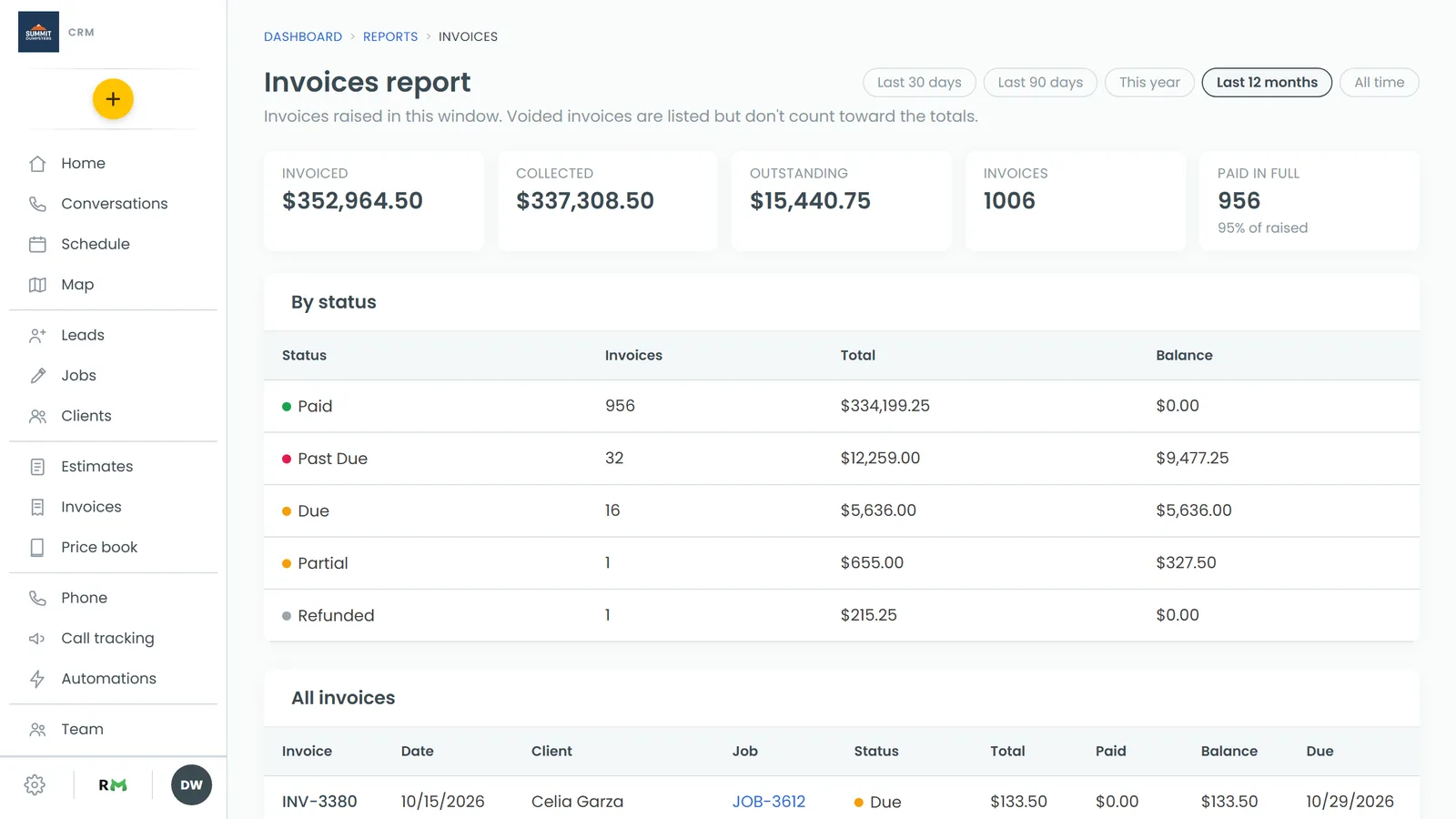
Choosing the dates
The pills at the top right set which invoices the report counts. Pick Last 30 days, Last 90 days, This year, Last 12 months or All time. The report opens on Last 12 months.
The window goes by the date each invoice was created. An invoice made last year that's still unpaid won't show up under Last 30 days, so switch to a wider range (or All time) when you're tracking down old money.
The numbers across the top
Five tiles sum up the invoices in your chosen window:
- Invoiced is the total of all those invoices added together.
- Collected is how much has been paid against them.
- Outstanding is the balance still owed on them.
- Invoices is how many there are.
- Paid in full is how many are completely paid, with the share of all your invoices underneath (for example, "75% of raised").
Voided invoices don't count toward any of these numbers. They still show up in the two tables below, so you can see they exist.
By status
The By status table groups your invoices by their current status, such as Paid, Due, Partial or Draft. Each row shows:
- Status
- Invoices: how many have that status
- Total: what they add up to
- Balance: what's still owed on them
The biggest total sits at the top. It's a fast way to see how much of your billing is settled and how much is still open. Not sure what a status means? See Understanding invoice statuses.
All invoices
Below that, All invoices lists every invoice in the window, newest first. The columns are:
- Invoice: the invoice number
- Date: the invoice date (or the day it was created, if it has no invoice date)
- Client
- Job: the job it belongs to. Click the job number to open that job.
- Status
- Total, Paid and Balance
- Due: the due date, if it has one
Use this list when you're looking for one particular invoice, or when you want to scan for anything still carrying a balance.
Chasing money that's overdue
This report shows what you've billed. It doesn't sort invoices by how late they are. When it's time to follow up, click See what's overdue → at the bottom of the page. That opens the Aging invoices report, which is built for working through unpaid invoices. See Keeping track of aging invoices.
Related articles
- Keeping track of aging invoices
- Tracking payments with the Payments report
- Finding your reports and who can see them
- Understanding invoice statuses
- Managing and tracking invoices