In this article, you'll learn how to keep track of your invoices from the Invoices page. It's the one place that shows what you're owed, what's late and what hasn't gone out yet, so nothing slips through and you get paid on time.
To open your invoices:
- In the menu, click Invoices.
Tracking your invoices
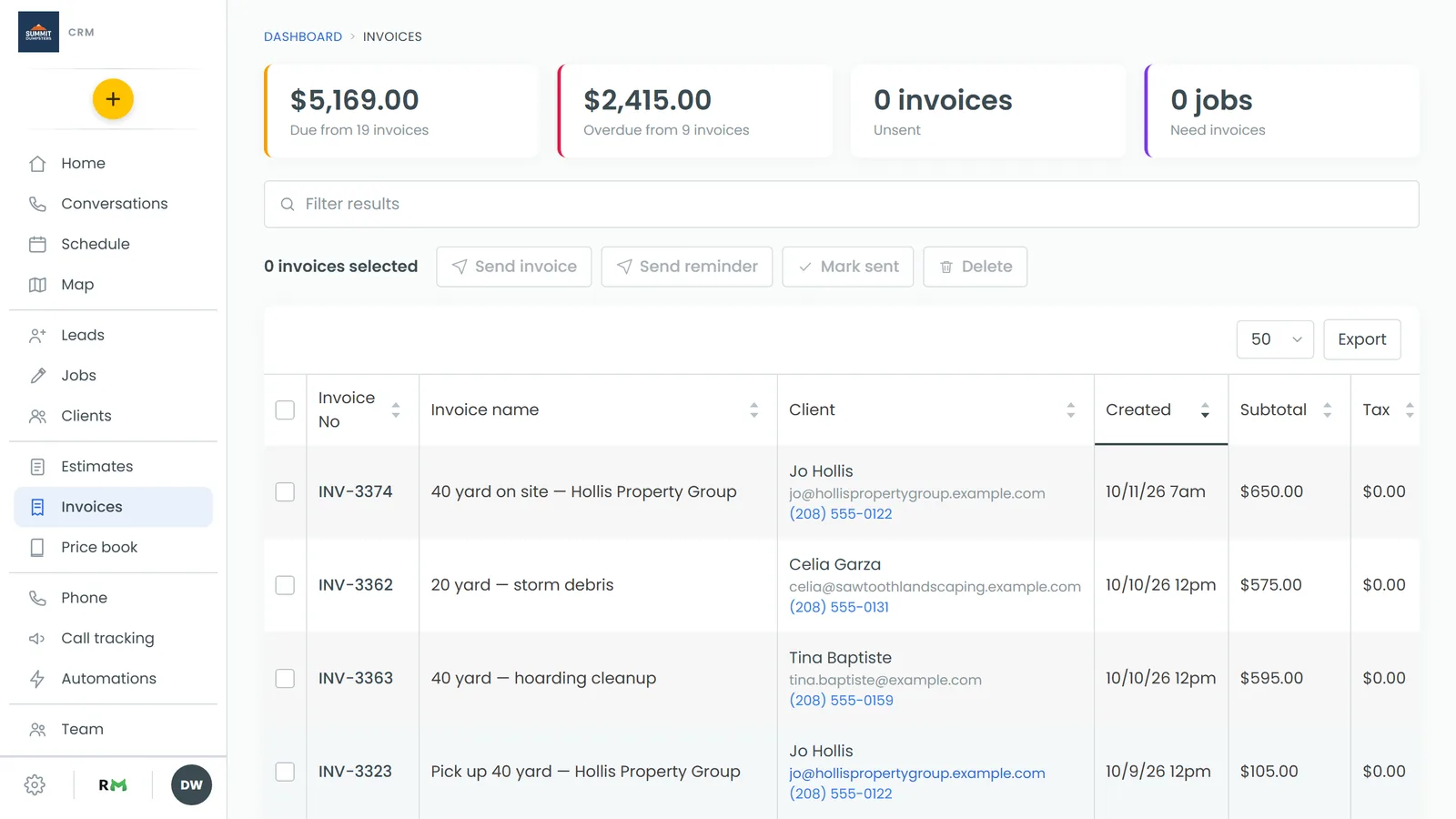
Four tiles sit across the top of the page. They're counted from your real invoices every time the page loads:
- Due from N invoices shows the total still owed on every invoice with a balance.
- Overdue from N invoices shows the total owed on invoices that have gone past their due date.
- Unsent shows how many invoices have been made but never sent.
- Need invoices shows how many jobs are marked Done, still have money owing, and don't have an invoice yet.
Reading the invoice list
Under the tiles is the list of every invoice. Each row shows:
- Invoice No, with Not sent underneath if it hasn't gone out. Click the number to open the invoice.
- Invoice name
- Client, with their email and phone underneath. Click the name to open the client. Click the phone number and the CRM asks if you want to call them. Click the email and it asks if you want to email them, then takes you to the client's page to write it.
- Created, Subtotal, Tax, Discount, Amount and Due (what's still owed)
- Status, such as Draft, Due, Past Due, Partial, Paid, Refunded or Void
- Job and Job name. Click the job number to open the job.
Finding an invoice
Type in the Filter results box above the list. It matches invoice numbers and names, client names, emails and phone numbers, statuses, job numbers and job names.
Use the drop-down above the table to show 10, 25, 50 or 100 invoices per page, and the arrows at the bottom to move between pages.
Sorting your invoices
Click any column heading to sort by it. Click it again to flip the order. The sorted column has a line under its heading. The list opens sorted by Created, newest first.
Exporting your invoices
Click Export to download the list as a CSV file. It includes everything in the current filter and sort order, along with each client's email and phone.
Working with several invoices at once
Tick the box at the start of a row to select it, or tick the box in the header to select every invoice on the page. The buttons above the list wake up once something is ticked, next to a count of how many you've selected.
When an action finishes, a yellow line at the top of the list tells you how many went through, and names any that didn't.
Sending invoices
- Tick the invoices you want to send. Searching for "Not sent" is a quick way to find them.
- Click Send invoice.
Each customer gets a text if they have a phone number, an email if they have an email address, or both. The message links straight to their invoice.
Sending reminders for overdue invoices
- Tick the invoices you want to follow up on. Sort by Status to group the Past Due ones together.
- Click Send reminder.
Reminders use the wording under Invoice reminders in Settings > Templates, so change it there if you want them to say something different.
Marking invoices as sent
Sometimes you hand an invoice over in person or mail it. Mark sent records it as sent without texting or emailing the customer.
- Tick the invoices.
- Click Mark sent.
The Not sent label goes away, a draft becomes Due, and the due date counts from that day, the same as if you'd sent it from the CRM.
Deleting invoices
- Tick the invoices.
- Click Delete, then confirm.
On the phone app
The phone app's Invoices screen works a little differently:
- It shows invoices and estimates together. Tap All, Invoices or Estimates to switch between them.
- The tiles are Due from N invoices, Overdue, Unsent invoices, and how many estimates are outstanding with their total.
- Use the search box to find a document by number, client, job or status.
- Tap a row to open the invoice or estimate, tap the client's name to open the client, or tap the job number to open the job.
There's no ticking several invoices, no bulk send, reminder, mark sent or delete, and no export on the app. Use the web for those.
Related articles
- Understanding invoice statuses
- How to create and send invoices
- Sending automatic reminders for overdue invoices
- Deleting an invoice
- Keeping track of aging invoices