In this article, you'll learn what each invoice status means and what moves an invoice from one status to the next. Once you know the rules, the Status column tells you at a glance who still owes you money.
There's no status dropdown on an invoice. The status changes by itself when you send the invoice, take a payment, issue a refund or delete it.
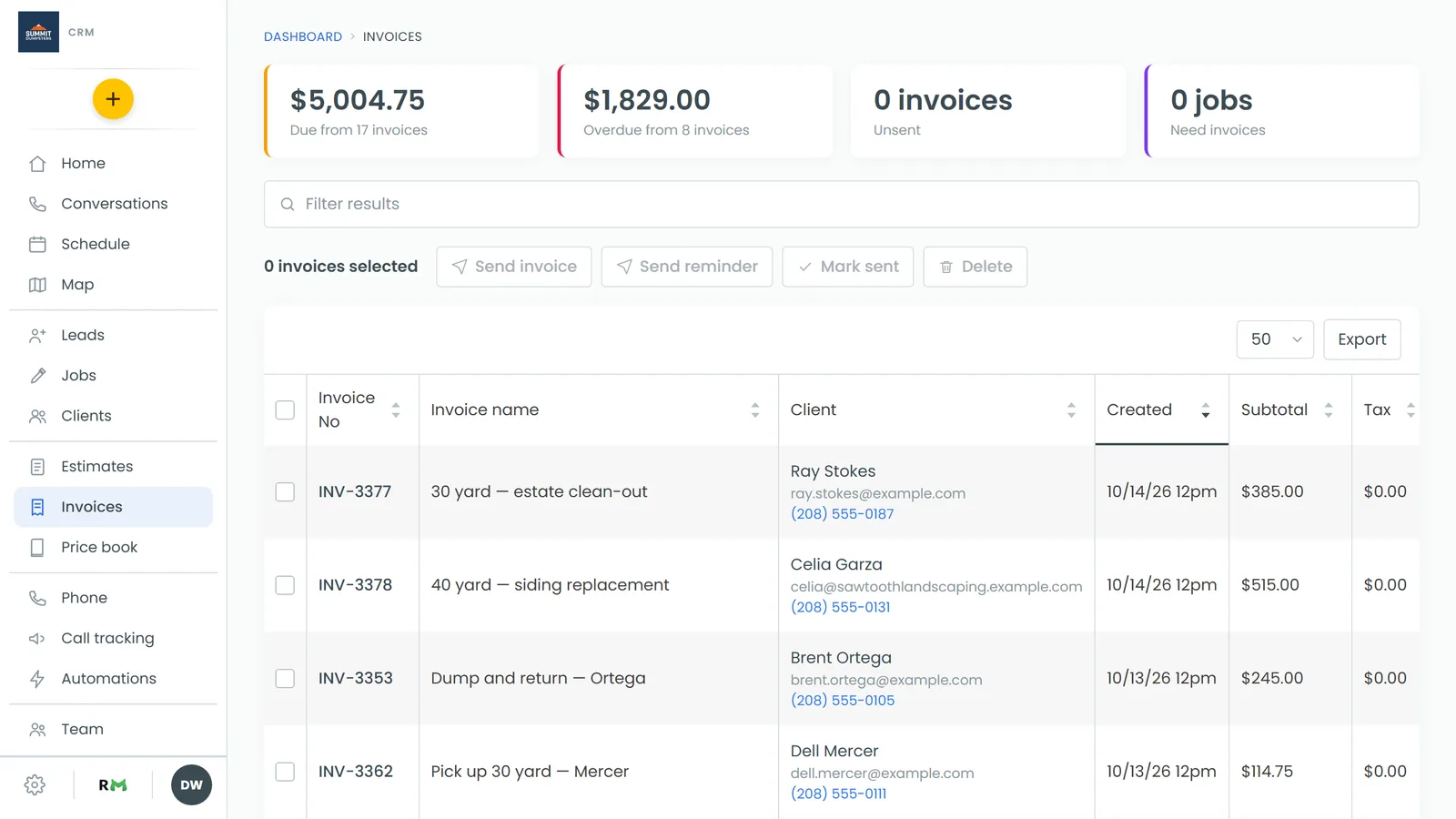
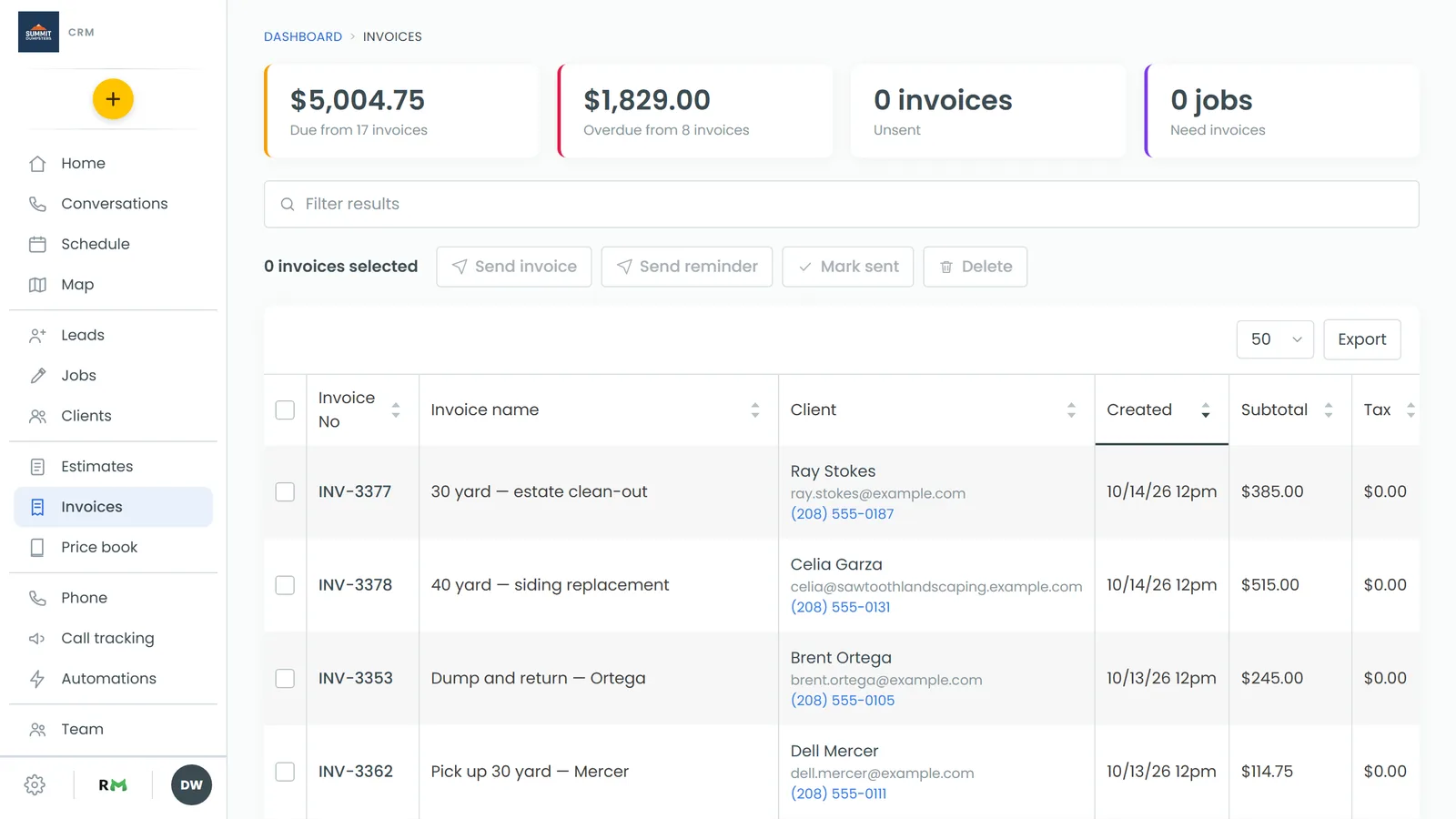
To see your invoice statuses:
- In the menu, click Invoices.
- Look at the Status column in the list. Under each invoice number, Not sent shows if the invoice hasn't gone to the customer yet.
The statuses at a glance
- Draft: You created the invoice but haven't sent it yet.
- Due: You sent it and nothing has been paid yet.
- Partial: Some of it is paid and there's still a balance.
- Past Due: The due date has passed and money is still owed.
- Paid: The whole balance has been collected.
- Refunded: Everything that was paid went back to the customer.
- Void: You deleted the invoice.
Draft invoices
A new invoice starts as Draft. Customers don't see drafts in their portal, but your team can still work on them. You can take a payment, collect a signature or charge a card right away.
A draft moves to Due the first time you send it by text or email, or when you mark it sent.
To mark an invoice sent without texting or emailing it (for example, when you handed it over in person):
- On the Invoices page, tick the box next to the invoice.
- Click Mark sent.
Due invoices
Due means the customer has the invoice and hasn't paid anything yet.
The due date is set the first time the invoice goes out: the day you send it plus the customer's payment terms. If the customer has no terms, the invoice is due the day it's sent. Sending the same invoice again later doesn't change the due date.
You can see the due date on the invoice's own page next to Due on:.
Partial invoices
When a payment covers only part of the balance, the invoice moves to Partial. It stays that way until the rest is paid. The Balance column shows what's left.
Past due invoices
An invoice becomes Past Due the day after its due date if there's still a balance. You don't have to do anything. The CRM checks open invoices about every 10 minutes and switches the ones that have crossed their due date. It goes by your company's own calendar day.
The switch to Past Due is what starts your overdue invoice reminders. Each invoice makes the switch once, so customers aren't sent duplicates.
If a past-due invoice gets a part payment, it still owes money after the due date, so it goes back to Past Due on the next check.
Paid invoices
Once the full balance has been collected, the invoice changes to Paid. This happens however the money came in: card, cash, check or any other method you record. It works even if the invoice was still a draft. Part payments don't count until the last dollar is in.
If you remove the payments from a paid invoice, it goes back to Due.
Refunded invoices
If you refund everything a customer paid through Stripe, the invoice changes to Refunded and its balance drops to zero. The money went back on purpose, so the customer isn't chased for it and doesn't get overdue reminders. If they should pay again, send them a new invoice.
A partial refund puts the invoice back to Partial, and the balance goes up by the amount you refunded.
Void invoices
Deleting an invoice sets it to Void and takes it off your Invoices list. Its number stays on record and is never reused.
Related articles
- Managing and tracking invoices
- Setting payment terms for invoices
- Sending automatic reminders for overdue invoices
- How to issue refunds
- Deleting an invoice