In this article, you'll learn how to book a job for one of your other businesses without leaving your main one. It helps when one office answers the phone for several businesses or locations. You fill in one form, and the job goes onto the other business's calendar with that business's team.
Before you start
The Business chooser only appears on the New job form when another business is showing in the one you're signed in to. That's your main business, the one the others are linked to. You choose which businesses show with the eye next to each one in the business list on your Home page. A green eye means it's showing. A red, crossed-out eye means it's hidden.
Booking a job in another business
To open a new job:
- Click the yellow + near the top of the menu.
- Click New job.
To book it for another business:
- At the top of the form, find Business. It starts on the business you're signed in to.
- Pick the other business from the list.
- Check the line that appears beside it: "This appointment is created in", the business's name, then "on its calendar and with its team."
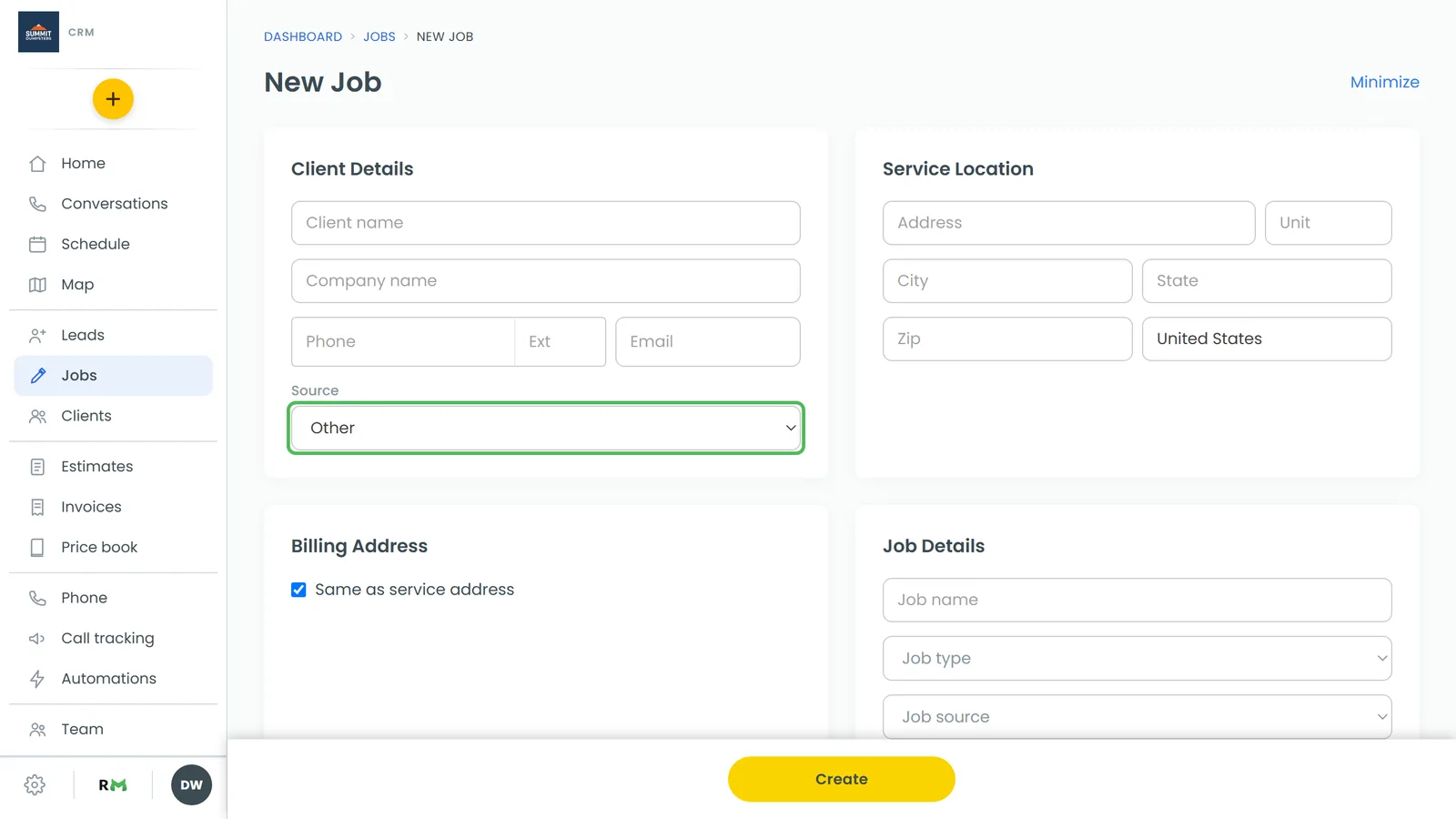
- Fill in the client details and the service location.
- Choose the Job type and Job source. These lists now come from the business you picked.
- Set the date and time. The team members you can add are that business's team.
- Click Create.
Once it's saved, you land back on your schedule. The job shows there with the other business's colour and its name on the card.
On the phone app
The app's New job screen has a Business card at the top, with a button for your business and one for each other business that's showing. Tap the one you want. A line underneath reads "Creating in", the business's name, then "its job types, sources and crew, on its calendar." Fill in the rest and tap Create. You go back to your schedule.
What's different about a job booked this way
- It lives in the other business. Nothing is copied. The job belongs to the business you picked, and it shows on your schedule because that business is switched on.
- Jobs only. The New lead form has no Business chooser. To add a lead there, switch to that business and create it there.
- The customer is matched in the other business. The name suggestions on the form come from your own clients, so type the customer's phone and email. The other business looks for an existing client with that phone number, then that email. If there's no match, it adds a new client.
- No rental units. You can't add units to a job you're booking for another business.
Working with the job from your schedule
Click the job on your schedule to open its summary. It works a little differently from your own jobs:
- The business's name shows next to the job ID.
- There are no text or call buttons. They'd go out on your number, not the other business's.
- The status is shown, but you can't change it here.
To change anything, click the edit button at the top of the summary. That opens the job's full page inside the other business. A bar across the top says "You're in", that business's name, and "opened from" your main business. Click Back to and your main business's name when you're done.
Related articles
- Running several businesses or locations from one login
- Switching between your businesses
- How to create jobs
- Creating new jobs on the phone app
- How to schedule and manage jobs