In this article, you'll learn how to move between the businesses your login can open. If you run more than one company or location, you can hop from one to another without logging out and back in.
Opening the company picker
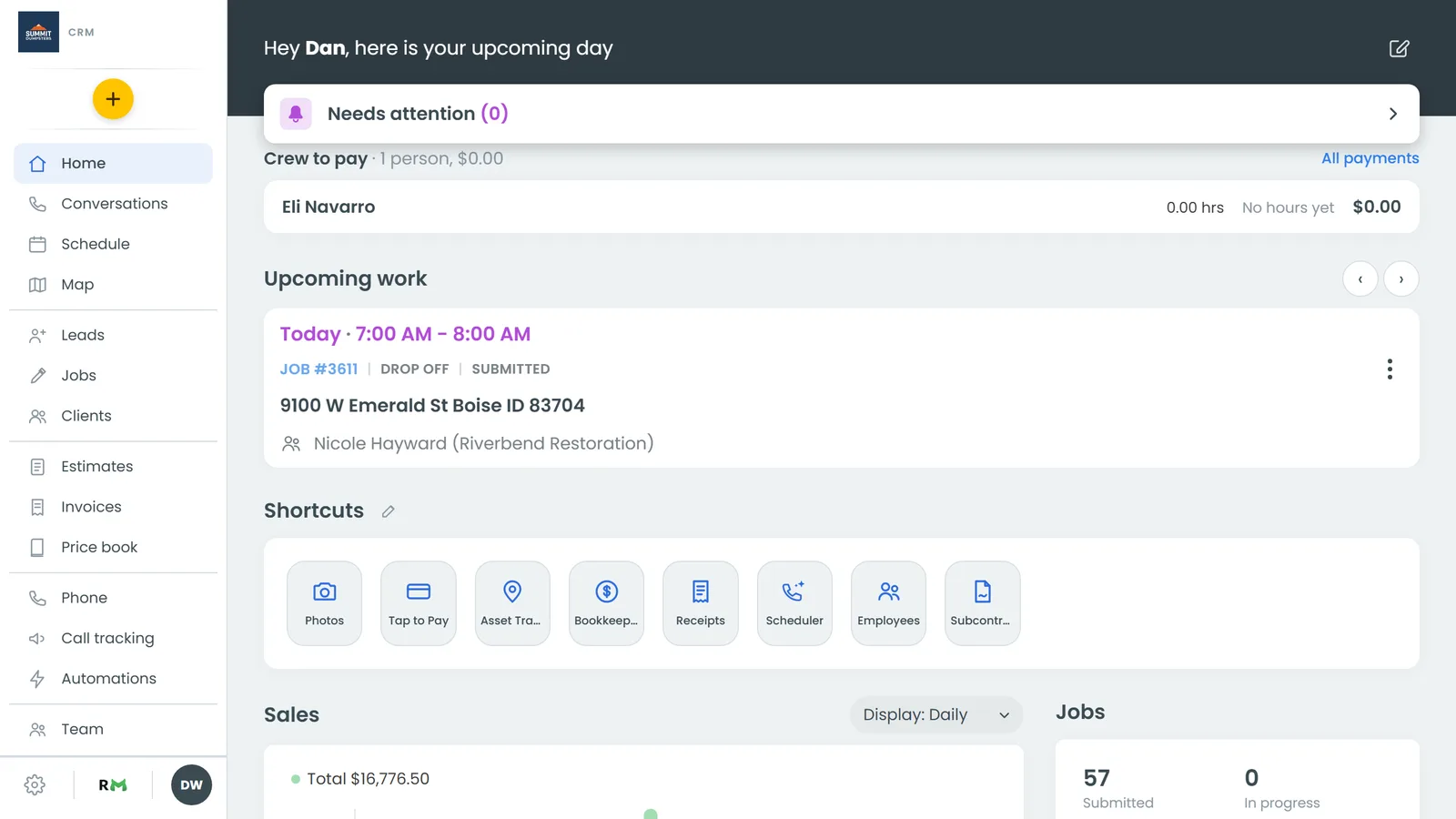
When your login can open two or more companies, the top card on your Home screen is the company picker. It shows the name of the company you're in right now. It works the same way on the web and in the phone app.
To open the company picker:
- Go to your Home screen.
- Click the card at the top that shows your company's name. It drops open and lists your other companies.
Switching to another company
To switch companies:
- Open the company picker on your Home screen.
- Click the company you want.
The CRM reloads into that company. On the web, the card shows the new company's name with a small spinner while it loads, then you land on that company's Home screen. In the phone app, the card reads Switching… until the new company's Home screen is ready.
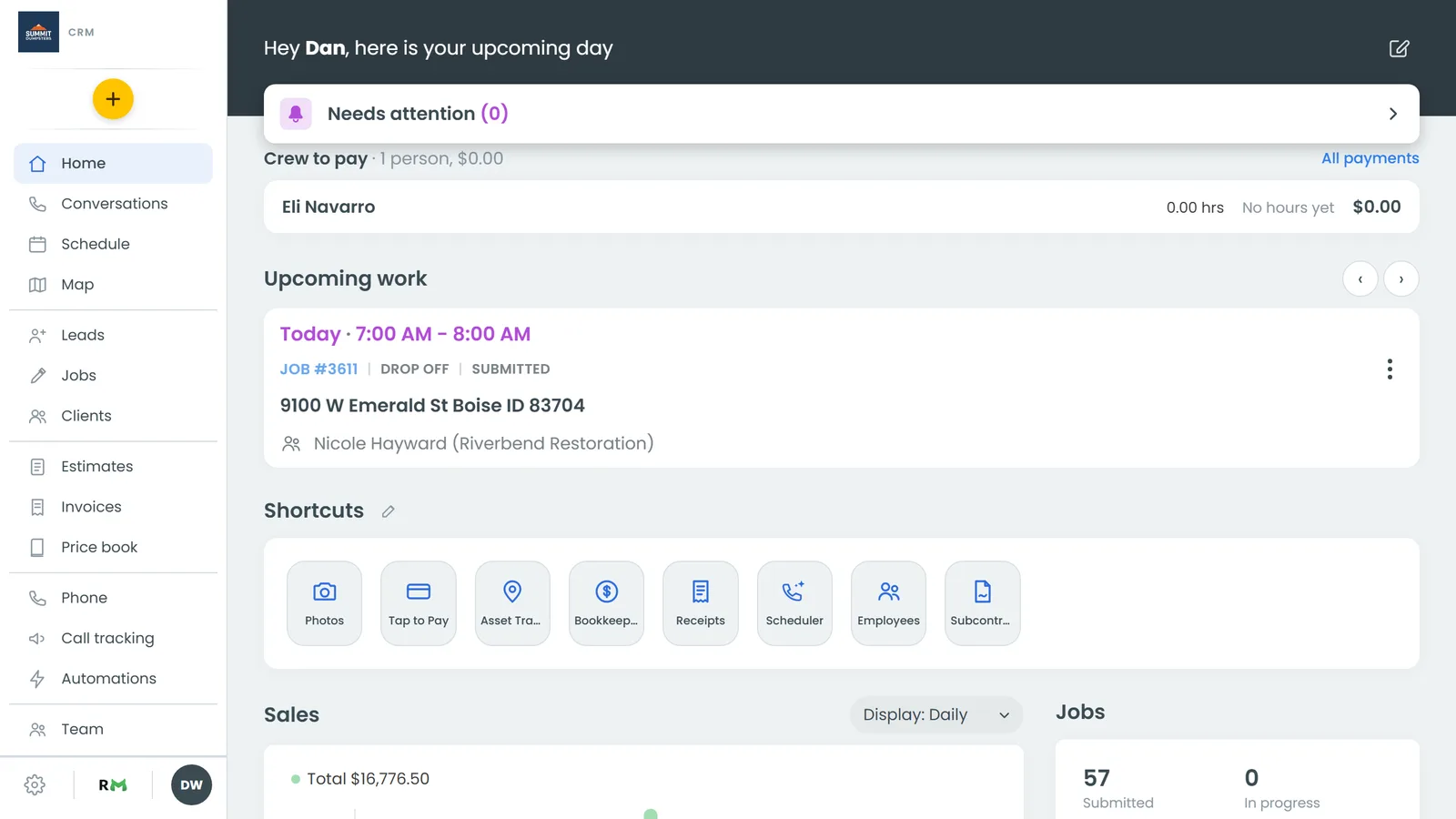
To go back, open the picker again and pick your other company. The company you're in is always the name on the card, so the list only shows the others.
Opening a linked business's job or contact
If you've linked your businesses together, the primary company's schedule and Conversations can show the other businesses' appointments and threads. Their full pages still belong to that business, though. So when you open one, the CRM switches you into that business first.
This happens when you:
- Open a linked business's job or its client from the schedule
- Open the contact from a linked business's thread in Conversations
Once you're there, a bar across the top reads "You're in" the business you're now in, "opened from" the company you started in.
To go back:
- Click Back to followed by your company's name in that bar.
You're switched back to your company and returned to the schedule or Conversations, wherever you started.
Good to know
- The company you're in decides what you see: its menus, its settings, its jobs, clients and conversations.
- There's no combined "all locations" view. The only place other businesses show up together is the primary company's Conversations and schedule, for the linked businesses you've chosen to show there.
- In the primary company, each linked business in the picker has an eye beside its name. A green eye shows that business's conversations and appointments in the primary. A red, crossed-out eye hides them. The eye only appears in the primary company.
Related articles
- Running several businesses or locations from one login
- Booking jobs for another of your businesses
- What's on your Home screen
- Find your way around the CRM
- Logging in and out