In this article, you'll learn how to set up an automation that runs when a job moves to a status you pick. For example, you can email your team the moment a job goes to In progress, or text the client when their job is put on hold. Once it's set up, you don't have to remember to send these yourself.
Automations comes with every account. You don't need to turn anything on in Features.
To open Automations on the web:
- In the menu, click Automations.
To open Automations on the phone app:
- On the Home screen, tap the bolt icon in the top bar, next to search.
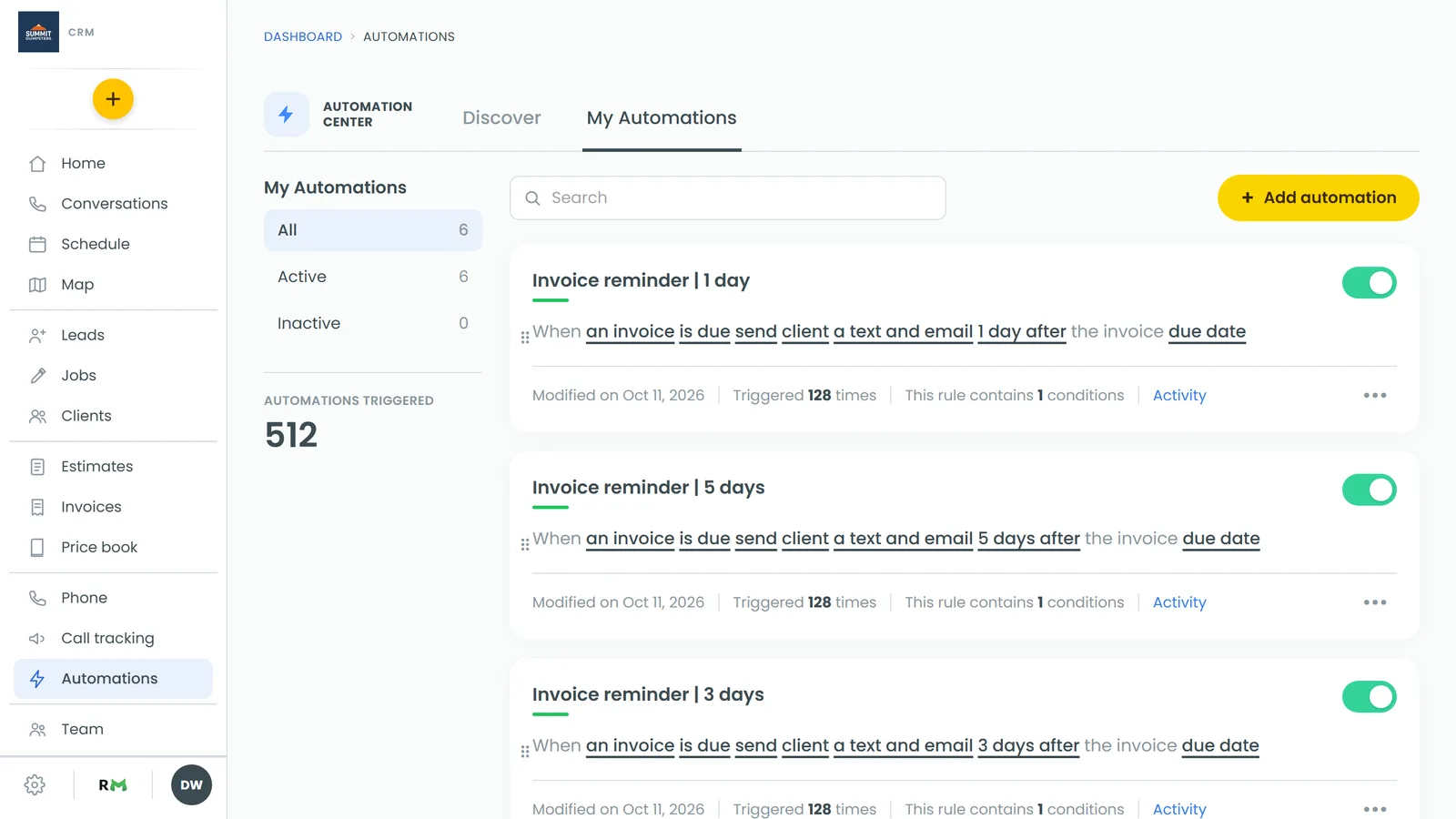
Create a status rule
Every rule reads like a sentence: "When this happens, do this." You click each underlined word to fill it in.
- Click + Add automation.
- Click this happens.
- Under a job, pick has a status. The sentence now reads "When a job has a status of …".
- Click the … and pick one of your job statuses. The list comes from your own statuses, so any you've renamed or added show up here.
Choose what to send
- Click do this and choose what goes out:
- send client a text message, an email, or a text and email
- send your team a text message or an email
- Click within a defined time to set the timing:
- immediately sends as soon as the job reaches the status.
- ahead of or after lets you set a number of minutes, hours or days. Then pick whether to count from the job's schedule date or end date.
If you're sending to your team, a to: line shows up under the sentence with a button for each team member. Click the people who should get it. If you don't pick anyone, it goes to the account owner.
If you have On My Way vehicle tracking connected, you'll also see a linked vehicle line on status rules. You can leave it on none.
Write the message and save
- Click Preview/edit message.
- Write your text. For an email, add a subject as well. Click the short codes under the box to drop in details like the client's first name, the job date or the address.
- Click Save and close.
- Click Add automation.
The rule shows up under My Automations, switched on. If you want to limit it, for example to one job type, add a condition before you save. See Adding conditions to your automation rules.
Use the ready-made template
You don't have to start from a blank rule. On the Discover tab, under Actions, there's a template called Status Notice / Dispatch. It emails your team right away when a job reaches a status. Hover over it, click Use, pick the status, then save it like any other rule.
Good to know
- A status rule runs every time a job reaches that status. That includes a change made in the office, on the phone app, or by a subcontractor from their crew page.
- Only jobs have a status trigger. Estimates and invoices have their own triggers, like is sent.
- is done is a separate trigger under a job. It runs when a job moves to Done, so you don't need a status rule for that.
- When you cancel a job in the CRM, any messages still waiting to go out for it are skipped.
- Review requests and On My Way texts have their own setup, so you don't need a status rule for either.
Related articles
- Creating custom automation rules
- Adding conditions to your automation rules
- Automations short code guide
- How to update a job's status
- How to create sub-statuses