In this article, you'll learn how to duplicate a job. It's the fastest way to book the same work for the same customer again: the address, items and crew come across, and all you have to do is pick a new date.
To open the job you want to copy:
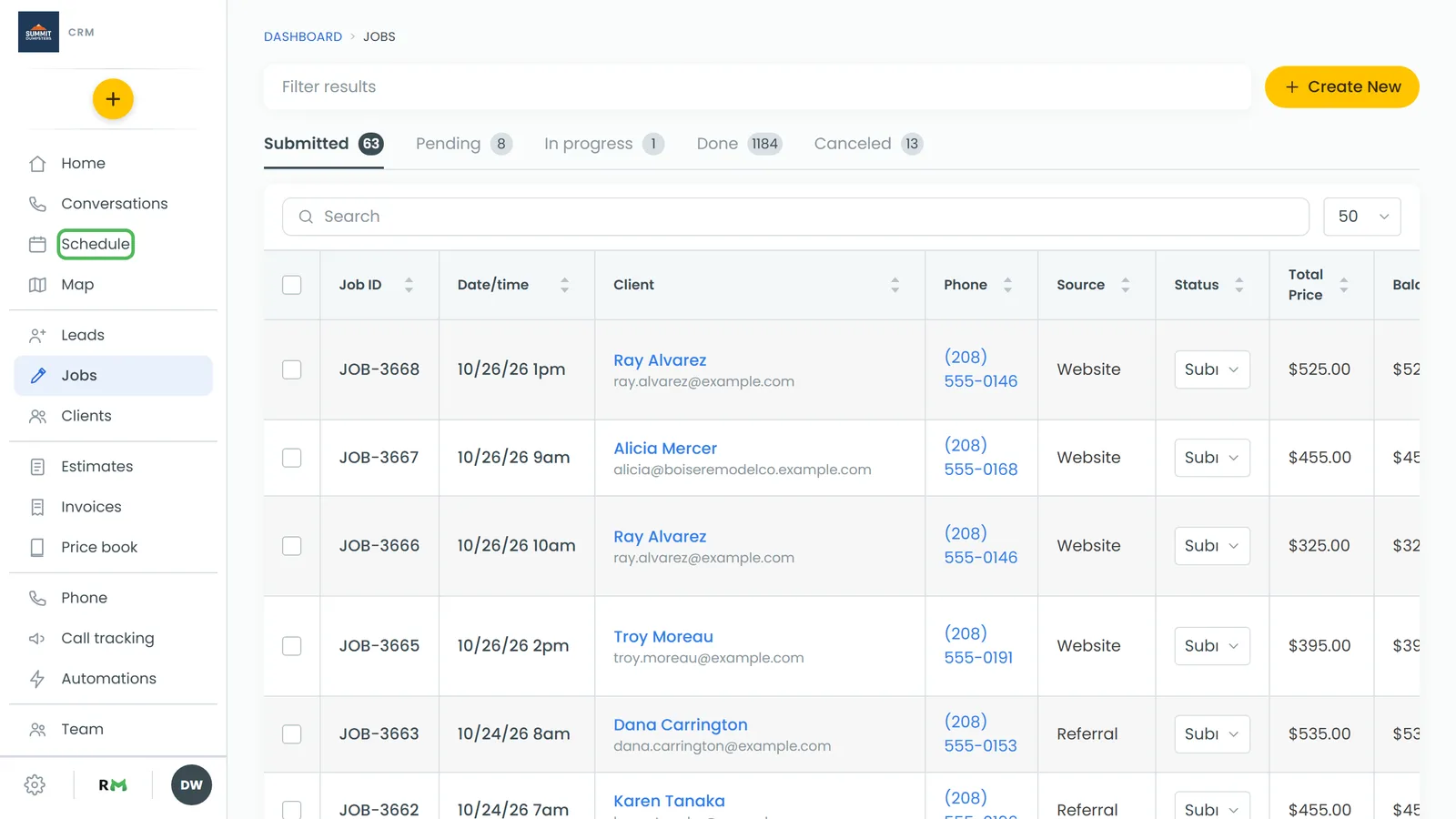
- In the menu, click Jobs.
- Click the job you want to copy.
Note: You can only duplicate a job on the web, on a computer-sized screen. The Actions button sits in the job's header, and that header isn't part of the phone layout or the phone app.
What gets copied
The copy keeps everything that describes the work:
- The customer, plus the name, phone, email and company saved on the job
- The service address
- The job name and description
- The job type and job source
- Custom field values
- The tax rate and any discount
- The items, with their prices
- Tags
- The crew assigned to the job
These stay with the original:
- The schedule (the copy has no date)
- The status (the copy starts as Submitted)
- Payments, invoices and anything else to do with money already collected
- Attachments
Duplicating a job
- On the job page, click Actions at the top right.
- Click Duplicate job.
- The button reads Working… for a moment, then the new job opens. It has its own job number.
The original job doesn't change. If something goes wrong, a message appears under the button. Click dismiss and try again.
Note: The copy counts as a new job, so any automations you've set to run when a job is created will run for it too.
Scheduling the copy
The copy isn't on the schedule yet, so on a computer the Timeline tab under the job reads "not scheduled". Give it a date before you send anyone out:
- On the new job's Details tab, find the Schedule section.
- Set Starts and its At time, then Ends and its At time.
- Check the items, crew and description, and change anything that's different this time.
- Click Save at the bottom of the page.
Tip: The Schedule pickers fill in today at 9:00 AM as a starting point. That's only a suggestion. The copy doesn't go on the calendar until you click Save, so make sure the date is the one you want first.
Tip: If you do the same work on a regular schedule, set up a recurring job instead so you don't have to copy it by hand each time.