In this article, you'll learn how to delete a job and when you should cancel it instead.
Deleting takes the job off your schedule, your lists and your reports for good. It's meant for a job that should never have existed, like a duplicate or a test. If the work was real and just isn't happening, cancel it so your records still show it.
Before you start
- Only an admin can delete a job. If you're not an admin, the CRM stops you with "Only an admin can delete a job."
- Deleting only works in the CRM on a computer. The Actions menu isn't on the job page at phone size, and the phone app doesn't offer it either.
- The CRM won't delete a job that has money on it. If the job has a payment, remove the payment first. If it has an invoice, cancel the invoice first. If the job is the first job of a recurring schedule, cancel the schedule first.
Deleting a job
To delete a job:
- Open the job you want to delete.
- At the top right of the job page, click Actions.
- Click Delete job. It's the red option at the bottom of the menu.
- Read the message that pops up. It names the job and says its items, tags, crew and attachments go with it.
- Click OK to delete it, or Cancel to keep it.
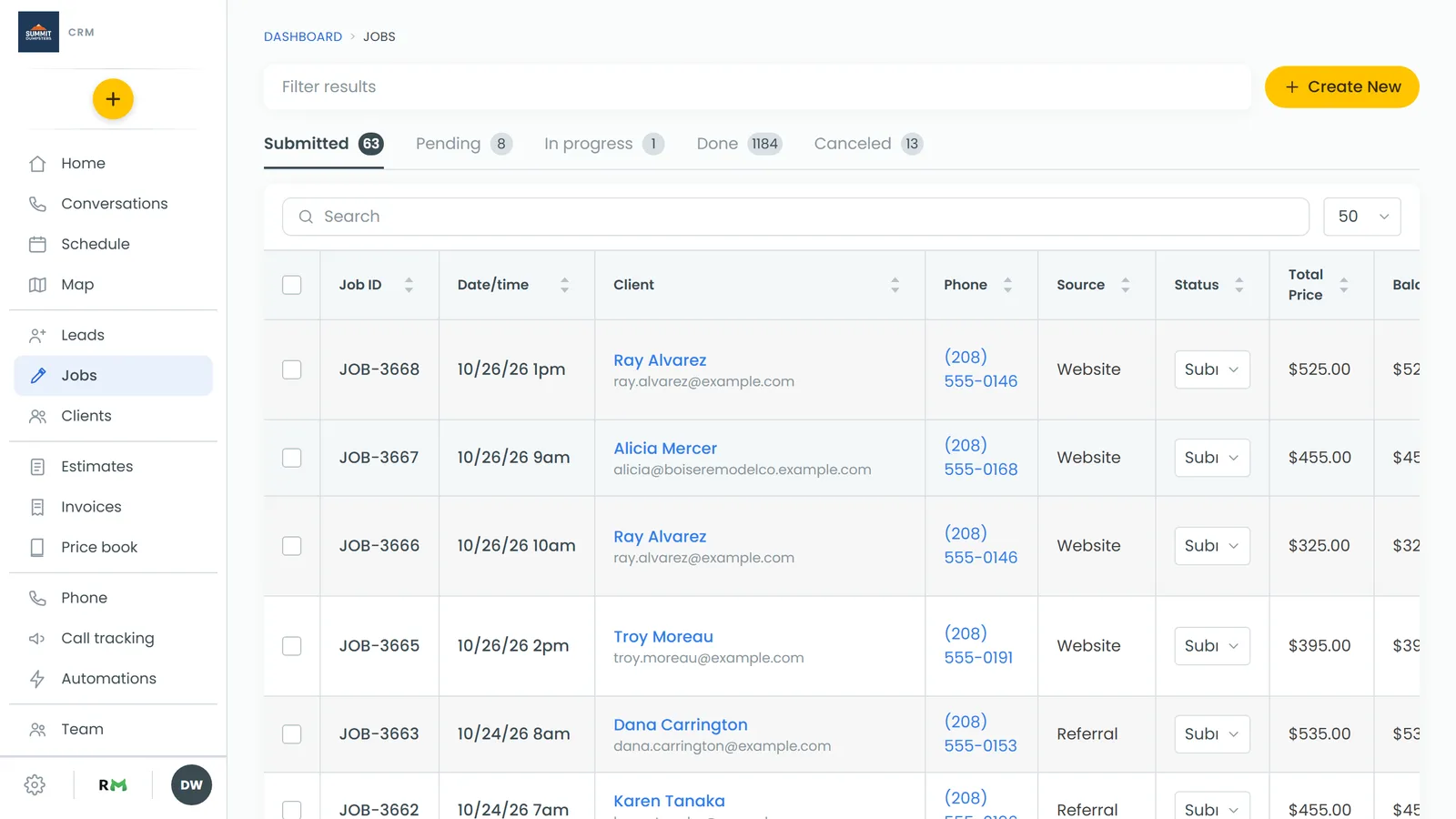
Once the job is deleted, the CRM takes you back to the Jobs list.
If the CRM can't delete the job, a red message under Actions tells you why, like a payment or an invoice still on the job. Sort that out, then try again. Click dismiss to close the message.
What happens to the job number
A deleted job's number is never handed to a new job. It stays on record as voided, so you'll always know what that number was and why it's gone. You'll see a gap in your numbering, which is normal. Learn more in Your job, estimate and invoice numbers.
Canceling a job instead (recommended)
When a job falls through, setting its status to Canceled keeps the history. The job drops off your active work but stays on file, and you can find it later. Your reports can then show how often jobs get canceled, and sub-statuses can show why.