In this article, you'll learn how the CRM numbers your jobs, leads, estimates and invoices, and how to see and look up those numbers in Settings. It's handy when a customer reads you an invoice number off an old text, or when you're wondering why a number seems to be missing.
To open your numbers:
- At the bottom of the menu, click the Settings gear.
- In the General group, click Numbers.
On the phone app it's the same: open the menu, tap the Settings gear at the bottom, then tap Numbers under General. The page shows the same things on both.
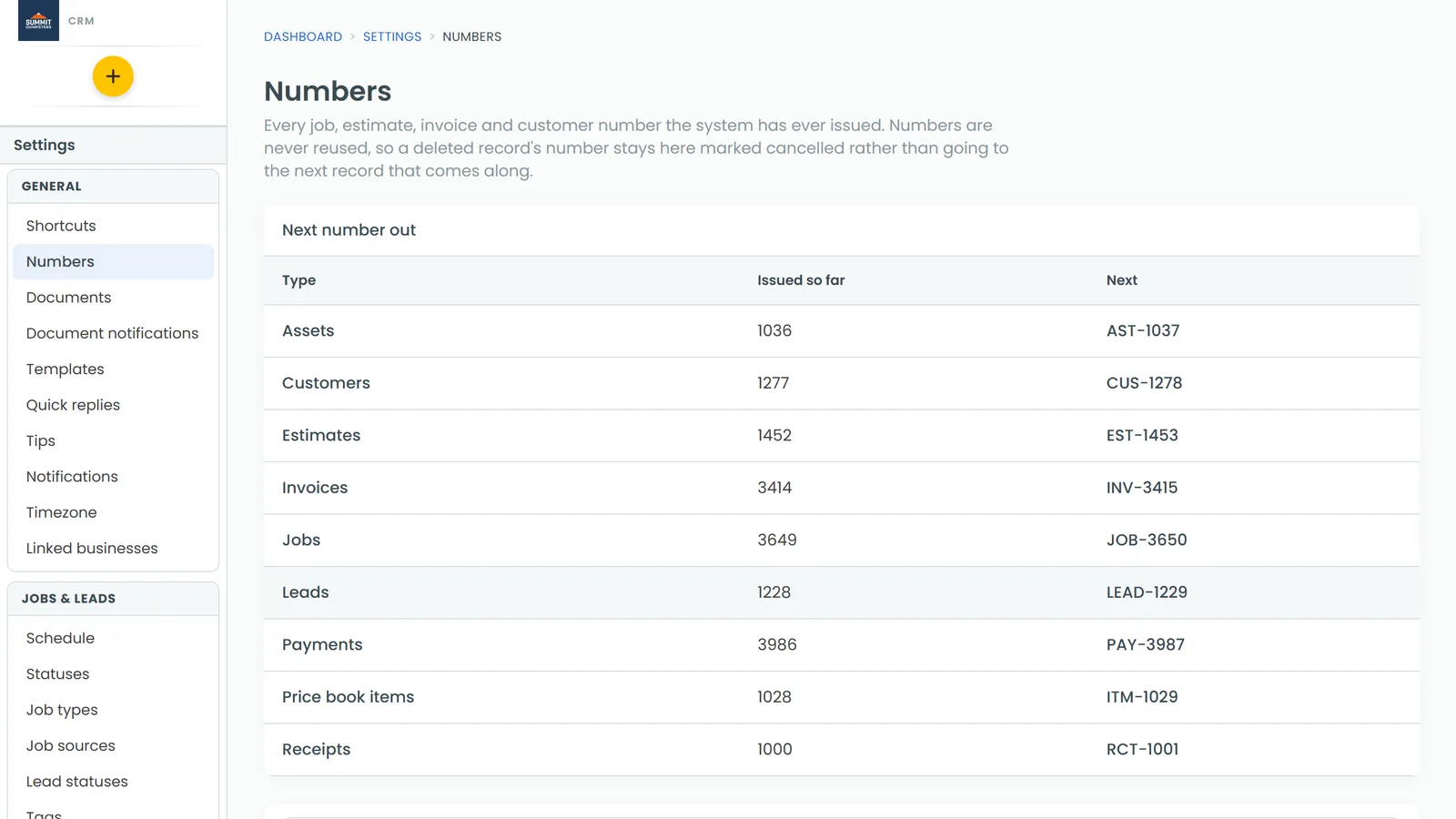
How numbering works
Each type of record gets its own number with its own prefix, and each type counts up on its own. A job looks like JOB-3689, a lead like LEAD-0089, an estimate like EST-1001 and an invoice like INV-1001. Customers, payments, price book items, assets and receipts get numbers too (CUS-, PAY-, ITM-, AST- and RCT-).
A few things to know:
- The CRM hands out every number for you. You don't type them in, and a number can't be changed once it's issued.
- Numbers keep counting forever. They don't start over each year.
- An estimate or invoice you make from a job gets its own EST- or INV- number. It doesn't copy the job's number.
- When you convert a lead into a job, or turn an estimate into a job, the new job gets a brand new JOB- number. The lead or estimate keeps its own number, and the two stay linked.
See the next number out
The Next number out table at the top of the page has one row for each type: Jobs, Leads, Estimates, Invoices, Customers, Payments, Price book items, Assets and Receipts.
- Issued so far shows where that type's counter stands right now.
- Next shows the exact number the next record of that type will get, prefix and all.
Look up any number
Below that is a list of numbers the CRM has issued for your company. With nothing searched, it shows the 25 most recent.
- Click in the box that says Look up a number, e.g. INV-1001 or 3688.
- Type the number. You can type it with its prefix, like INV-1001, or just the digits, like 3688.
- On the web, press Enter. On the phone app, the list updates a moment after you stop typing.
Each row shows the Number, its Type, the day it was Issued and its Status. If nothing matches, you'll see "No number matches" with what you typed.
Why some numbers are missing or cancelled
Numbers are never reused. If you delete a job, invoice or anything else, its number doesn't go to the next record that comes along. It stays on this list with a status that starts with Cancelled, usually "Cancelled — record deleted". Numbers still on a record show In use.
That's why you'll sometimes see a gap, like INV-1041 followed by INV-1043. Nothing went wrong. A record was deleted, and you can look its number up here to see when it was issued.
Related articles
- Choosing your shortcuts and features
- How to customize your account settings
- Converting a lead into a job
- Creating a job from an estimate
- Deleting an invoice