In this article, you'll learn how to edit the texts and emails that go out with your estimates, invoices, reminders and documents. The CRM ships with stock wording. A few minutes here makes every send sound like you.
Every message the CRM sends a customer lives on one page, Settings › Templates. The estimate and document messages can also be changed from the document designer, and the estimate and invoice messages from the send form itself. Whichever place you use, you're editing the same template, so they always match.
To open Templates:
- At the bottom of the menu, click the Settings gear.
- Under General, click Templates.
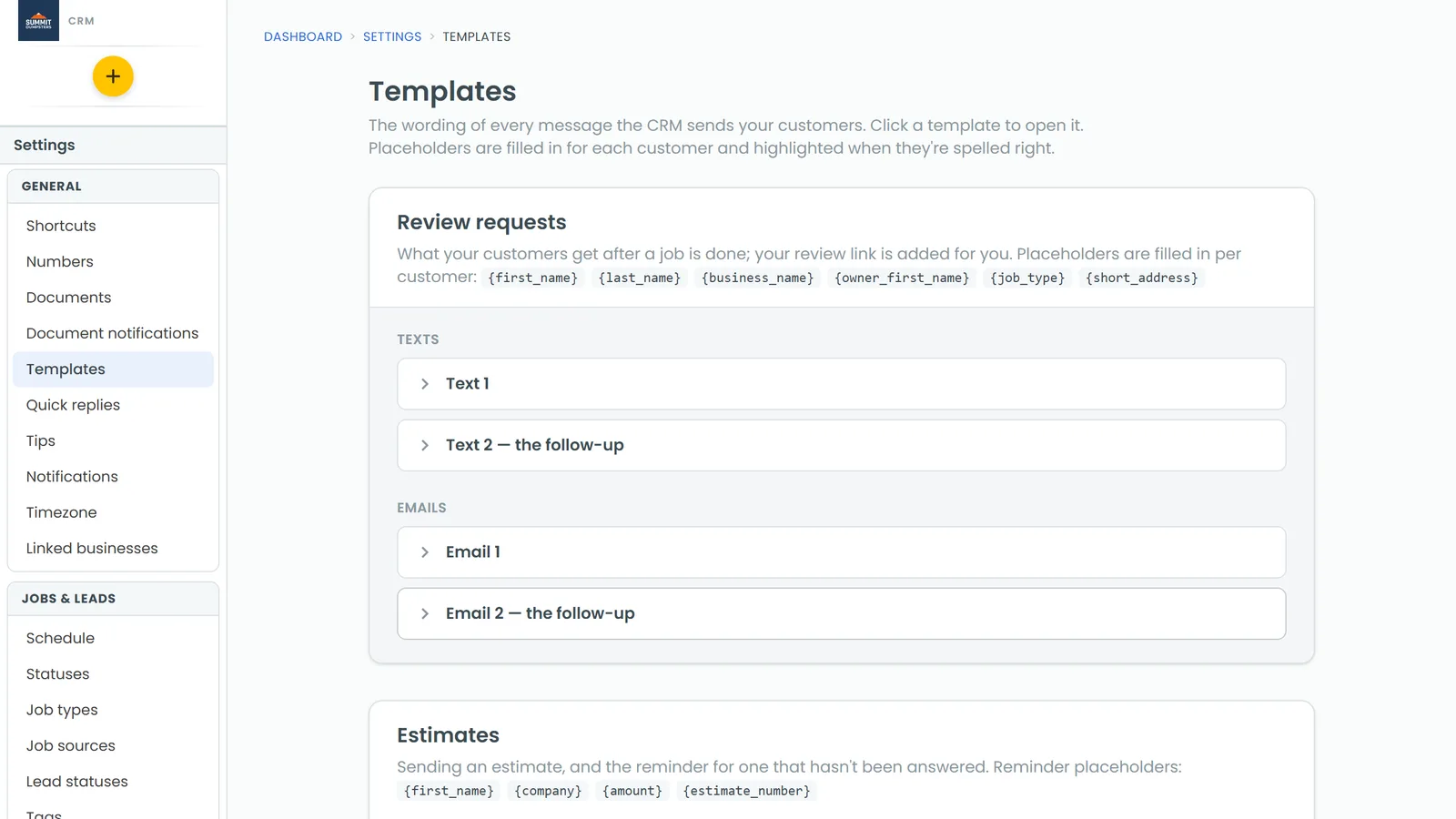
How the Templates page works
The page is a stack of tiles: Estimates, Invoices, Payments, Jobs, Documents, Emailed copies and more. Inside each tile, every template sits closed, showing just its name.
To change a template:
- Click the template's name to open it. A text shows in a phone-shaped box; an email has a Subject and a Message.
- Edit the wording. When you click into a box, Add a field buttons appear underneath. Click one to drop that placeholder where your cursor is.
- Click Save. You'll see Saved next to the button for a moment.
Changed your mind before saving? Click Undo changes. Want the stock wording back? Click Reset to default, then Save.
A template with unsaved edits stays open and shows Unsaved, so you won't lose them by clicking around.
Estimate messages
In the Estimates tile:
- Sending an estimate › Text and email is what goes out when you send an estimate. Subject is used for email. Message (also the text) is the body of the email and the text. The estimate's link is added after it for you.
- Estimate reminders has a Text message and an Email. These go out when you tick estimates on the Estimates list and click Send reminder.
The estimate message uses insert values in double braces, like {{client.firstName}}, {{document.name}} and {{account.myCompanyName}}. The reminders use single braces: {first_name}, {company}, {amount} and {estimate_number}.
Invoice messages
In the Invoices tile:
- Sending an invoice has a Text message and an Email. A View Document link to the customer's portal is added after your words, so nobody can edit it out by accident.
- Invoice reminders go out when you tick invoices on the Invoices list and click Send reminder.
- Printed on the invoice › Terms prints under the line items on every invoice. Leave it blank to print none.
Invoice placeholders are {first_name}, {company}, {amount} and {invoice_number}.
Work orders and custom documents
The Documents tile lists your work orders, contracts and custom documents, each with its own Subject and Message (also the text). These use the same double-brace insert values as estimates, plus every value in the document designer.
You can also edit a document's message from the designer:
- Go to Settings › Documents and click the template's name.
- In the top bar, click Settings. The Document settings drawer opens.
- Edit Subject (the email subject) and Message (the email and text body).
- Click Save.
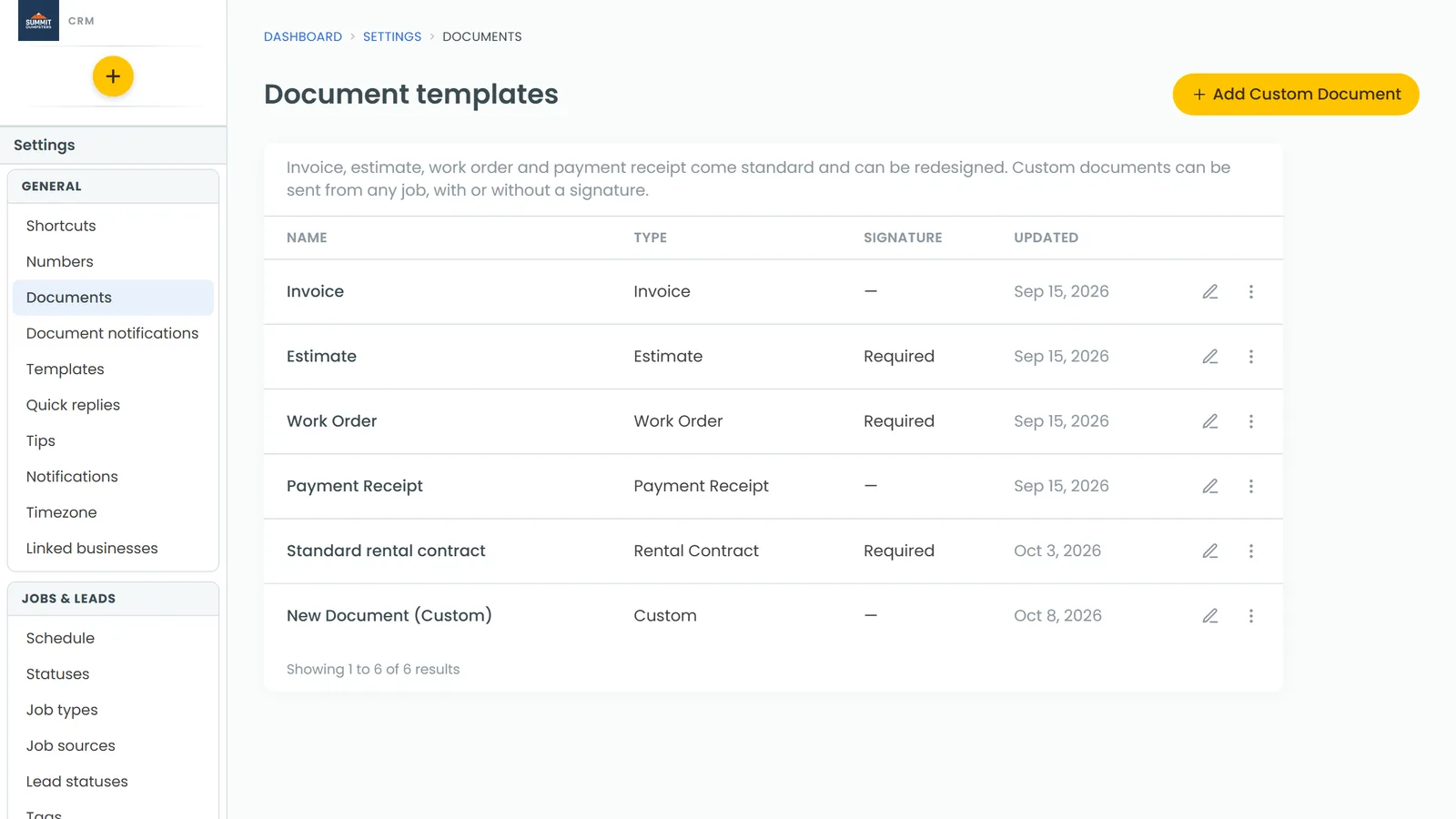
The Estimate template's drawer and the estimate message on the Templates page are the same thing. Change one and the other follows.
Editing the template while you send
You don't have to leave the send form. Both send forms have an Edit template link next to Message.
On an invoice:
- Open the invoice and click Send invoice.
- Pick Via email or Via SMS, then click Edit template.
- Edit the Email template or Text template and click Save template. Every future invoice sent that way uses it.
On an estimate:
- Open the estimate and click Send.
- In the Send estimate pane, click Edit template.
- Edit the template subject and message, then click Save template.
Typing straight into the Message box only changes that one send.