In this article, you'll find quick answers to the questions people ask most about estimates: who they're tied to, what you can change after sending, and what happens once the customer says yes.
To open an estimate:
- In the menu, click Estimates.
- Click the estimate number to open it.
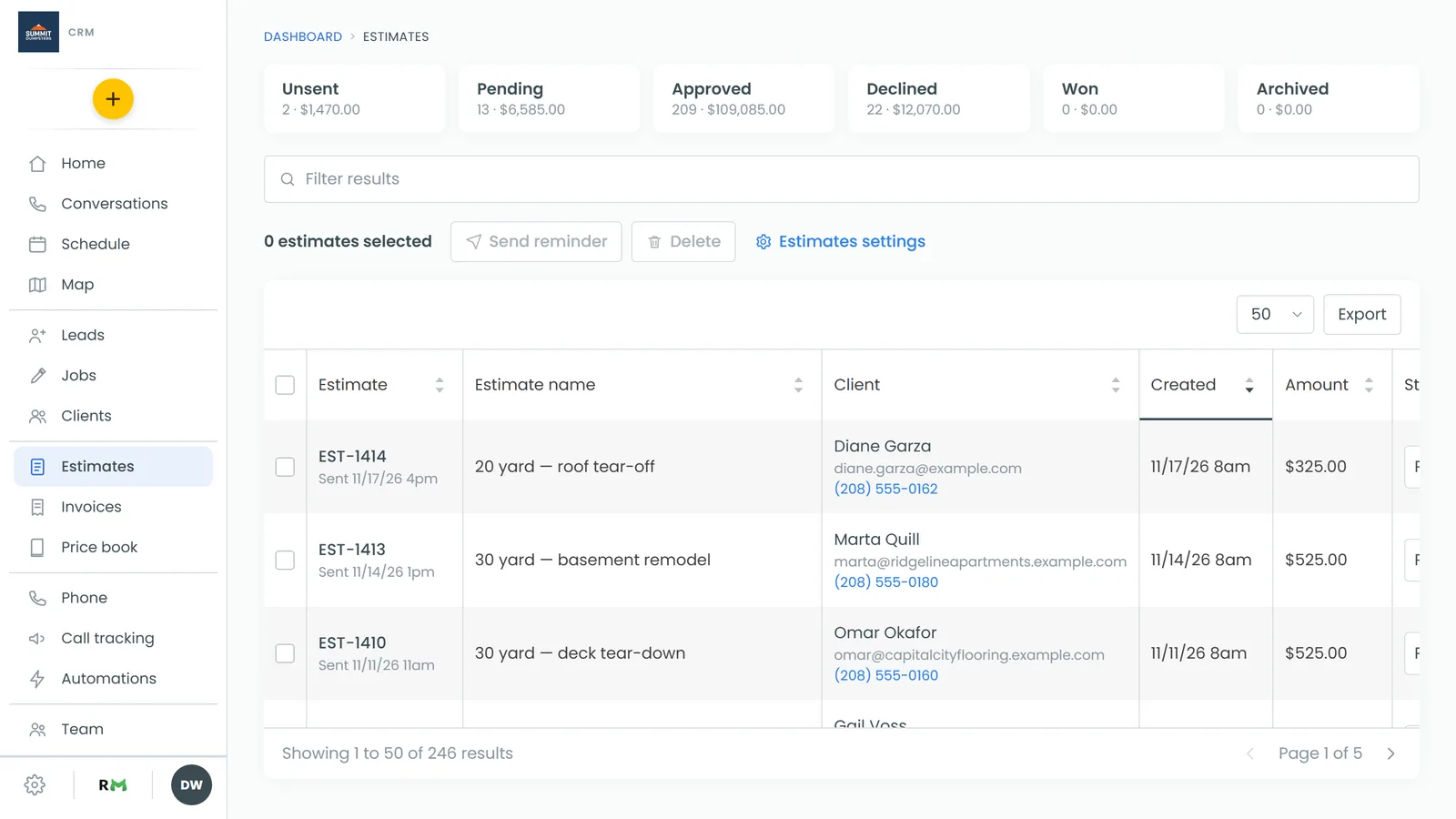
These answers are for the web CRM on a desktop. The phone app has its own estimate screens, covered in Creating and sending estimates on the phone app.
Can I change the customer on an estimate?
No. An estimate stays with the customer it was made for.
You can fix their details, though. At the top of the estimate, the name after Client: is a link.
- Click the customer's name to open their page.
- Change their details there.
The Bill to: block reads the email and phone from the customer's record, so it picks up your changes. If the estimate really belongs to someone else, make a new one for the right customer and delete this one.
Where does the address on an estimate come from?
It's copied on when the estimate is created. An estimate raised from a job takes the job's address, one raised from a lead takes the lead's, and one raised from a customer's page takes their main address. With nothing to copy, Bill to: shows just the customer's email and phone, or No address on this estimate. when there's nothing at all. There's no address field on the estimate page itself.
Why can't I edit this estimate?
If the items, notes, photos, discount, tax and deposit are greyed out and the Add item, Price book and Send buttons are gone, it's one of two things:
- It's on a job. Once you use Create job or Link job, the estimate goes read-only and shows Became with a link to the job. Make your changes on the job.
- It's approved and Lock approved estimates is on. That switch is on the Estimates settings page (there's a link to it on the Estimates page). With it on, an approved or signed estimate can't be changed, so the price the customer signed stays the price.
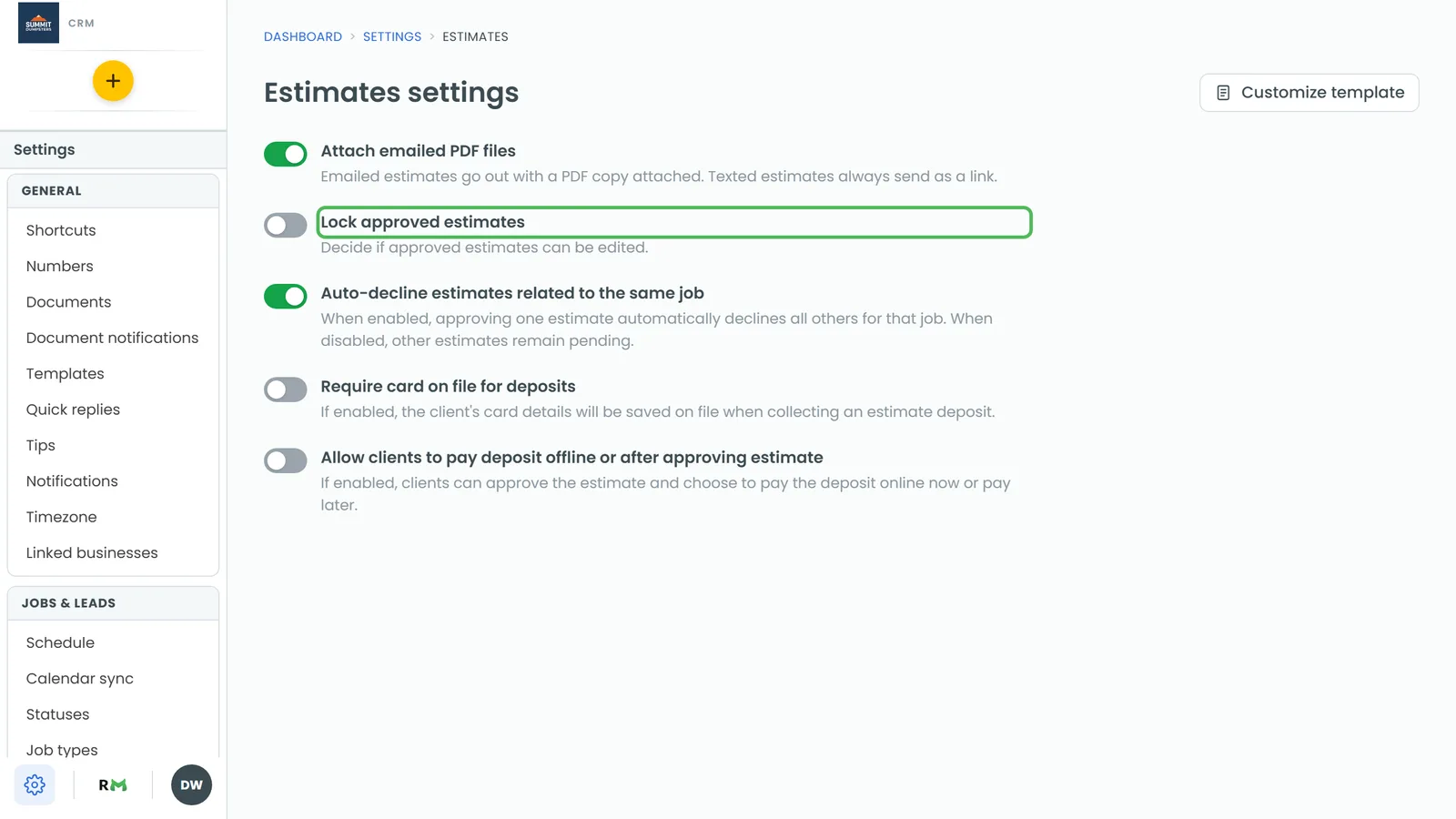
The Status box is greyed out on a locked estimate too, so you reopen it from the list:
- In the menu, click Estimates.
- In the estimate's Status column, pick Pending.
This clears the customer's signature, so they'll need to approve the new version.
Can I edit an estimate after I've sent it?
Yes, as long as it isn't locked or on a job. Open it and make your changes. Each one saves when you click away from the field. To name the estimate, click Add a name next to Estimate name: and type. Click Send Again if the customer should get the updated version.
Why can't I pick Won?
Won isn't something you choose. The CRM sets it when the customer approves and signs, pays the deposit if there is one, and signs any document you required. An estimate with no deposit goes straight to Won when the customer signs. One with a deposit waits as Approved - Pending Deposit until it's paid. The Status list only offers Won on an estimate that's already there.
I have several estimates on one job. What happens when one is approved?
With Auto-decline estimates related to the same job switched on in Estimates settings (it's on by default), approving one estimate declines the other unsent or pending ones on that job or lead. Each declined one records the reason, naming the estimate that was approved. Switch it off and the others stay as they were. Estimates can't be merged into one.
How do I turn an estimate into a job?
Once an estimate is won, click Actions and you'll see two ways:
- Create job opens the New Job form so you can set the date and crew. Make sure the estimate is ticked under Apply the approved estimate to this job?, then click Create.
- Link job lists the customer's open jobs right in the menu. Click one to put the estimate on it.
Either way, the estimate's items become the job's items, any deposit already paid moves onto the job, and the estimate goes read-only. Both options need at least one item on the estimate, and both disappear once the estimate is on a job.
Why didn't my optional items come over to the job?
Only the regular priced items come across. An optional item the customer ticked when they approved becomes a regular item, so it comes over too. Optional items nobody picked stay on the estimate. Add them to the job by hand if you need them.
Does the customer have to sign?
Yes. When a customer approves from the link you sent, they have to add a signature first, and there's no setting to turn that off. The signature is saved on the estimate.
Can customers see estimates I haven't sent?
No. Customers only see estimates that have been sent, and never one you've deleted.
Can I change the date on an estimate?
No. The Date on an estimate is the day it was created, and it can't be edited.
Can I duplicate an estimate?
There's no duplicate option. The Actions menu has Preview as customer, Delete, and the job options above. To reuse the same work, make a new estimate and add the items again. The Price book button makes that quicker.
Can I tag an estimate?
No. Tags go on jobs, not estimates. If you want the work tagged, tag the job the estimate becomes.
Does deleting an estimate free up its number?
No. On the estimate, click Actions, then Delete. The CRM asks you to confirm with Yes, cancel it and says the number stays on record. From the Estimates page you can tick several and click Delete instead. Either way the estimate leaves your lists and the customer's portal, but its number is never handed out again, so you can always tell what a number was.
Where does the estimate number come from?
The CRM numbers every estimate when it's created, counting up from your last one. You can't type your own or change it later. Gaps are normal: a deleted estimate keeps its number.