In this article, you'll learn how to see why a customer turned down an estimate. Once you know the reason, you can decide whether to lower the price, change the scope, offer another date or let it go.
What your customer sees when they decline
When you send an estimate, your customer opens it in the customer portal. At the top of the estimate they see Decline and Approve. The approve button reads Approve & pay deposit when a card deposit is due. On a phone the two buttons sit in a panel at the bottom of the screen, under the Total estimate and Required deposit lines.
If they click Decline, a Decline estimate box opens with the line "Please tell us why you're declining the estimate" and a Select a reason dropdown:
- Too expensive for my budget
- Found a better price or value
- Doesn't align with my needs
- Timeline doesn't work for me
- Personal circumstances
- None of the above
They have to pick one. If they click Decline with nothing selected, the box says "Please select a reason." Cancel closes the box and leaves the estimate as it was.
After they decline, the estimate's status changes to Declined and the portal shows Declined where the buttons used to be. They can't change their answer from the portal after that.
Where you see the reason
The reason is saved on the estimate itself, and shows on both the web and the phone app.
To see why an estimate was declined:
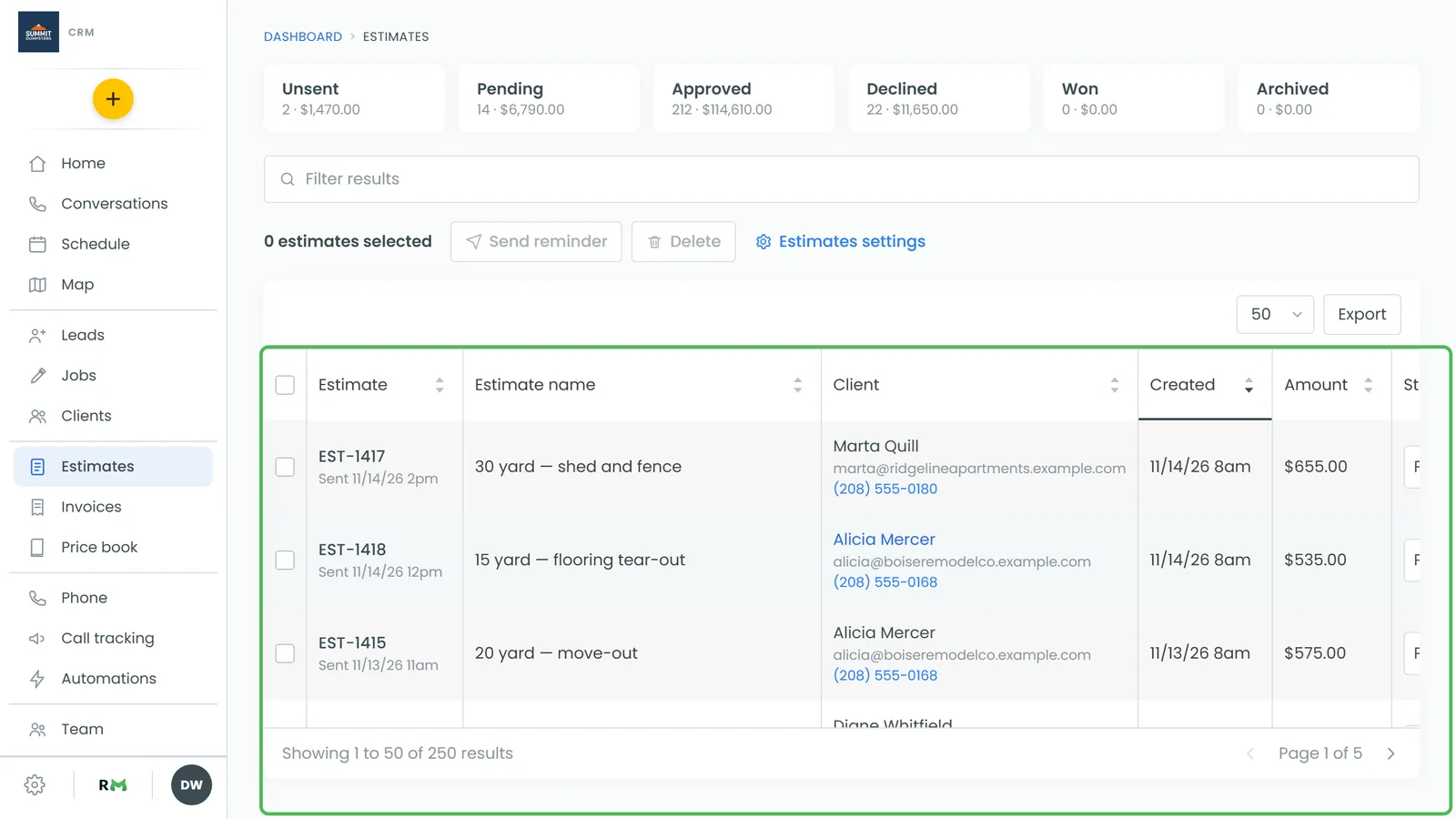
- In the menu, click Estimates.
- Click the estimate number to open it.
- Look for the red box under the totals that starts with Declined. The customer's reason follows it in quotes, like: Declined — "Timeline doesn't work for me".
On the phone app, tap Estimates in the menu, then tap the estimate. The same red Declined box sits at the top of the estimate.
If the box reads Declined — no reason given, the estimate wasn't declined from the portal, because the portal won't accept a decline without a reason. Someone in your office set the status instead.
Getting told when an estimate is declined
You don't have to go looking. The CRM can tell you as soon as a customer declines, and the message includes the estimate number, the amount and the reason they picked, for example: Estimate 1042 for 450.00 was declined by your customer: "Too expensive for my budget".
To choose how you're told:
- At the bottom of the menu, click the Settings gear, then click Document notifications.
- Under Text these numbers and Email these addresses, add the people who should hear about it. Click + Add another for each extra entry, up to ten of each.
- Under What to send for each event, find the Estimate declined row and tick Text, Email and Push the way you want them. All three start out ticked.
- Click Save. You'll see Saved next to the button.
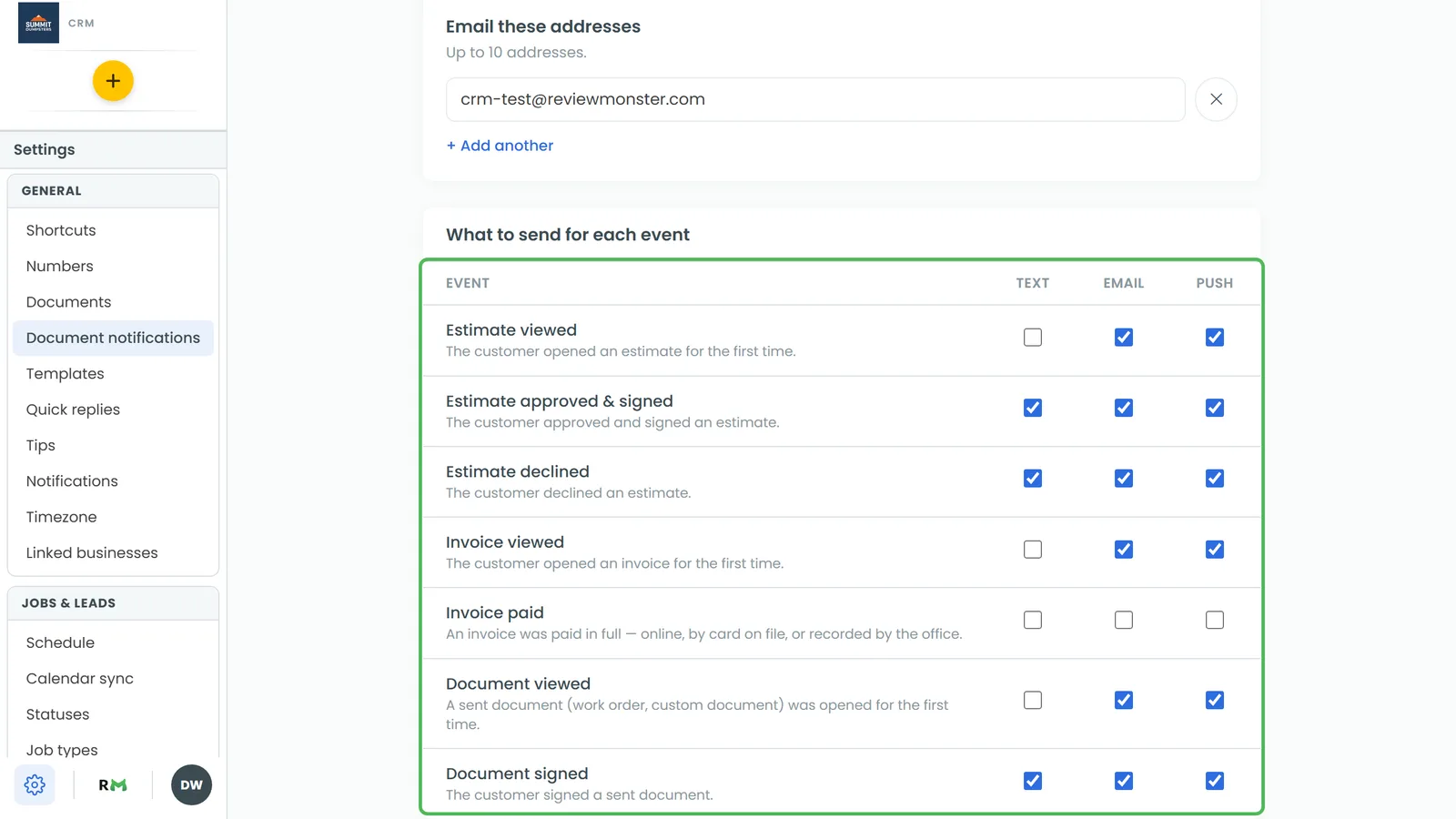
If both lists are empty, the page tells you where texts and emails will go instead: the account owner's phone and email.
The Push box sends an Estimate declined notification to the phone app, and tapping it opens your Estimates list. The app has the same page: open the menu, tap the Settings gear at the bottom, then Document notifications. It has the same two lists and the same Text, Email and Push boxes.