In this article, you'll learn how to create, edit and use quick replies. A quick reply is a saved message you can drop into a text with a couple of taps, so you're not typing "sorry we missed your call" for the tenth time this week.
Quick replies work the same on the web and in the phone app, and they're shared across your whole company. Your account starts with a few ready-made ones, like Missed your call, On our way and Running late, that you can edit or delete.
To open your quick replies:
- In the menu, click Conversations.
- At the top of the screen, click Quick replies in the switch (Conversations | Dialer | Quick replies).
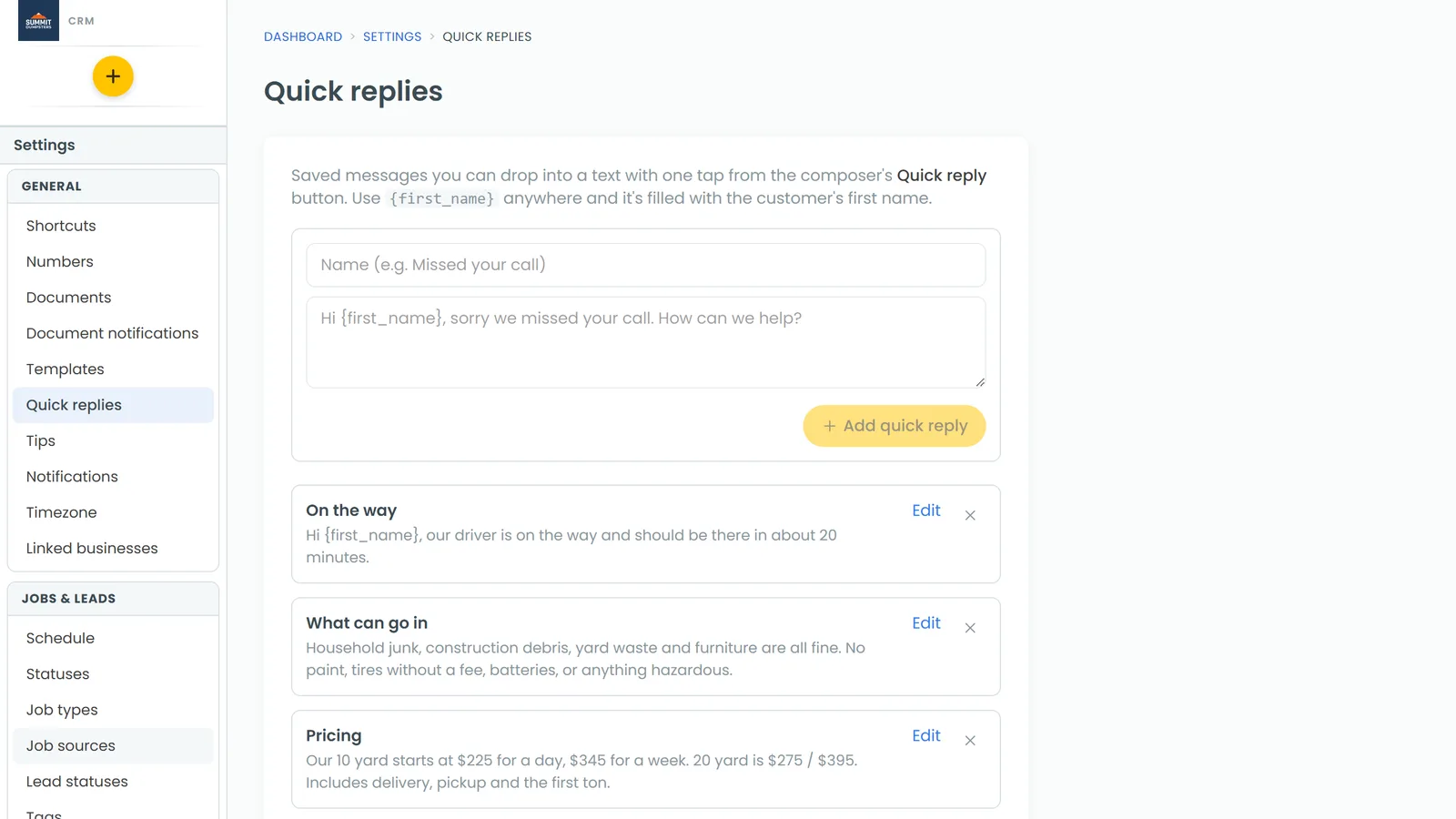
You can also get there from Settings. Under General, click Quick replies. It's the same list either way, so it doesn't matter which one you use.
Creating a quick reply
- Open your quick replies (see above).
- In the Name box, type a short name you'll recognize in the list, like Missed your call.
- In the message box below it, type the message just as you want the customer to read it.
- Click Add quick reply.
The new quick reply shows up in the list right away. The Add quick reply button stays greyed out until both the name and the message have something in them.
Putting the customer's first name in
Type {first_name} anywhere in the message and it's swapped for the customer's first name when you use it. "Hi {first_name}, we're on our way" goes out as "Hi Sarah, we're on our way."
Editing or deleting a quick reply
Every saved quick reply has an Edit link and an X beside it.
To edit one:
- Click Edit next to the quick reply.
- Change the name or the message.
- Click Save, or Cancel to leave it as it was.
To delete one:
- Click the X next to the quick reply.
Using a quick reply in a conversation
- Open a conversation.
- Tap the + beside the message box.
- Pick Quick reply.
- Tap the one you want.
The list shows each message with the customer's first name already filled in, so you see exactly what they'll get. The quick reply lands in the message box and doesn't send on its own, so you can tweak it first. Then send it like any other message.
If the list says "No quick replies yet", you haven't saved any. Add some from Quick replies first.
Related articles
- Text a customer from the CRM
- Conversations overview
- Texting and emailing from the phone app
- Automatically texting back missed calls
- Understanding and using insert values in documents and messages