In this article, you'll learn how to add photos and videos to a text you send from Conversations. A picture of the finished job, the trailer size you're quoting, or the spot where you'll park often says more than a paragraph would.
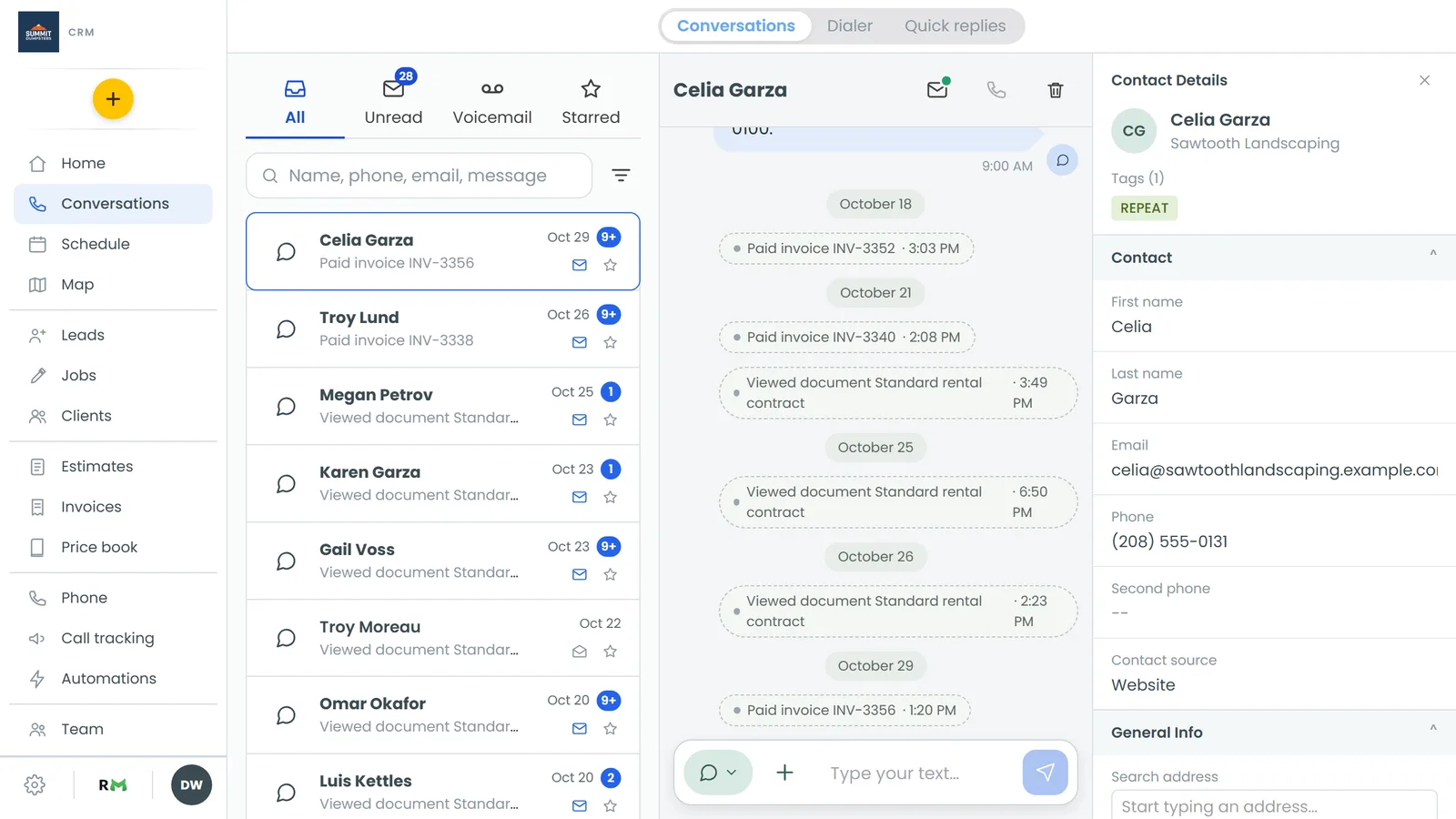
To open a conversation:
- In the menu, click Conversations.
- Click the person you want to text.
Attach a photo or video from the + menu
- In the open conversation, click + beside the message box.
- Pick one:
- Camera takes a new photo with your phone or computer camera.
- Photos and videos lets you pick from your library. You can select more than one at a time.
- Each one you add shows as a small thumbnail above the message box. While it uploads, it shows a spinner.
- Type a message if you want to say something with it. You can also send pictures with no words at all.
- Click Send (the arrow).
If you click Send while something is still uploading, the CRM asks you to give it a moment. Wait for the thumbnails to finish, then send again.
Drag and drop on the web
On the web you can skip the menu and drag files straight in.
- Open the conversation.
- Drag a photo or video from your computer onto the thread. The thread shows Drop to attach.
- Let go. The file shows as a thumbnail above the message box, the same as if you'd picked it from the menu.
- Add a message if you want, and click Send.
Drag and drop is a web feature. In the phone app, use + instead.
Remove an attachment before you send
Changed your mind about a picture? Click the × in the corner of its thumbnail. It comes off the text and nothing else is touched.
How many you can send
You can add up to five photos and videos to one text. Once you hit five, the CRM won't take more. On the web the camera and library options grey out; in the phone app you'll see Up to 5 attachments. Remove one with the × if you want to swap it for another, or send these and start a new text for the rest.