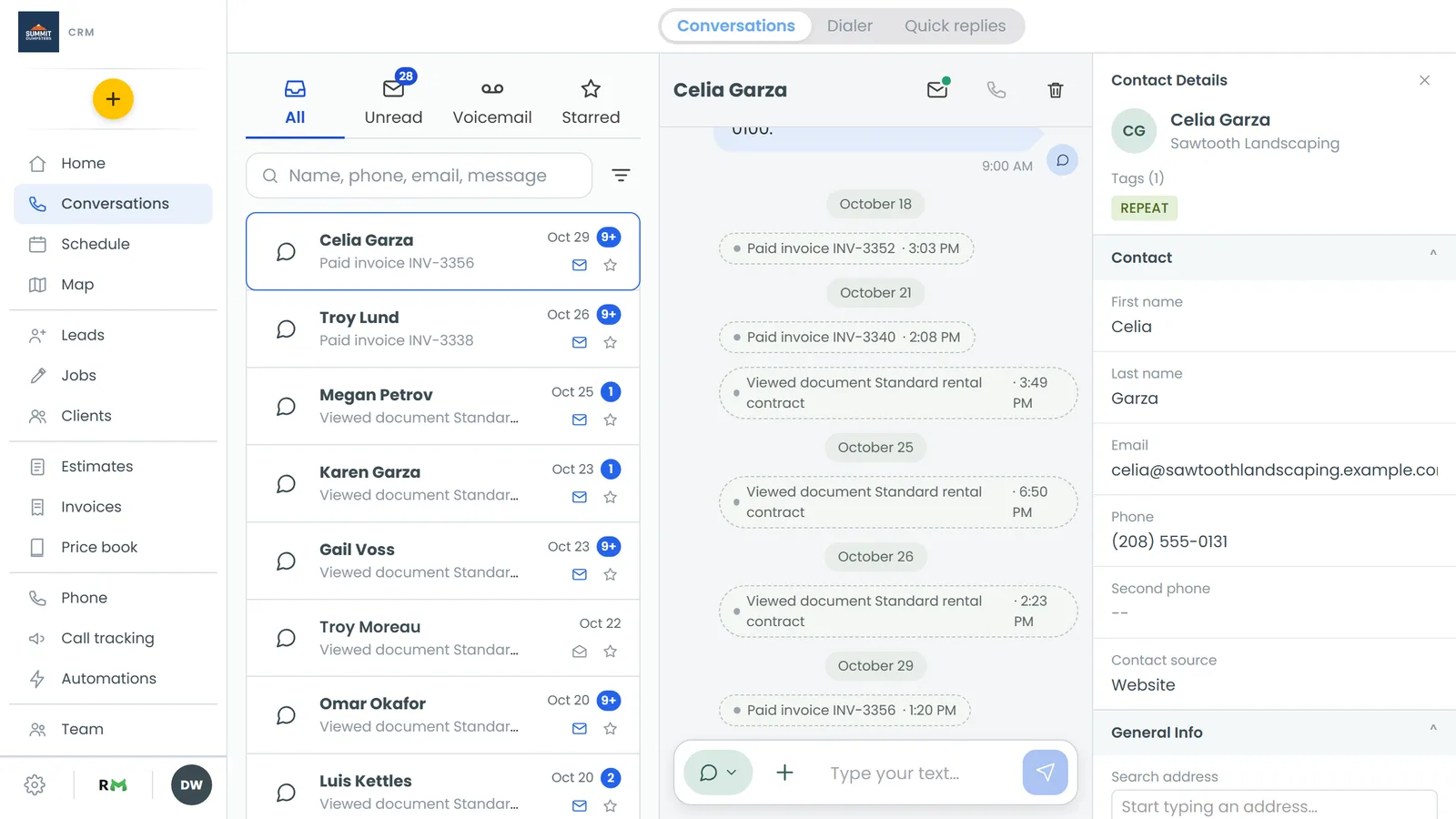
In this article, you'll learn how to send an email to a customer from their conversation thread. Texts, emails and calls with a customer all land in the same thread, so when email's the better fit, like for something longer, you can switch to it without leaving the conversation.
To open a conversation:
- In the menu, click Conversations.
- Click the conversation you want to reply to.
Sending an email on the web
A reply goes out as a text (Message) unless you pick something else. To the left of the message box there's a round button showing the icon of the way your reply will go, with a small arrow beside it. That's where you switch to email.
- Open the conversation.
- Click the round button at the left of the message box. A list opens with the ways you can reach this contact: Message, Email and Facebook message. Only the ones this contact has show up, and the one you're using has a dot beside it.
- Click Email. A Subject box appears above the message box, and the box now reads Type your email…
- Type a subject.
- Type your email.
- Press Enter, or click the send button at the right of the box.
If you leave the subject blank, the CRM fills in a plain one for you ("Message from" and the contact's name). It's worth typing your own so the customer knows what the email's about.
If the email can't go out, it comes back into the box with your subject, and a short note in red under the box says why.
On a narrow screen
When the browser window is phone-sized, the round button isn't there. Click + beside the message box instead. Your choices (Message, Email, Facebook message) sit at the top of that menu. Pick Email, then carry on from step 4.
Sending an email on the phone app
- Open Conversations and tap the conversation.
- Tap + beside the message box.
- At the top of the menu, tap Email. The other choices are Text and Facebook message, and the one you're using has a dot beside it.
- A line above the box shows Emailing and the address it'll go to. Type a subject in the Subject box.
- Type your email in the box that reads Type your email…
- Tap the send button.
Switching back to a text
Email stays picked while you're in that conversation, so your next reply goes by email too. When you want to text again, open the same menu and pick Message on the web, or Text on the phone app.
Photos and videos with email
You can't attach photos or videos to an email from a conversation. On the web, Camera and Photos and videos in the + menu are greyed out while Email is picked. If you need to send pictures, switch back to a text and attach them there.
How emails look in the thread
An email you send shows in the thread like any other message. On the web, its subject sits in bold above the words. On the phone app, an email shows just its subject in bold; tap it to open the full message, and tap again to fold it back up.