In this article, you'll learn how to read the details on each message in a conversation, spot a text that didn't go through, and either resend it or clear it away. It's worth knowing so a customer is never left waiting on a text they never got.
The CRM keeps this simple. A message you sent either went out or it failed. There's no row of delivery stages to keep an eye on.
To open a conversation:
- In the menu, click Conversations.
- Click the conversation you want.
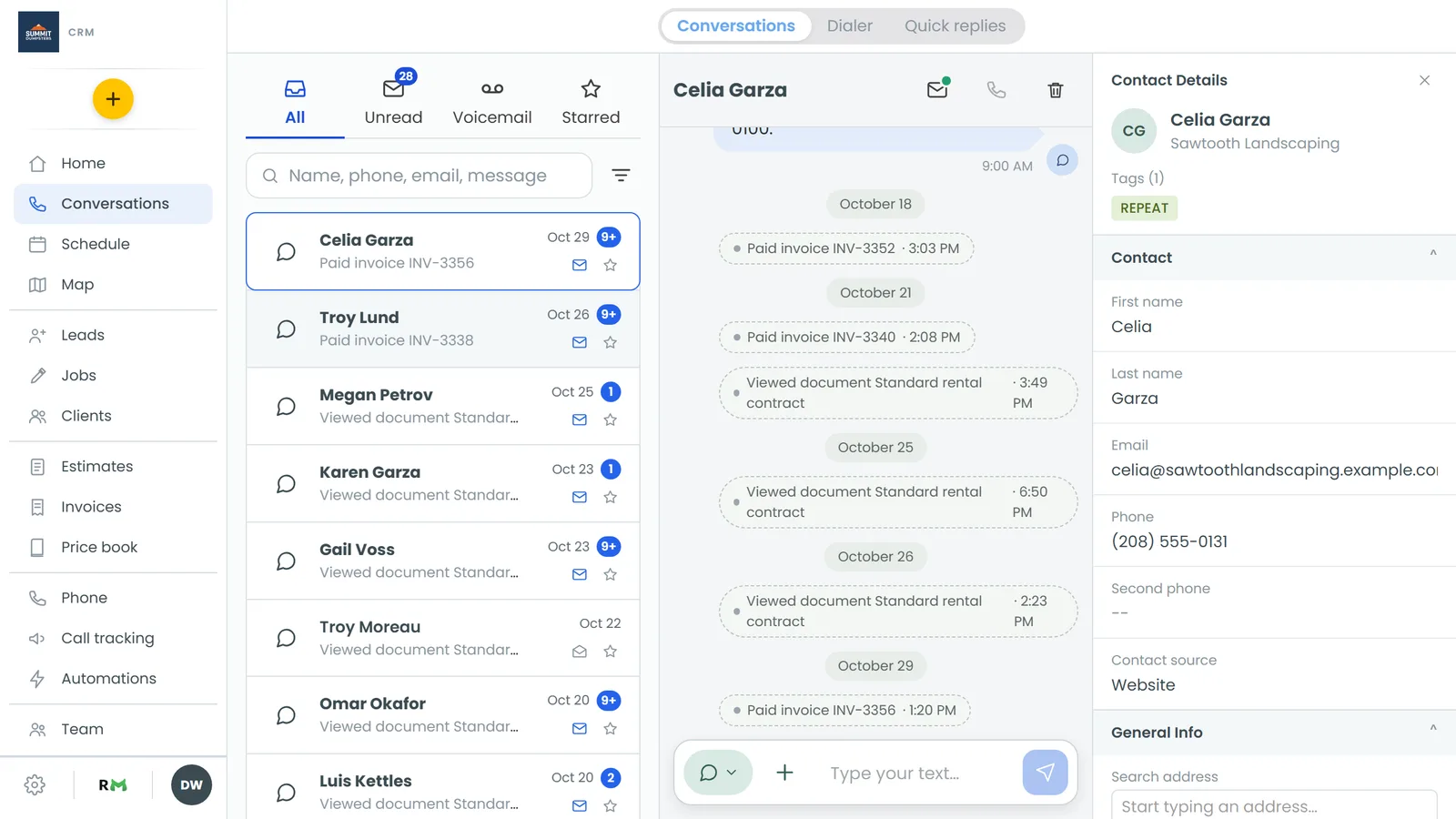
What the line on each message tells you
On the web, every message has a small line of grey text under its bubble:
- The time it was sent or received.
- Your messages also show who sent them, for example "· Sarah".
- Incoming texts say how they arrived: "· by text" for a normal text message, or "· from chat" when the customer wrote to you through the chat on your website.
- A message that didn't go adds "· Failed" in red.
On the phone app, the same details sit in one grey line at the top of the bubble: who sent it (on your messages), how it came in (SMS, Email, Facebook or From chat), and the time. A failed message adds "failed" in red, with the carrier's error code in brackets when there is one.
Retrying a failed text
Texts fail now and then, often because of bad signal or a short carrier hiccup. When one of yours fails, two buttons show up inside the bubble, right under your words: Retry and Remove. They work the same on the web and in the phone app.
- Find the bubble marked "Failed".
- Click Retry.
The CRM sends the same words and pictures again, exactly as you wrote them. The new try shows up as a fresh message in the thread, and the failed one stays where it was as a record of the first attempt. If the retry can't go out either, you'll see why: under the message box on the web, or in a "Message not sent" pop-up in the app.
Removing a failed text
Don't want to resend? Maybe you've already called the customer. You can clear the failed text out of the thread instead.
- Find the bubble marked "Failed".
- Click Remove.
The failed text is deleted from the thread and nothing is sent. Only your own texts that failed can be removed this way. Messages that went through, emails, and anything your customer sent can't be.
When a message is stopped before it sends
Sometimes the CRM won't send a message at all. Maybe the customer is set to do not disturb for texts, or there's a problem with the number. When that happens, the message is taken back off the screen and your words go back into the message box, so you don't have to type them again.
- On the web, the reason shows in red just under the message box.
- On the phone app, a "Message not sent" pop-up tells you why.
Fix whatever the message says, or reach them another way, then send again.
Related articles
- Text a customer from the CRM
- How customers opt out of your texts
- Understanding texting registration (A2P)
- Texting and emailing from the phone app
- Deleting conversations or marking them unread