In this article, you'll learn how to put the same tags on a batch of clients at once. It's the quick way to mark a group of customers by the service they get, or something your team should know, without opening each one.
To open your clients:
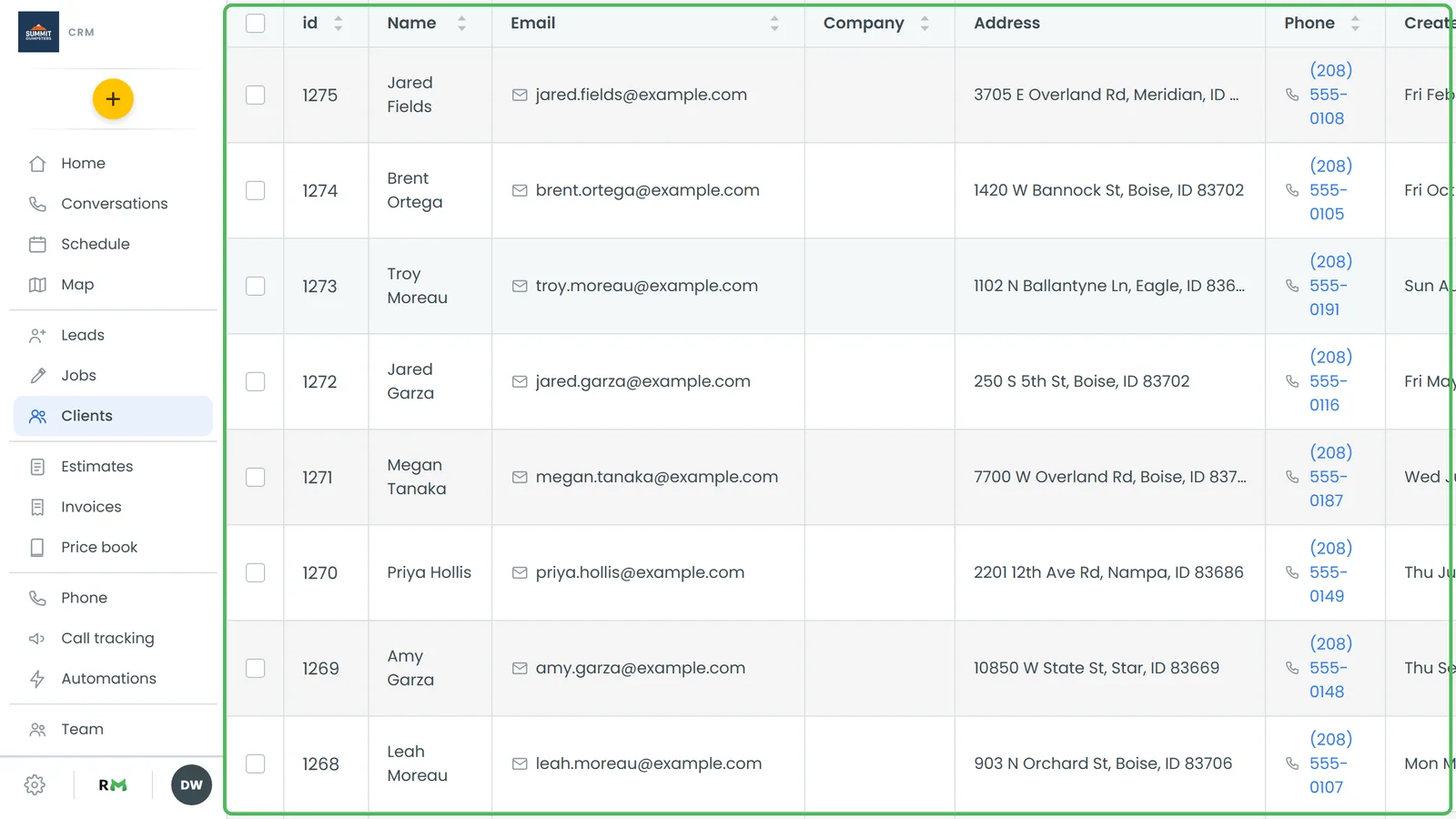
- In the menu, click Clients.
Tagging multiple clients at once
- Tick the box at the start of each client's row. To tick every client on the page, tick the box in the table header.
- Once at least one row is ticked, a tag icon shows up next to the search box. Hover it and it reads Apply tags. Click it.
- The Apply tags window says "Add tags to the N selected contacts. Tags they already have stay put." Click each tag you want. A picked tag fills in with its colour. Click it again to unpick it.
- Click Apply. It stays greyed out until you've picked at least one tag.
- A yellow notice at the top of the list reads "Tags applied — Added to N contacts." The ticks clear, ready for the next batch.
Note: The tags you can pick come from your company's tag list. If the window says "No tags yet. Add them in Settings → Tags.", set some up first. See Creating tags for jobs.
Tip: Ticks only cover the page you're looking at. Going to another page or running a search clears them. To tag a bigger group in one pass, set the rows-per-page dropdown on the right of the toolbar to 100.
Tagging contacts on the phone app
The phone app does the same thing from its Contacts list.
- Tap Contacts in the bottom bar.
- Press and hold a contact. The row ticks and the header changes to "N selected".
- Tap any other contacts you want. Each tap ticks or unticks a row.
- Tap the tag icon in the header.
- Tap each tag you want, then tap Apply.
- A "Tags applied" message tells you how many contacts got them. To back out without changing anything, tap the X in the header.
If you use the CRM in a phone's browser, the Clients page works the same way: press and hold a contact to tick it, and the top bar reads "N selected" with the tag icon and an X.
Tagging one client
To tag a single person, use their own page on the web.
- In the Clients list, click the client's name.
- On the card at the left, click Add tag.
- Type the tag and press Enter. It's saved to the client straight away.
- To take a tag off, click the × on that tag.
Note: Bulk tagging never removes anything. It only adds the tags you picked, and whatever a client already had stays. To remove a tag, open the client and click its ×.
Seeing tags in the list
The Clients list doesn't show tags until you turn the column on.
- Click Fields on the right of the toolbar.
- Under Unselected fields, tick Tags.
- Click Save fields. Each client's tags now show in their own column.