In this article, you'll learn how to bring your existing client list into the CRM from a spreadsheet. If you're moving over from another system, or you keep your customers in a spreadsheet, this saves you from typing each one in by hand.
There's one way to do it: upload a CSV file on the Import clients page. You don't need to send anything to support. Only admins can run an import.
To open the import page on the web:
- At the bottom of the menu, click the Settings gear.
- Under Data, click Import clients.
To open it on the phone app:
- Open the menu.
- Tap the Settings gear at the bottom.
- Under People & data, tap Import clients.
What gets imported
The import only reads these details for each client:
- First name and last name
- Company
- Phone
Everything else in the file is ignored, including addresses, notes and tags. You can add those on each client's page afterwards.
Only clients come in this way. Jobs, leads, estimates, invoices and price book items can't be imported, so you'll add those in the CRM as you go.
Getting your file ready
Your file has to be a CSV with a header row first and one client per row after it. Most spreadsheet programs and other CRMs can save or export a list as a CSV.
The import finds each column by its header. Capital letters and extra spaces don't matter. These headers work:
- First name: First Name, Firstname or First
- Last name: Last Name, Lastname or Last
- Full name in one column: Name, Full Name, Client Name or Customer. The first word becomes the first name and the rest becomes the last name.
- Company: Company, Company Name or Business
- Email: Email or Email Address
- Phone: Phone, Phone Number, Mobile or Cell
If a header is spelled differently, rename it in your spreadsheet before you save the CSV.
Importing the file
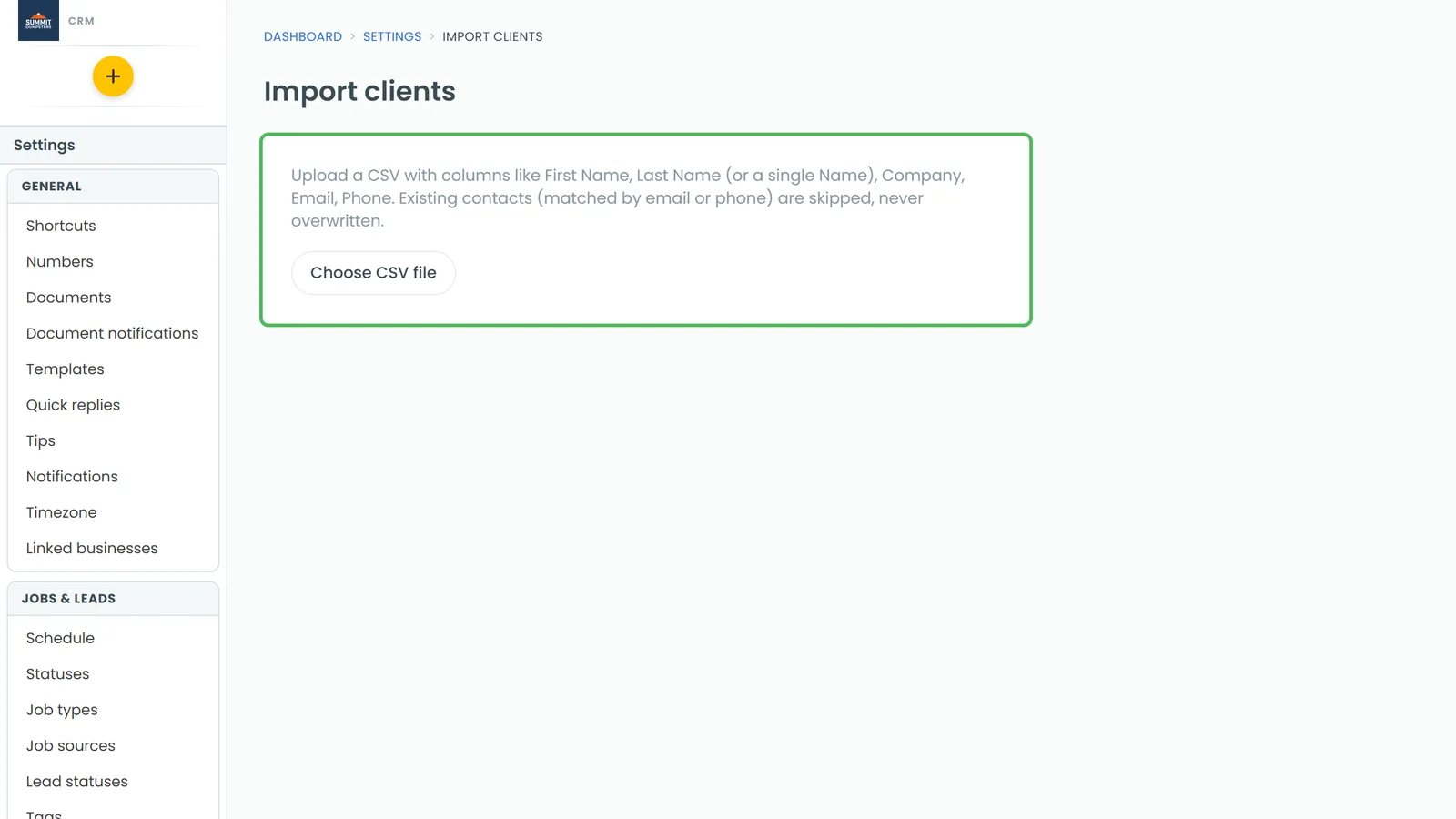
- On the Import clients page, click Choose CSV file and pick your file.
- The page reads the file and shows how many rows are ready, with a preview of the first five under First, Last, Company, Email and Phone.
- Check the preview. If names are in the wrong place, fix the headers in your file and choose it again.
- Click Import {number} clients.
When it's done, you'll see how many clients were imported and how many were skipped.
Every client brought in this way gets Import as their source, so you can tell them apart from customers who called, texted or booked.
How duplicates are handled
Before it adds anyone, the import checks the email and phone number on each row against the clients you already have.
- If they match an existing client, no new client is made. Any fields that are blank on that client get filled in from your file. Anything you've already entered stays as it is.
- If the same person is in your file twice, they're only added once.
- Rows with no name, company, email or phone are skipped.
Because of this, the imported number can be lower than the number of rows in your file.
If something goes wrong
- CSV needs a header row plus data rows. The file is empty or only has one line. Make sure the headers are on the first row and your clients are underneath.
- No recognized columns. None of the headers match the list above. Rename them, save the file as a CSV again, and choose it again.
- Import failed: admins only. Only an admin can import clients. Ask an admin on your account to run it.
Related articles
- How to add new clients
- Managing client details and history
- How to merge duplicate clients
- How to create jobs
- Tracking where your customers come from