In this article, you'll learn how to merge duplicate clients. It happens to everyone: a customer calls from a new number, someone types their name a little differently, and now there are two records for one person. Merging folds them back into one so the whole history is in one place.
What happens when you merge
You pick one record to keep, the target client. Every other record you merge into it is moved across and then removed.
- Their jobs, estimates, invoices, payments, addresses, notes and message history move onto the client you keep.
- Anything blank on the kept record is filled in from the duplicate, like a missing email, company or second phone. Anything you already typed on the kept record stays as it is.
- Tags from both records are combined.
- If the duplicate has a phone number the kept client doesn't have, it becomes the kept client's second phone, as long as that line is empty. Otherwise only the kept client's numbers stay.
- If either record was marked Do Not Disturb, the kept client is too.
Merge from the Clients list
This works on the web and in the phone app, and you can merge more than two records at once.
To open your clients:
- In the menu, click Clients.
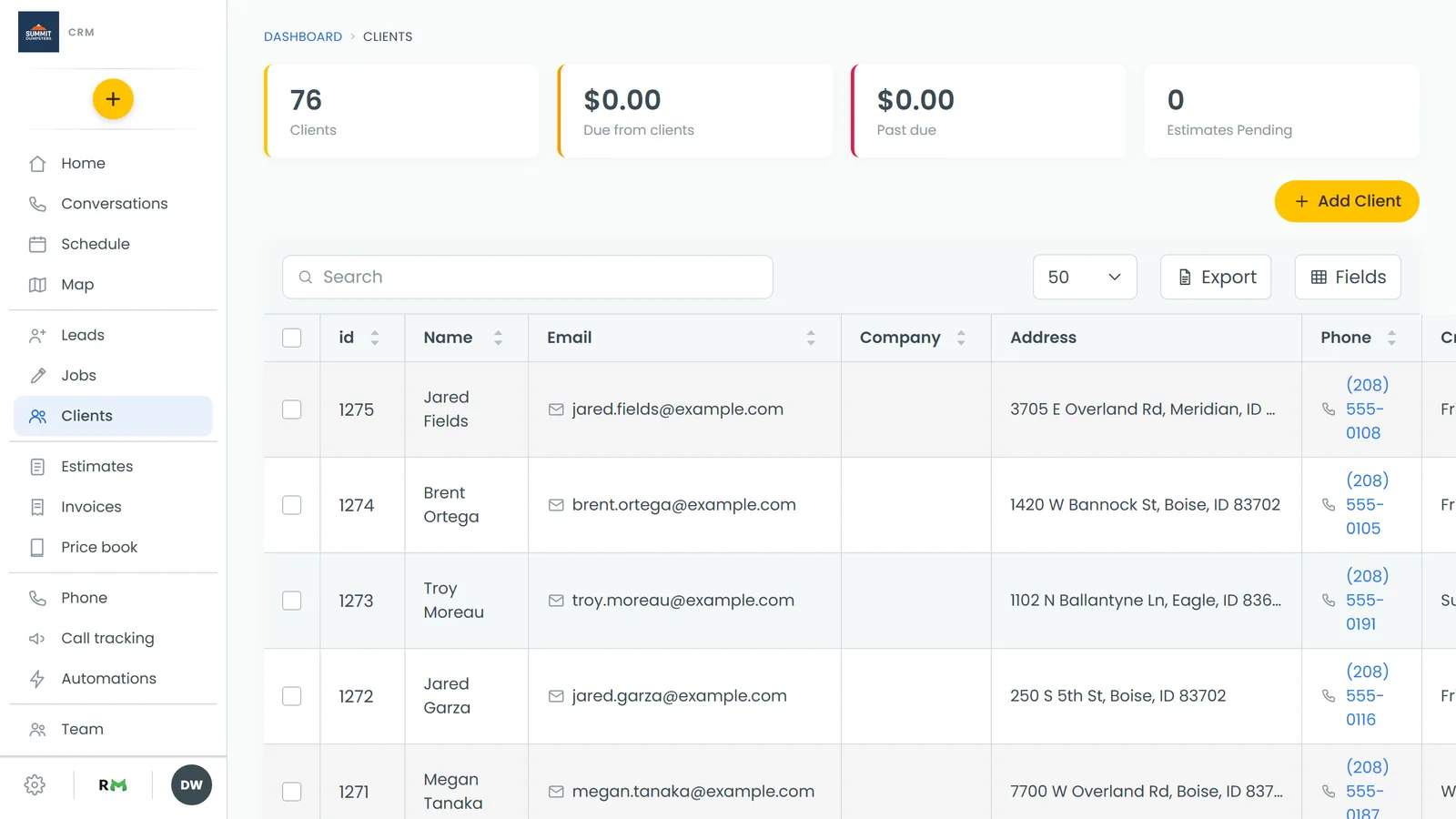
On the web
- Tick the box next to each record that belongs to the same person. Search first if it helps you find them.
- Once two or more are ticked, click the Merge icon above the list.
- Under Target client, open Select client to merge to and pick the record you want to keep.
- Read the line that says The following clients will be merged with your chosen client and removed: and check the names listed under it.
- Click Next.
- You'll be asked Are you sure you would like to merge these clients? Click Yes, merge to finish, or Cancel to back out.
In the phone app
- Open Clients from the menu.
- Press and hold the first record until it's ticked, then tap each of the others.
- The top bar now shows how many are selected. With two or more, tap the Merge icon.
- Under Target client, tap the record you want to keep.
- Check the names under The following clients will be merged with that client and removed:, then tap Next.
- Tap Yes, merge.
Merge from a client's page
On the web, an admin can also start from the record you're keeping and pull the duplicate into it. This one is on the desktop layout only, and it merges one duplicate at a time.
- Open the client you want to keep.
- Click the ⋮ next to their name.
- Click merge.
- In the Duplicate customer box, start typing the duplicate's name and pick it from the list.
- Click Merge into this customer.
When it's done, the panel tells you how many records moved across, for example "Merged — 6 records moved across."
When a client won't delete
The CRM won't delete a client who has a job, an invoice or a payment on record, because that would leave money in your books with no name on it. If you were trying to delete a duplicate and got that message, merge it into the record you're keeping instead. Its jobs and payments move over and the duplicate goes away.