In this article, you'll learn how to find a job, client, lead, estimate, invoice, payment or receipt quickly, whether you know its number, the customer's name, a phone number or part of an address. It beats scrolling through lists while a customer waits on the phone.
The CRM has three kinds of search: one box that looks through everything, a search box on each list, and a search built into the schedule.
The everything-search
To open it on the phone app:
- Open the Home screen.
- Tap the magnifier at the top right of the dark header.
- Start typing. Results fill in under the box once you've typed at least two characters.
- Tap a result to open it, or tap anywhere outside the box to close it.
To open it on the web:
- On a phone-size screen, tap the magnifier in the top bar.
- Start typing. Results show up in groups once you've typed at least two characters.
- Click a result to open it, or press Escape to close the search.
What you can type
- A number with its prefix, like JOB-3723, INV-1042, EST-1001, LEAD-0089, PAY-1001 or RCT-1001. The prefix tells the search which kind of record you mean.
- Just the digits, like 3723. The search checks every kind of number at once.
- A client's first name, last name, company or email. For a full name, type the first name, then the last.
- A phone number. Type at least four digits, with or without dashes.
- A job name or part of the service address.
- A lead's address, phone or notes.
- A receipt's vendor.
- If you use Asset Tracking, a unit's number (AST-1001) or name.
Each result is a link. A job opens the job and a client opens their page. On the web, an estimate or invoice opens the document itself, a lead opens the Leads list already filtered to that lead's number, a payment opens its job, and a receipt opens the Receipts page.
Searching your clients
To search your clients on the web:
- In the menu, click Clients.
- Click the Search box at the top left of the list.
- Type a name, company, email or phone number. The list narrows as you type, and it searches every client you have, not just the page you're looking at.
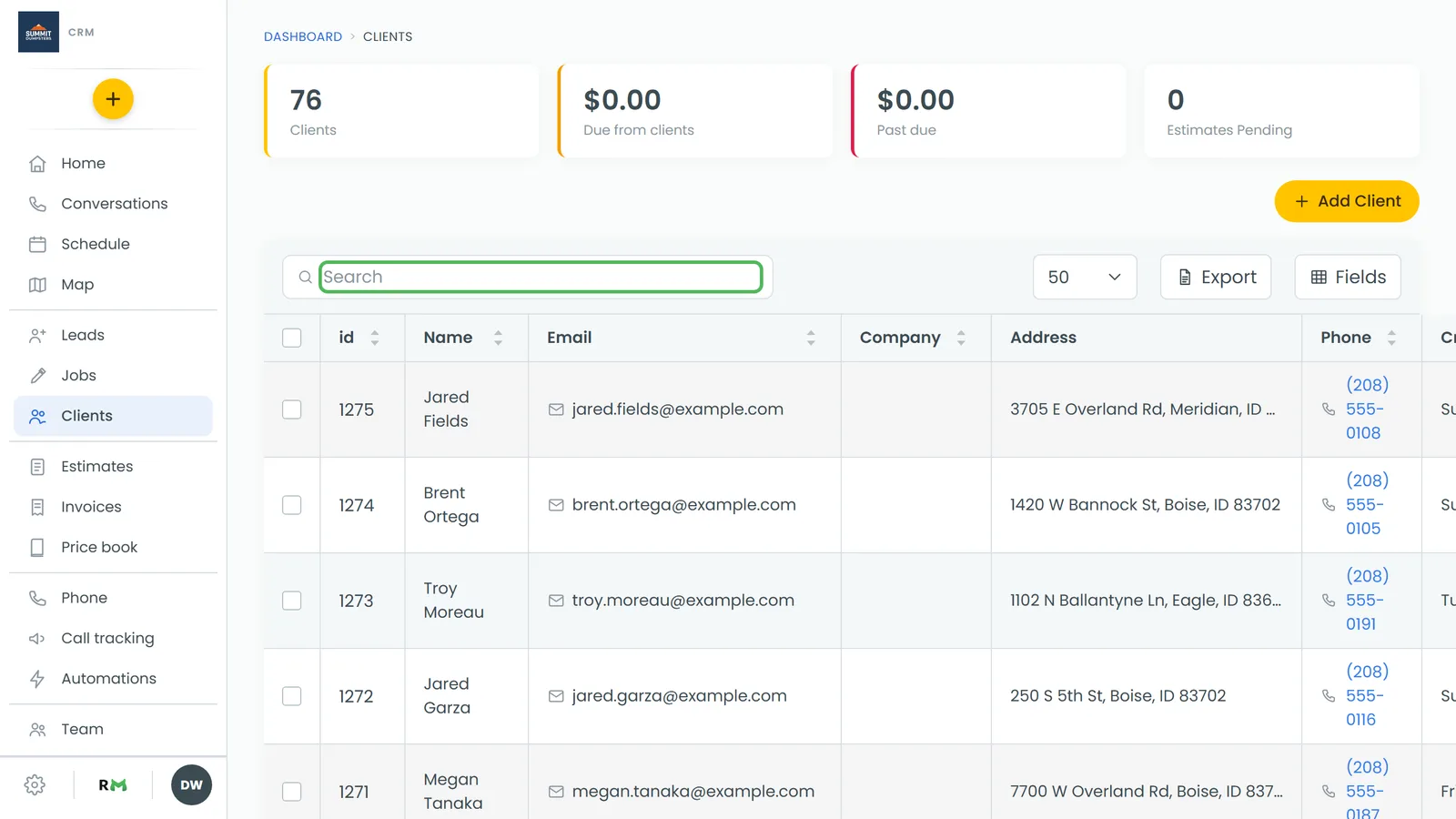
Results come back in order of what matched. If you type words, name matches come first, then company, email, phone and address. If you type a number, phone matches come first. If you've sorted by a column header, that order wins.
On the phone app, open Clients from the menu and type in the box at the top of the list. It takes a name, phone, email or company. The magnifier in the header drops you straight into that box.
Searching leads, estimates and invoices
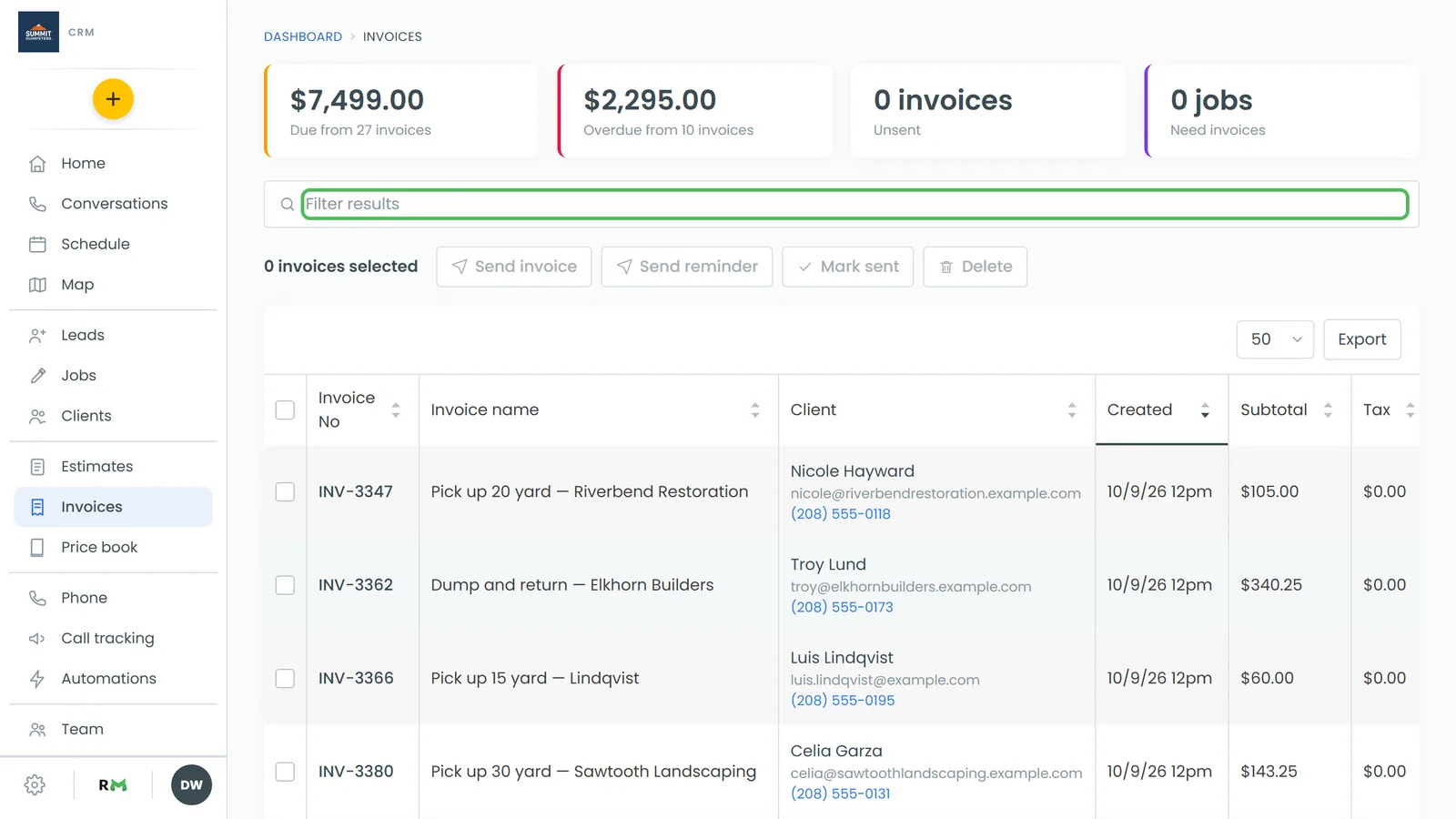
These three lists each have a Filter results box above the table. It narrows the list as you type.
- Leads: a lead number, name, email, phone, address, city or status. A lead number finds the lead even if it's marked Lost.
- Estimates: the estimate number or name, the client's name, email or phone, the status, the source or the job number.
- Invoices: the invoice number or name, the client's name, email or phone, the status, or the job number or name.
Searching the price book
To find an item or category:
- In the menu, click Price book.
- Type in the Search box at the top left of the table. On the items list it checks the item number, name, description and category. On the categories list it checks the name, description and parent category.
Searching the schedule
The schedule has its own search, so you can find a job without leaving the calendar.
To search the schedule on the web:
- In the menu, click Schedule.
- In the toolbar, click the magnifier to the right of the filter button.
- Type a customer's name, company or email, a job number, a job name, part of an address, city or ZIP, a phone number (three digits or more), a job type, a status, a source, a tag, or words from the job's description or notes. The calendar only shows the jobs that match.
- Click the ✕ in the box to clear it. To clear it and close it, press Escape.
On the phone app, tap the magnifier in the schedule header. A search box opens under it, and Done closes and clears it. On the web, you get the same search on a phone-size screen.
Related articles
- Find your way around the CRM
- Your job, estimate and invoice numbers
- What's on your Home screen
- Finding done or canceled jobs
- Managing client details and history