In this article, you'll learn how to change the voicemail greetings callers hear when nobody picks up, and how to set the closed days that switch your phones to the after-hours greeting. It's worth a few minutes: a greeting with your business name and a clear next step gets you more messages and fewer hang-ups.
Your greetings belong to the whole company, not to one number. Whatever you write here is used on all of your numbers. You don't record anything yourself. You type the words, and the CRM records them for you in a natural-sounding voice.
To open your voicemail greetings on the web:
- In the menu, click Phone. This opens Settings › Phone numbers.
- Scroll down to the Voicemail greetings card.
To open them in the phone app:
- Open the menu and tap the gear at the bottom.
- Tap Phone numbers, then scroll down to Voicemail greetings.
The card and the steps are the same in the app as on the web.
The three greetings
The card has three boxes, one for each moment a caller might reach your voicemail:
- During business hours: plays when a call comes in while you're open and nobody answers.
- After hours: plays when the call comes in outside that number's hours, or on a closed day.
- After-hours urgent prompt: plays right after the after-hours greeting, but only on numbers that let callers press 1 for something urgent. Use it to tell people what pressing 1 does.
Which of the first two a caller hears depends on the hours set for the number they called. You set those on each number's Hours tab. See Choosing who your calls ring for how that works.
Changing a greeting
- Click into the box for the greeting you want to change and type the new words. Each greeting can be up to 500 characters.
- Under the box you'll see Save to record these words. Click Save and record.
- Wait a few seconds while it records. On the web the button reads Recording… while it works.
- When it's done, the button reads Recorded and a player appears under the box so you can listen to it.
Going back to the default wording
If you've changed a greeting and want the original back, click Use the default next to the save button. The CRM swaps in the default words and records them again. The link only shows on greetings you've changed.
Setting closed days
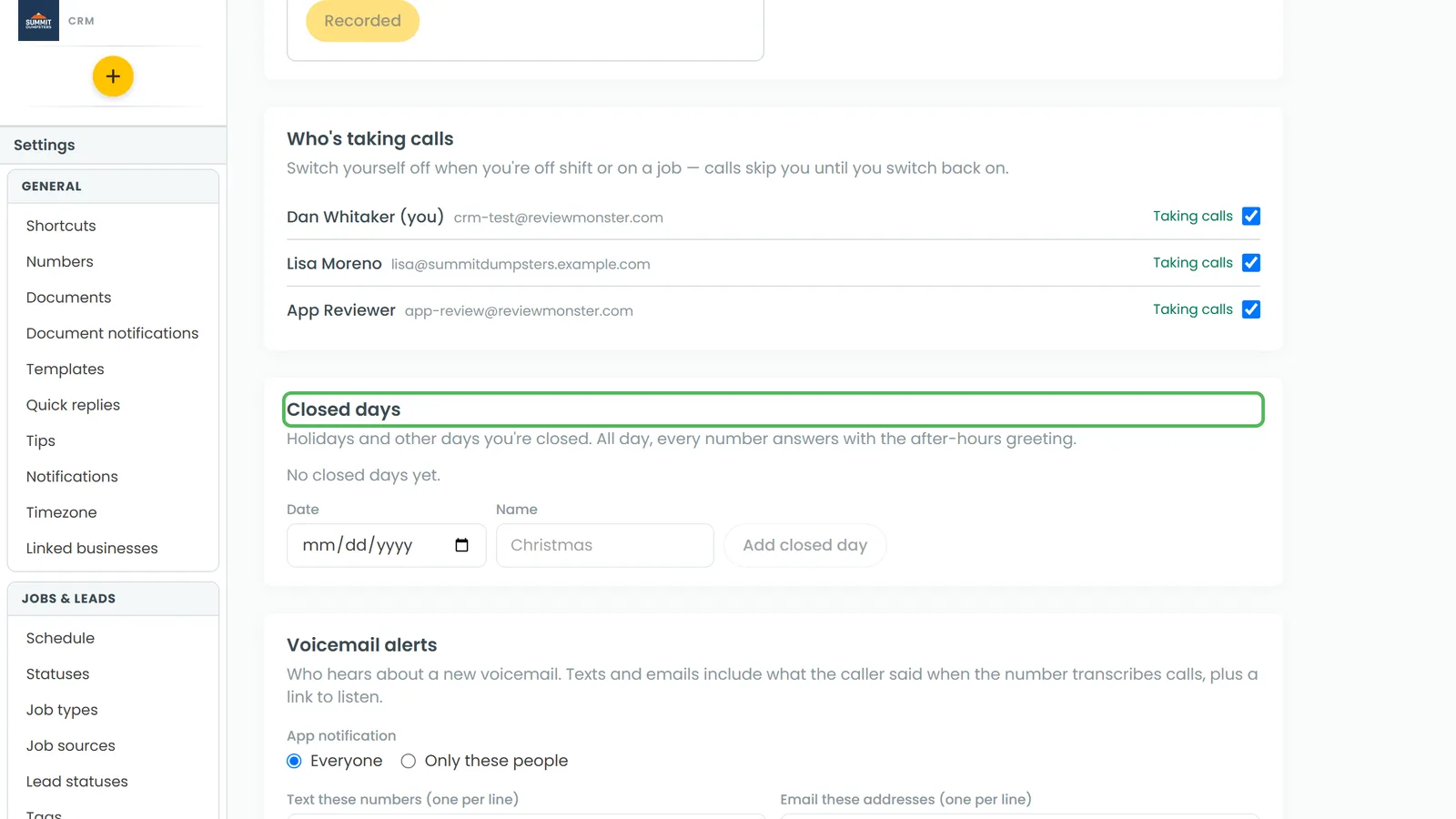
Closed days are holidays and other days you're not working. On a closed day, every number answers with the After hours greeting all day long, even numbers that are normally always open. The Closed days card sits just below the greetings on the same page.
To add a closed day on the web:
- In the Closed days card, pick the day in Date.
- Type a Name, like "Christmas". If you leave it blank, it's saved as "Closed".
- Click Add closed day.
In the app: type the date like 12/25/2026, add a name, and tap Add closed day.
To take a day off the list, click Remove next to it.