In this article, you'll learn how to forward calls from your CRM numbers to another phone, and how to change where they go later. It's handy when nobody's at the office, when you're closed, or when you want every call on your cell for the day.
There's no separate forwarding tool. Forwarding lives in your phone settings, and you can use it three ways:
- Per number: ring another phone when your team doesn't pick up, or send that number's calls straight to one phone.
- After hours: forward calls that come in while that number is closed.
- Everything at once: forward every call on every number until you switch it back.
To open your phone settings:
- In the menu, click Phone. You can also go to Settings › Phone numbers.
- Find the number you want and click Edit next to it.
Forward when nobody answers
This is the most common setup. Your team rings first. If nobody picks up, the call rings your forwarding number before it goes to voicemail.
- Open the number with Edit.
- Click the Ringing & forwarding tab.
- In Call forwarding, type the phone number calls should ring next.
- Check Ring time (seconds). It also sets how long the forwarding number rings.
- Click Save.
Once it's saved, the number's row on the Phone numbers page shows "forwards to" and the number. To stop forwarding, clear the Call forwarding box and save.
Send a number's calls straight to one phone
If you don't want your team's apps to ring first, set Calls go to (on the same Ringing & forwarding tab) to An external number, type the number, and click Save.
Forward after hours
Each number has its own hours. Outside them, you choose what happens.
- Open the number with Edit and click the Hours tab.
- Under After hours, pick Forward to another number.
- Type the number in the box that appears.
- Click Save.
The other choices are Take a voicemail and Take a voicemail and text the caller back. With either of those, you can tick Let after-hours callers press 1 for something urgent and enter a number under Pressing 1 rings. Callers hear your after-hours greeting, and anyone who presses 1 rings that number. If nobody answers, they can still leave a voicemail.
Forward every call at once
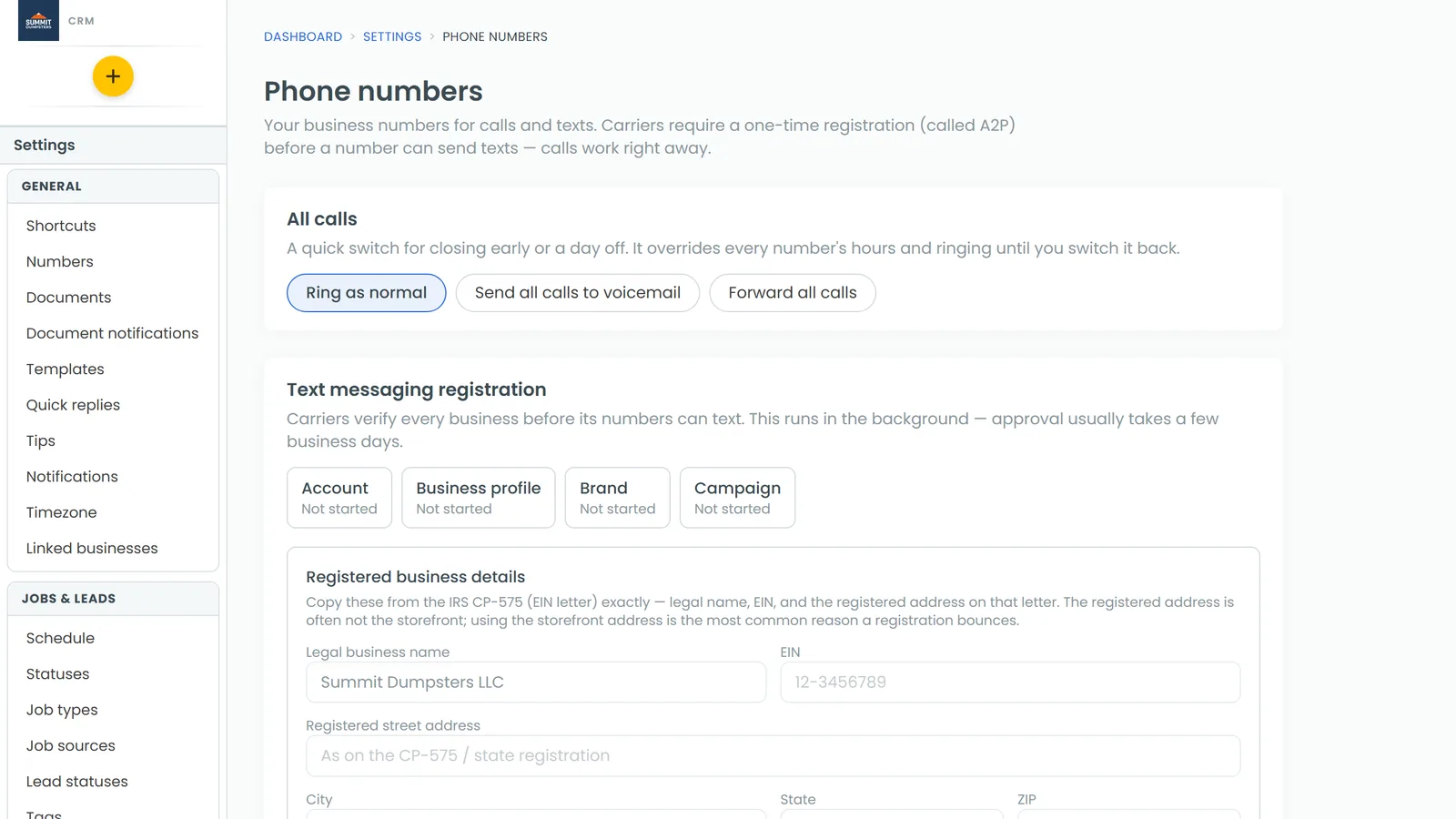
The All calls card at the top of the Phone numbers page is a quick switch for closing early or taking a day off. While it's on, it overrides every number's hours and ringing.
- On the Phone numbers page, find the All calls card.
- Click Forward all calls.
- Type the number to forward to.
- Click Turn on.
The card then shows a banner saying where everything is going. When you're back, click Ring as normal.
Change where calls are forwarded
Edit the same box you set up:
- Per number: Edit › Ringing & forwarding › change Call forwarding, then Save.
- Straight to one phone: Edit › Ringing & forwarding › change the number under Calls go to, then Save.
- After hours: Edit › Hours › change the number under After hours, then Save.
- All calls: type the new number in the All calls card and click Update.
Good to know
- Texts follow the forwarding. While a number has a Call forwarding number, texts to that line, pictures included, are copied to it too. After-hours forwarding only passes texts on while the number is closed, and Forward all calls passes on texts from every line.
- Send all calls to voicemail on the All calls card doesn't forward anything, calls or texts.
- The Reviews number can't forward. Its calls never ring anyone, so its ringing, hours and voicemail settings don't apply.
- On the phone app, the same settings are under Settings › Phone numbers. Tap Call settings on a number. The tabs there are Ringing and Hours, and some choices are shorter (An outside number, Forward, Press 1 for urgent). Tap Save at the top right. The All calls card is at the top of the same screen.
Related articles
- Choosing who your calls ring
- Updating your voicemail greetings
- Forwarding incoming texts to another phone
- Automatically texting back missed calls
- Setting up your CRM phone