In this article, you'll learn how to find and play your voicemails in the phone app and on the web, choose whether a message plays on the speaker or the earpiece, and tidy up the list by hiding the ones you're done with.
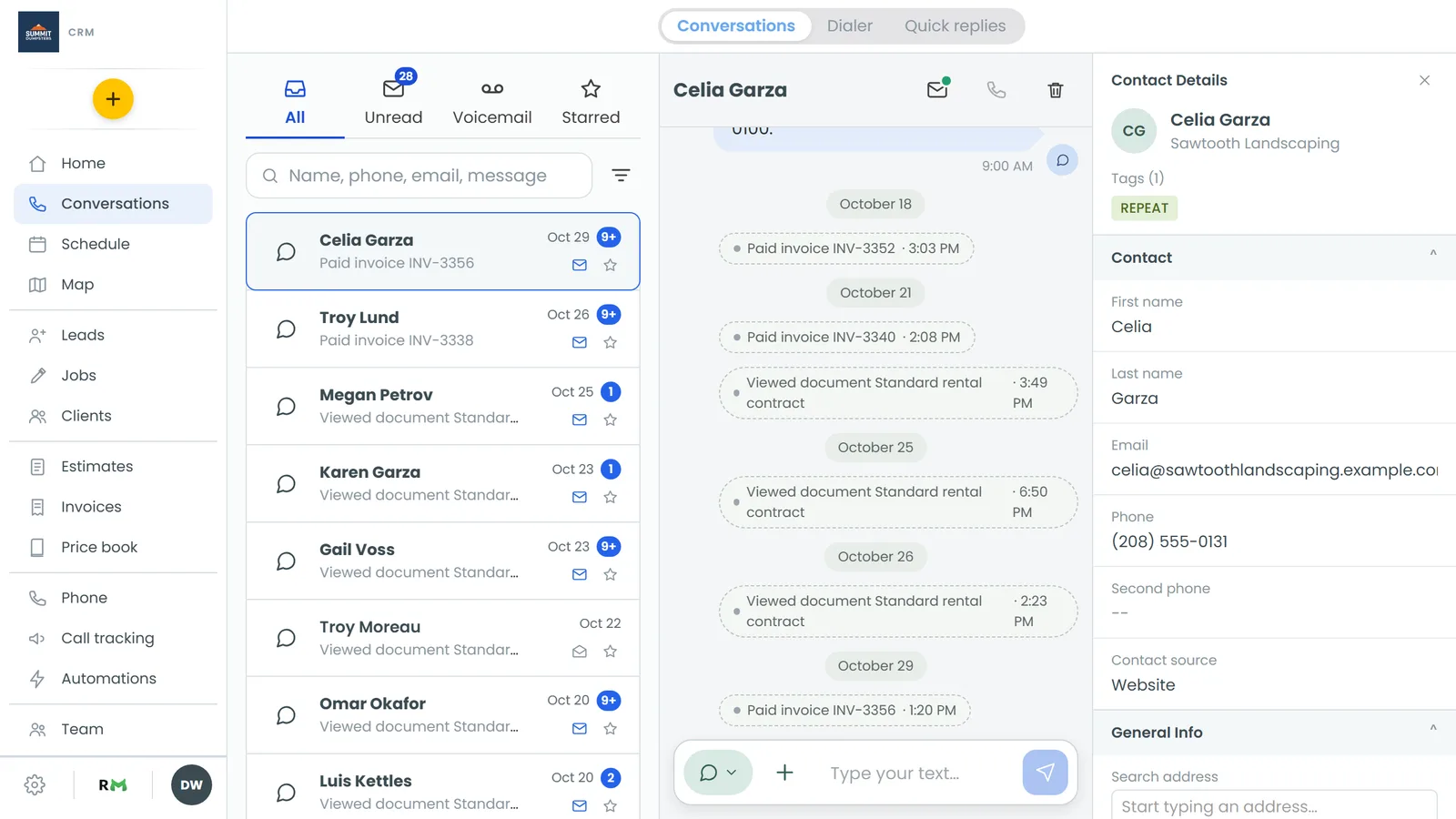
Every voicemail left on your CRM numbers lands in Conversations, so you can listen, read what was said and call back without leaving the CRM.
To open your voicemails on the phone app:
- Tap Conversations at the bottom of the screen.
- Tap the Voicemail tab, beside All and Unread.
The number on the Voicemail tab is how many voicemails you haven't read yet. Voicemails are listed newest first, grouped by day, and each row shows who called, the time and how long the message is. Unread ones have a bold name and a dot on the right.
Playing a voicemail on the phone app
- On the Voicemail tab, tap the voicemail. The conversation with that caller opens.
- Find the bubble marked Voicemail and tap the play button.
- Drag along the bar, or tap a spot on it, to skip ahead or back.
Under the bar you'll find a few more buttons:
- 1X changes the playback speed to 1.5X or 2X. Tap it again to go back.
- The transcript button shows everything the caller said, when the message has been transcribed. A short summary already shows under the player.
- The forward arrow sends the voicemail to someone else by text or email.
Choosing the speaker or the earpiece
Voicemails start on the speaker. The speaker button on the right of that row shows where the sound is going: filled in dark means the speaker, plain white means the phone's earpiece.
- Tap the speaker button to switch to the earpiece, so you can hold the phone to your ear.
- Tap it again to go back to the speaker.
If you have a Bluetooth headset connected, tapping the button shows your choices instead. On an iPhone it's the iPhone's own audio menu. On Android it's a Play through list with your phone, the speaker and the headset.
Marking voicemails read or unread
On the Voicemail tab, swipe a voicemail to the right to mark it read. Do the same on a read one to mark it unread again. The count on the tab updates right away.
Hiding a voicemail
Once you've dealt with a message, you can clear it out of the list.
- On the Voicemail tab, swipe the voicemail to the left.
- Keep swiping until Hide shows. It's hidden as soon as the swipe finishes.
Hiding only takes it off the list and out of the count. The call, the recording and the transcript stay on the contact's history.
Seeing hidden voicemails again
- On the Voicemail tab, tap the filter button to the right of the search box.
- Tick Hidden.
Hidden voicemails show with a grey Hidden label. To put one back, swipe it to the left and choose Unhide. Untick Active if you only want to see the hidden ones.
Voicemails marked as suspected spam
If the spam filter thinks a call is spam, it sends the caller straight to voicemail without ringing anyone. Those voicemails still show up, but with Suspected spam after the length, both on the Voicemail tab and on the bubble in the conversation. Give one a listen before you call back, just in case.
Listening to voicemail on the web
To open your voicemails on the web:
- In the menu, click Conversations.
- Click the Voicemail tab.
- Click a voicemail. The conversation opens, and the voicemail gets marked as read.
- Use the player in the Voicemail bubble to play it.
- Click View transcript to read what the caller said.
- Click ⋮ on the bubble for Forward by text, Forward by email or Download.
To hide a voicemail on the web, hover over its row on the Voicemail tab and click Hide. On a touch screen you can swipe it to the left instead. To see hidden ones, click the filter button beside the search box and tick Hidden.
Related articles
- Making and answering calls on the phone app
- Texting and emailing from the phone app
- Forwarding a call recording or voicemail
- Getting voicemail alerts by text and email
- Updating your voicemail greetings