In this article, you'll learn how leads from your website get into the CRM without you typing them in, how the CRM records where each one came from, and how to choose who hears about them. Every enquiry ends up where the rest of your customers are: Leads, Conversations and that customer's record.
There's no form builder to set up and no code to paste. Every website Review Monster builds and hosts for you already sends its forms to your CRM, and that includes your microsites.
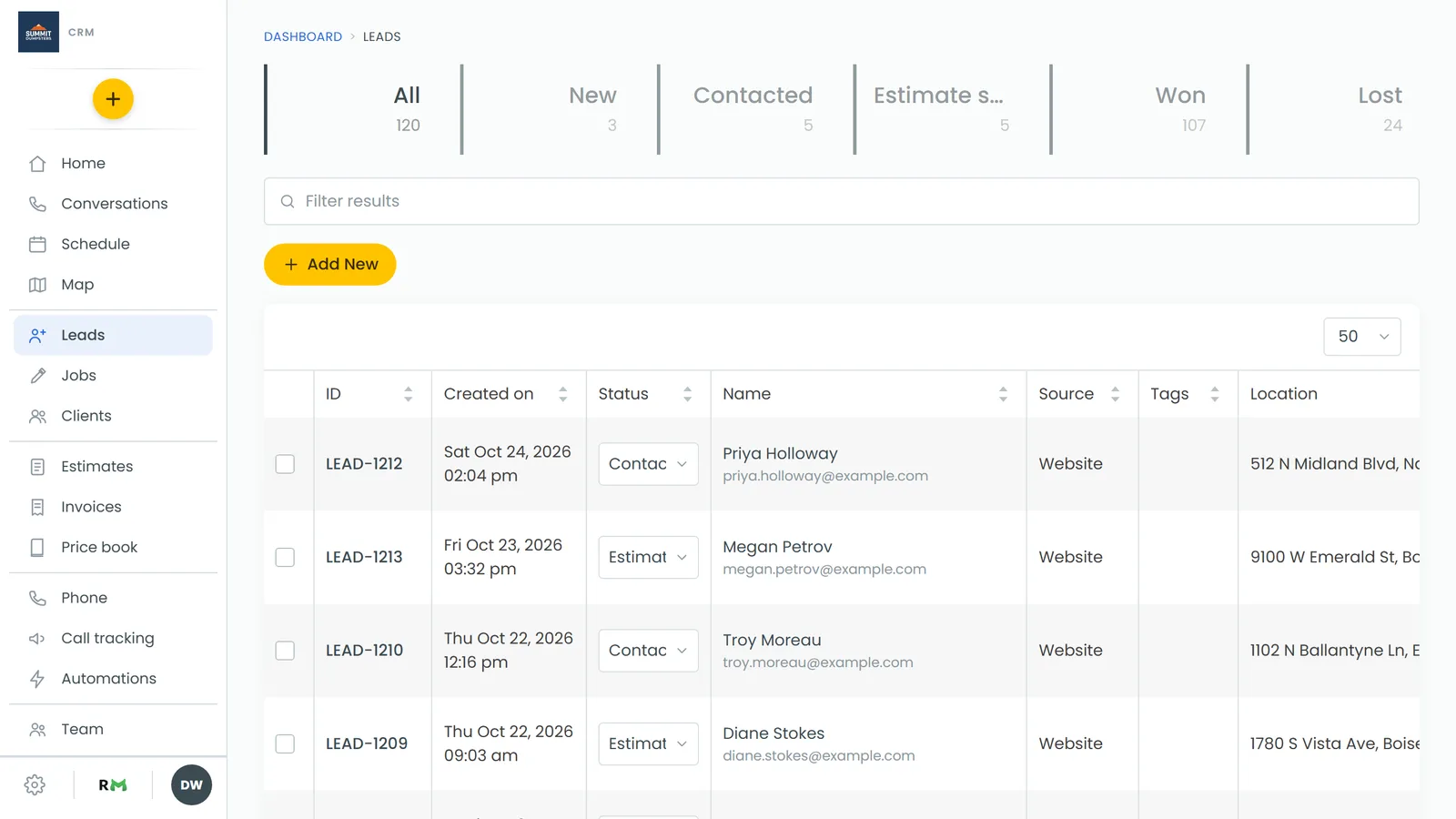
To see your new leads:
- In the menu, click Leads.
- The newest leads show in the list. The Source column says where each one came from.
What sends you a lead
Each of these on your Review Monster website creates a lead by itself:
- Quote form. Name, phone, email, a message and up to ten photos.
- Contact form. Name, phone, email and a message.
- Chat widget. When a visitor leaves their details in the chat.
- Online booking. If bookings are scheduled straight away, the booking goes on your calendar as a job. If bookings need your approval, it comes in as a lead with the requested time in its notes. See How to create jobs and leads from booking requests.
A new lead starts in your first lead status, so it sits at the front of your list until you work it.
What lands in the CRM
When a form comes in, the CRM:
- Creates the lead with the visitor's name, phone, email and message. Any photos are added as links.
- Matches or creates the client by phone number first, then email, so a returning customer stays on one record.
- Starts a conversation. What they typed shows in Conversations as a message from them, so you can reply right there. See Conversations overview.
- Tells the office. It sends a text and an email with the details. Quote form photos come attached to the text as pictures.
If the same person sends the same form twice within a few minutes, you get one lead, not two.
How Source and Channel get filled in
You don't pick these for website leads. The CRM works them out from the visit and saves them on the client the first time they reach out.
Source is where they came from:
- Google Ads if they clicked one of your Google ads or came through an ad landing page.
- Microsite if they used one of your microsites, whatever sent them there.
- Facebook if they clicked through from a Facebook link.
- AI search if an AI assistant like ChatGPT or Perplexity sent them.
- A link with a tracking tag (utm_source) names its own source. A mailer link tagged "spring-mailer" shows as "Spring Mailer."
- Website for everything else on your main site, including people who found you on a regular Google search or typed in your address.
Channel is how they reached out: a form, chat or a booking.
The Source stays on that client for good. That's what lets reports credit their later jobs and payments to where they first came from. If it's wrong (say a friend referred them), you can change it by hand on the client's page. See Tracking where your customers come from.
Choosing who hears about new leads
Who gets texted and emailed is a company-wide setting.
To change who's told about new leads:
- Go to Settings and open Notifications.
- Find the New lead row under Leads & booking.
- Tick Text, Email or both.
- To choose who gets them, click the Text or Email column heading, type a number or address and click Add, then save.
While a list is empty, the texts or emails go to the account owner.
If your website isn't hosted by Review Monster
This only works on sites Review Monster builds and hosts. There's no form or embed code in the CRM to paste into a site somewhere else, so enquiries from another site won't come in by themselves. Add them yourself instead. See How to create leads.
Related articles
- How to manage new leads
- Converting a lead into a job
- Tracking where your customers come from
- Setting up auto-replies for website leads
- Understanding your microsites