In this article, you'll learn how to know when a customer has opened an estimate you sent them, how to choose who gets told and how, and where to see the record of every open afterwards. It saves you chasing someone who hasn't looked yet, and tells you when to follow up with someone who has.
To open Document notifications:
- At the bottom of the left menu, click the gear (Settings).
- Under General, click Document notifications.
How the CRM knows
When you send an estimate, the text or email carries a link to the customer's portal. The first time the customer opens that link, the estimate is stamped as viewed and the office is told. Every open after that is logged too, including opens from inside the portal, so you can see how many times they've looked and when they last did.
Choosing who hears about it
The Document notifications page has three cards:
- Text these numbers and Email these addresses. Up to 10 of each, with + Add another under the list. Leave a list empty and the owner's phone or email is used. The line under each heading tells you where it's going right now.
- What to send for each event. A row per event with Text, Email and Push checkboxes.
To get told when an estimate is opened:
- Find the row Estimate viewed. Its description reads "The customer opened an estimate for the first time."
- Tick Text, Email or Push, or any mix.
- Click Save. The page shows Saved beside the button.
Out of the box, Estimate viewed emails and pushes but doesn't text.
What the alert says
The push is titled Estimate viewed and reads like "Estimate EST-1042 for $450.00 was just opened by your customer." It goes to the phone app, and tapping it opens your Estimates list. The text carries the same words after "Estimate viewed:", and the email uses the title as its subject.
Choosing pushes for yourself
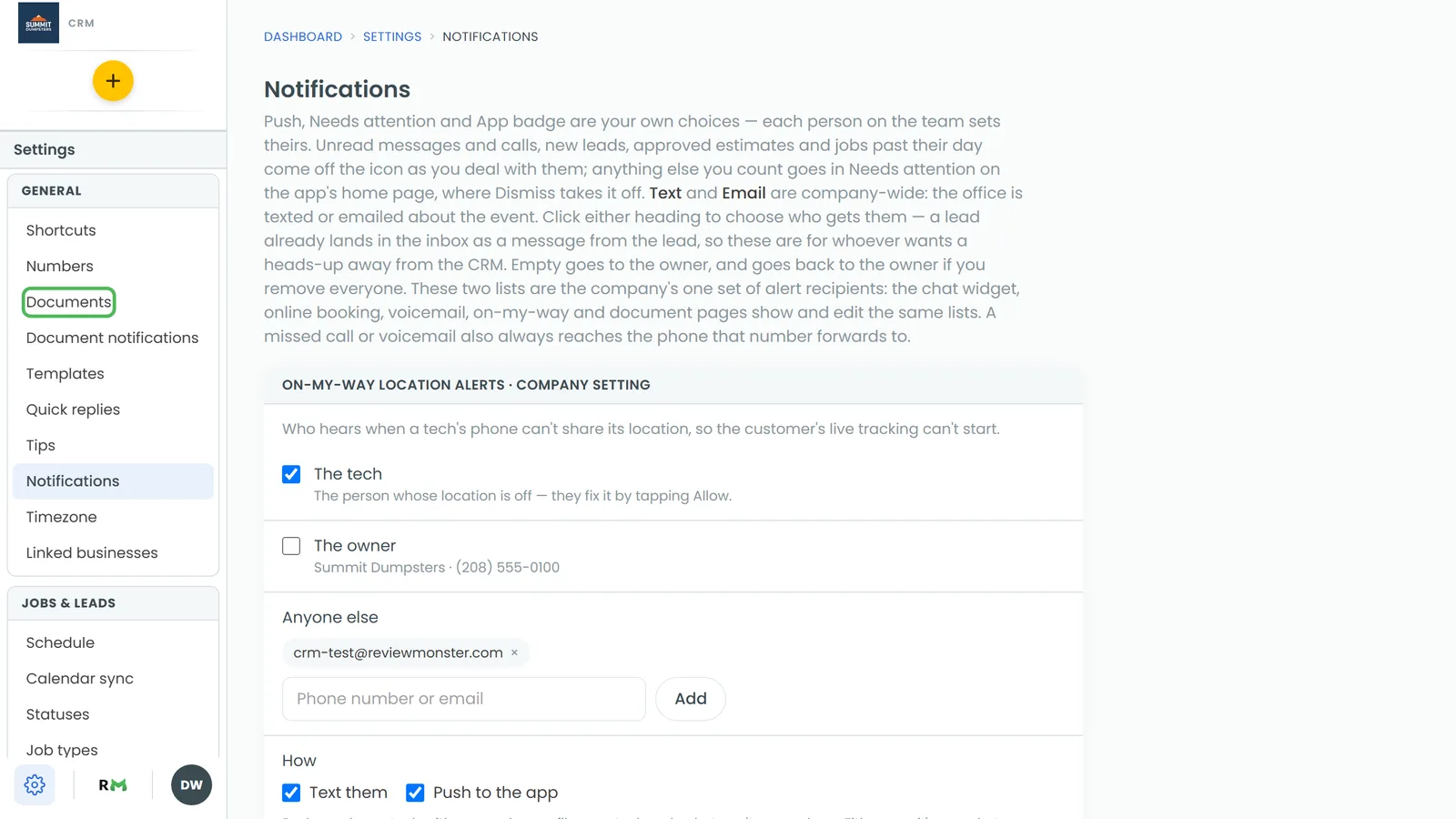
Pushes are a personal choice. Each person on the team picks their own.
To change your own push for estimate opens:
- Click the gear (Settings), then under General click Notifications.
- Under the Documents group, find Estimate viewed.
- Tick or clear Push.
The Text and Email columns on this page are the same company-wide switches as on Document notifications. Clicking either heading opens the list of who gets them.
Seeing the opens afterwards
Even with every alert off, the opens are still recorded in three places:
- The customer's conversation. In Conversations, open the customer's thread. A small dashed marker reads "Viewed estimate EST-1042" with the time. Repeat opens within an hour show as one marker, and a view never marks the thread unread or moves it up the list.
- The job's timeline. Open the job and click Timeline. The open is listed with its date and time. This works on the web and in the phone app.
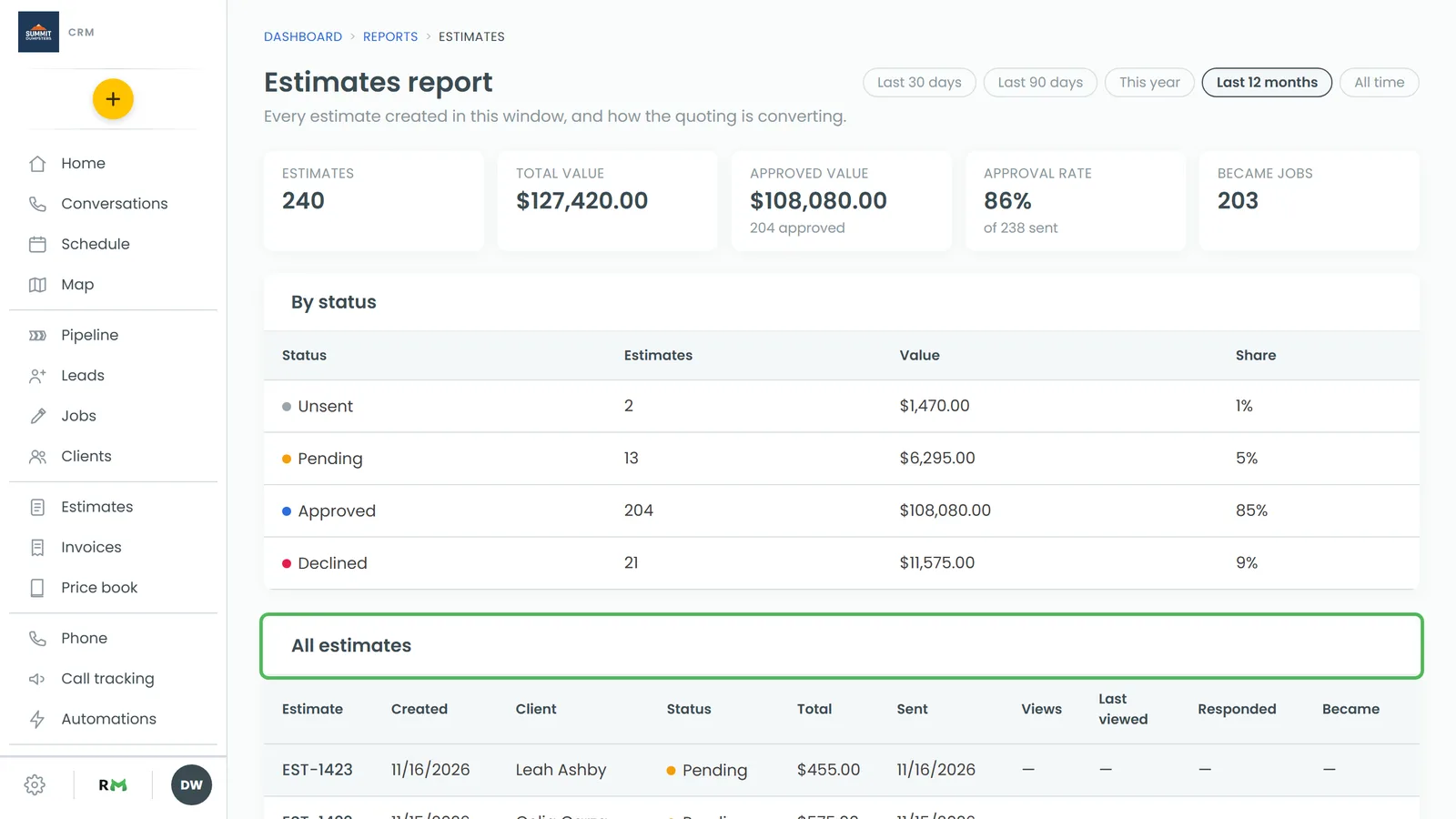
- The Estimates report. On the web, click Reports, then Estimates. The All estimates table has a Sent column, a Views column with the number of opens, and a Last viewed column with the date and time of the latest one. An estimate nobody has opened shows a dash.
Other estimate events you can be told about
The same page has two more rows for estimates:
- Estimate approved & signed: the customer approved and signed. A paid deposit arrives on this row too, as a notice titled "Deposit paid".
- Estimate declined: the customer turned it down.
Each one has its own Text, Email and Push boxes.
On the phone app
Both settings pages are in the app. Open the menu, tap the gear (Settings) at the bottom, and under General tap Document notifications or Notifications. The cards, the Text, Email and Push columns and the Save button are the same as on the web. The Estimates report with its Views and Last viewed columns is web only.