In this article, you'll learn how to use the Estimates page to keep track of every quote you've sent. It's the quickest way to see what's waiting on a customer, what's been approved, and what needs a nudge, without opening each estimate.
To open the Estimates page:
- In the menu, click Estimates.
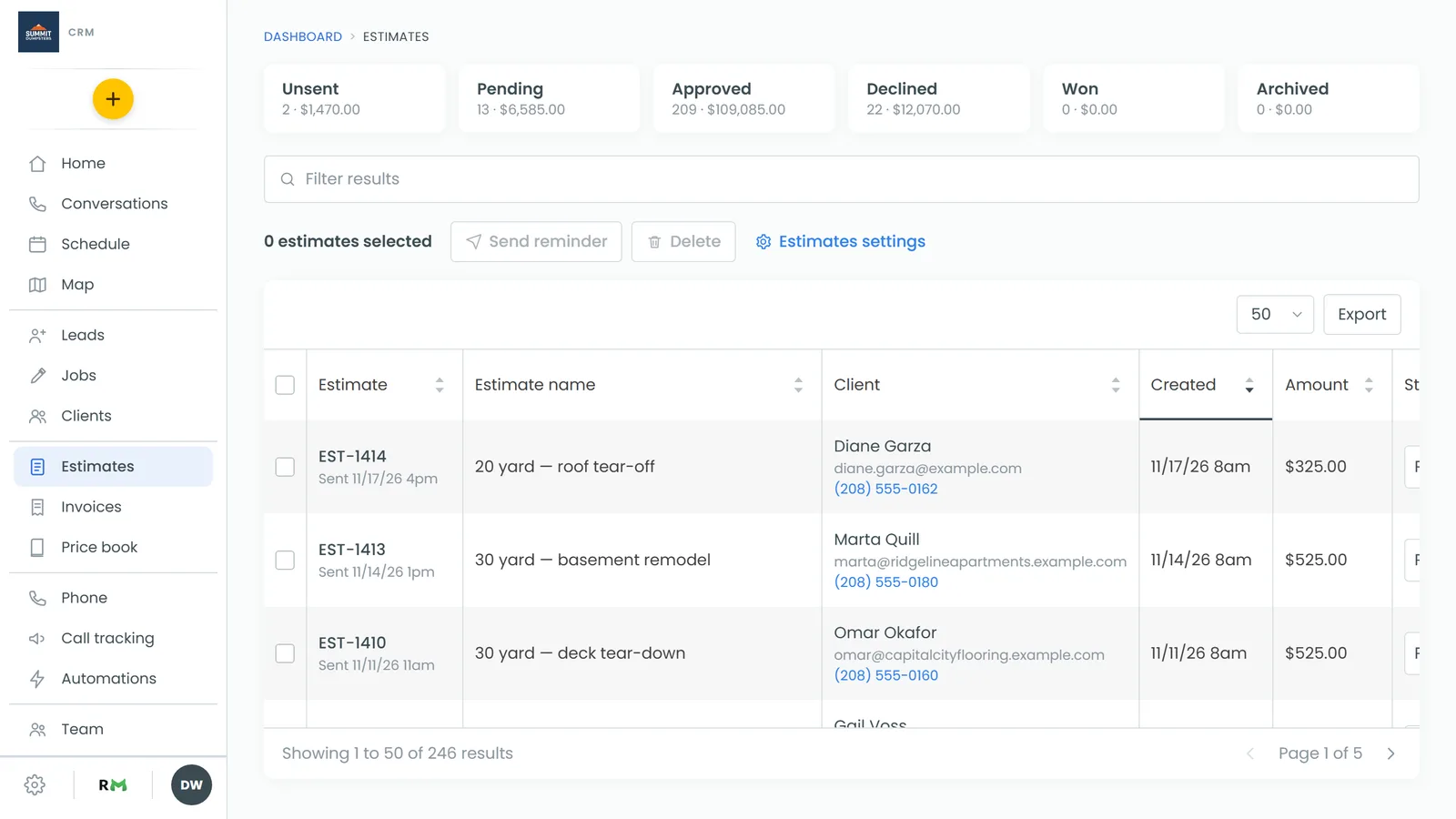
The status tiles
Six tiles sit across the top: Unsent, Pending, Approved, Declined, Won and Archived. Each shows how many estimates have that status and what they add up to. Look here first to see how much work is waiting on a yes.
Reading the list
Below the tiles is every estimate. The columns are:
- Estimate: the estimate number. Underneath it says when it was sent, or Not sent.
- Estimate name: the name you gave it, if any.
- Client: the customer, with their email and phone underneath.
- Created: when the estimate was made.
- Amount: the total.
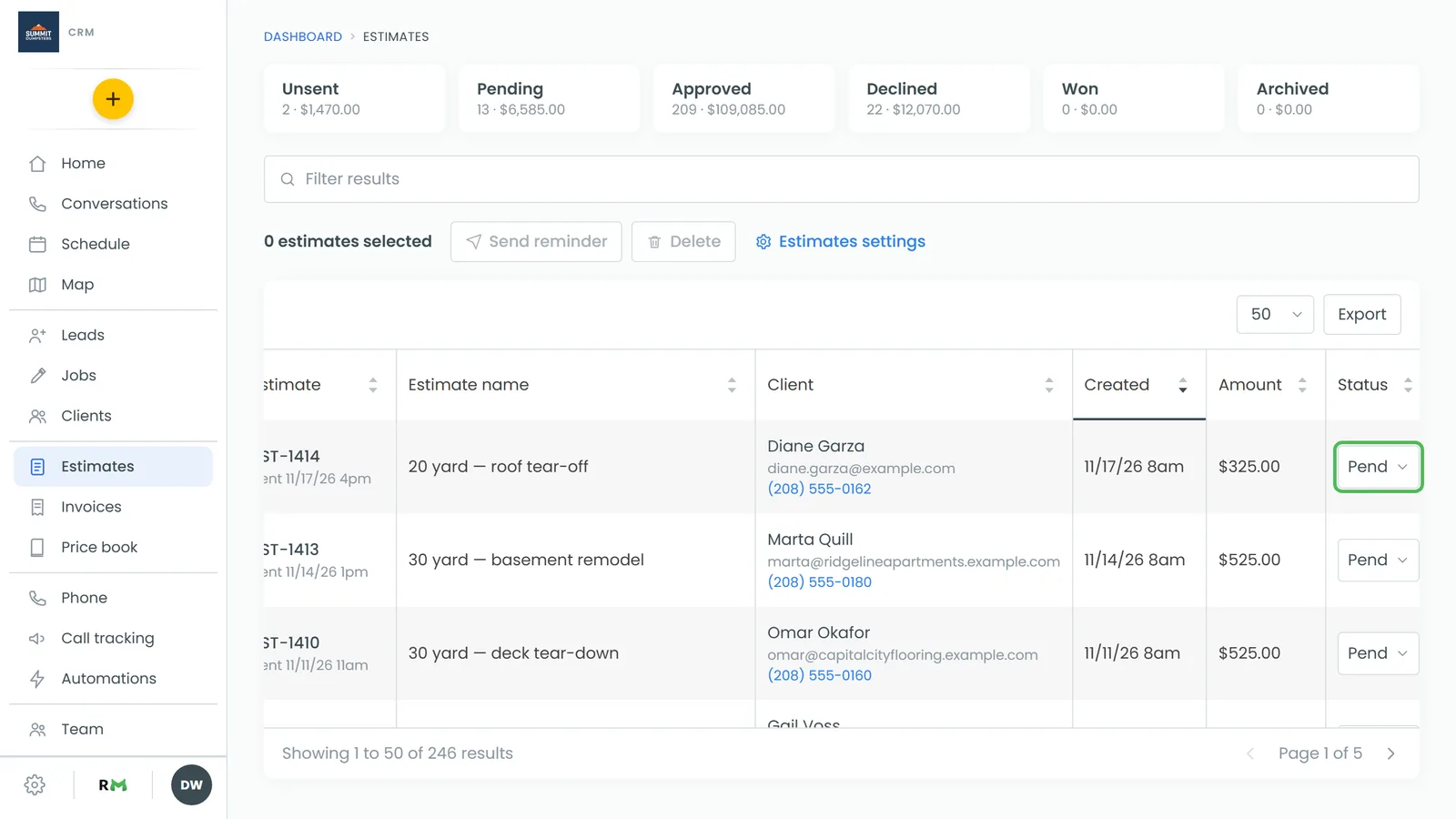
- Status: where it stands. You can change it right here (see below).
- Source: the source of the job the estimate is on.
- Deposit due: the deposit you asked for, if any.
- Job: the job the estimate is on. If the estimate was turned into a job, that job's number shows with became beside it.
If a customer approved an estimate and asked for a start time, a small wants note with the date and time appears under the status.
Sorting and finding estimates
The list opens sorted by Created, newest first. Click any column heading to sort by it, and click again to flip the order. A line under the heading marks the sorted column. Drag the edge of a heading to make that column wider or narrower.
To find an estimate, type in the Filter results box. It searches estimate numbers and names, client names, emails and phones, statuses, sources and job numbers.
The list shows 50 estimates per page. Change that with the drop-down above the list (10, 25, 50 or 100). The arrows at the bottom move between pages.
Opening an estimate and reaching the client
- Click the number in the Estimate column to open the estimate.
- Click the client's name to open their page.
- Click their phone number, then Call, to call them from the CRM phone.
- Click their email address, then Open their page, to write them an email from their client page.
- Click the number in the Job column to open the job.
Changing an estimate's status
- Find the estimate.
- In the Status column, open the drop-down.
- Pick Unsent, Pending, Approved, Approved - Pending Deposit, Declined or Archived.
The change saves on its own. If it can't be saved, the old status comes back and a note at the top of the list says why.
Sending reminders and deleting estimates
Tick the box at the start of each row you want. The box in the heading row selects every estimate on the current page. The line above the list reads N estimates selected, and Send reminder and Delete light up.
To send a reminder:
- Tick the estimates you want to follow up on.
- Click Send reminder.
Each customer gets a text if they have a phone number on file, otherwise an email. When it's done, a note at the top of the list says how many went out and names any that failed.
The reminder wording lives in Settings › Templates, under Estimates › Estimate reminders. To change it, see Editing the messages sent with estimates and invoices.
To delete estimates:
- Tick the estimates you want to remove.
- Click Delete.
- Click Yes, delete.
Exporting your estimates
Click Export above the list to download a CSV of your estimates. It has the same columns as the list, plus the client's email and phone. It exports whatever the list is showing, so if you've typed in Filter results, only the matches go in the file.
Estimates settings
The Estimates settings link beside the Delete button opens your company's estimate switches: Attach emailed PDF files, Lock approved estimates, Auto-decline estimates related to the same job, Require card on file for deposits and Allow clients to pay deposit offline or after approving estimate. See Locking approved estimates and Setting how clients pay estimate deposits.
On a phone
On the phone app, and on the web at phone width, open the menu and tap Estimates. The Estimates settings link sits at the top, then the same six status tiles, then a table that scrolls sideways. Its columns are Estimate, Client, Job, Created, Sent, Amount and Status. Tap a row to open the estimate. Tap a client's name to go to their page, or a job number to open the job.