In this article, you'll learn how to add subcontractors to your team, get their W-9 signed, and send them jobs. A subcontractor can take jobs and you can pay them, but they never get a login to your CRM. They work from their own crew portal, which only shows them their own jobs.
Switching on Subcontractors
To switch on Subcontractors:
- In the menu, click Features.
- Find Subcontractors and turn its switch on.
Once it's on, Subcontractors shows up in the main menu, in the group with Team. The first time you open it, it asks you to add your first subcontractor to finish setup.
Adding a subcontractor
You can add a subcontractor from the Team page, the same way you'd add anyone else.
To add a subcontractor:
- In the menu, click Team.
- Click Add New. The Add team member panel opens.
- Click the Subcontractor tab.
- Type their First name and Last name.
- Type their Mobile number. This is where the invite goes, and it's the number they'll sign in with.
- Check the Pay rate. It's per hour, and it starts on your starting pay rate, which you set on the Payments tab of the Subcontractors page.
- Click Invite.
You can also add one from Subcontractors, on the People tab, with + Add subcontractor.
What happens after you invite them
- They get a text with a link to fill out and sign their W-9. On that form they also pick a password.
- As soon as the signed W-9 is saved, they get a welcome text. It has the link to their crew portal, says to sign in with their phone number and that password, and walks them through adding it to their phone's home screen on iPhone or Android.
- The welcome text also mentions the Review Monster CRM app on Google Play, which signs them into the same portal if they'd rather use an app on Android.
On the Team list, a subcontractor shows No 1099 yet, 1099 form sent or 1099 on file, so you can see who still owes you a W-9.
Giving them jobs
A subcontractor is added as a field tech, so they show up in the team picker on a job like everyone else. Put them on a job the same way you'd assign anyone.
What your subcontractor sees
Their whole world is the crew portal. From there they can:
- Clock in and out, and take breaks.
- See only the jobs they're assigned to, with the customer's name. They never see the customer's phone number or email.
- Add photos and videos to a job.
- See and edit the items being charged on the job.
- Take payments on the job.
- Scan receipts for things they paid for on the job.
- Change the job's status with the status picker: On my way, Pending, Done or Canceled.
Everything they add lands on the job in your CRM, just like your own team's work.
The Subcontractors page
To open the Subcontractors page:
- In the menu, click Subcontractors.
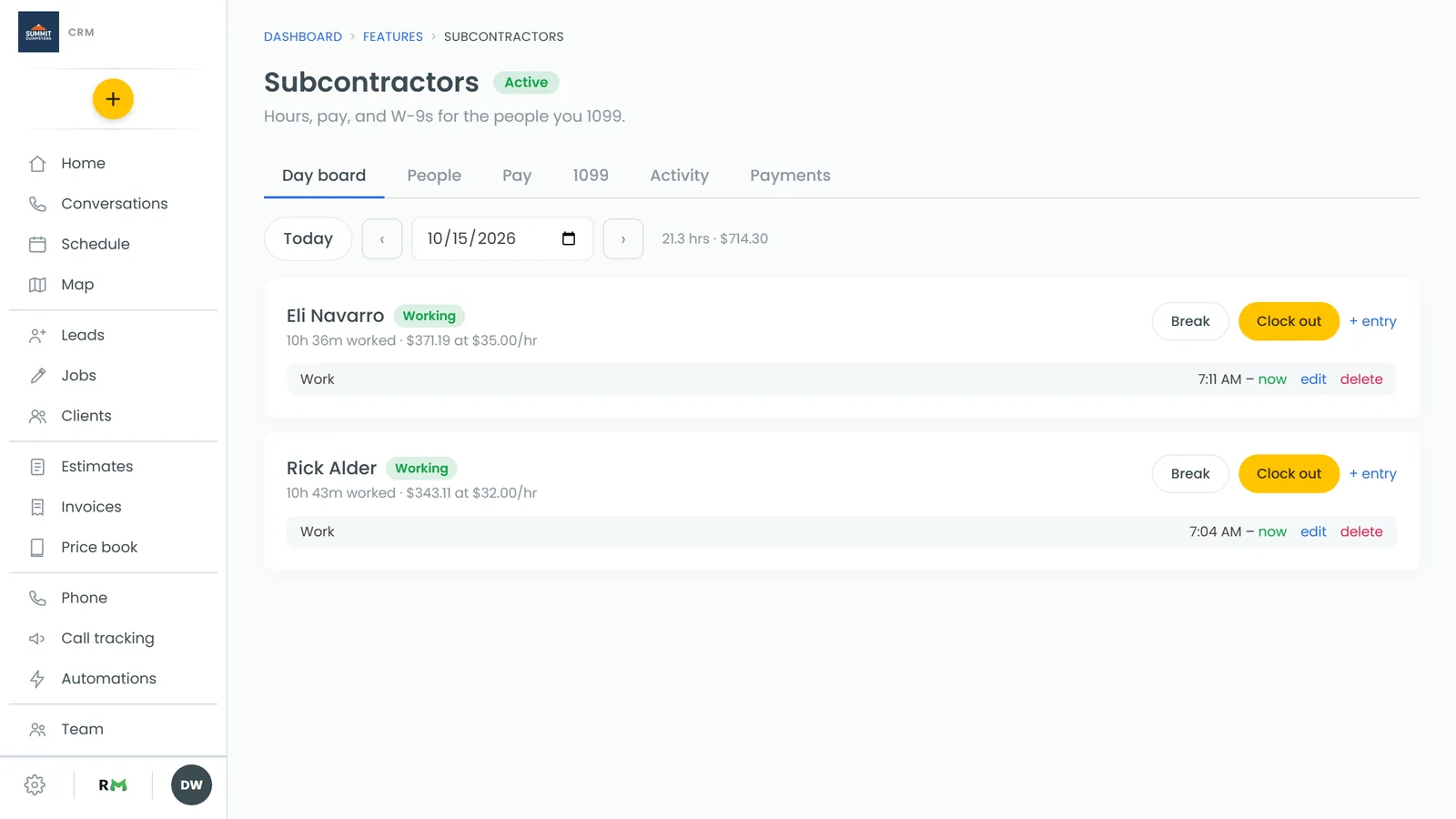
The page has six tabs:
- Day board: who's working today and their hours.
- People: everyone you've added, their rate, what you owe them and whether their W-9 is signed. Click a rate to change it.
- Pay: unpaid hours for each person, ready to pay.
- 1099: your year-end list for 1099s.
- Activity: a log of what's happened, like clock-ins, edits and texts.
- Payments: how you pay your crew, plus your starting pay rate for new subcontractors.
Paying your subcontractors
You can pay from the Pay tab, or from the Crew to pay block on your Home screen, which only shows up when someone's owed money. Open a person there to see their hours, check what they're owed, and record the payment.