In this article, you'll learn how to give a team member their own working days and hours. Everyone starts out following your business hours, but plenty of people don't work those exact hours. One person is off on Wednesdays, another starts late, and someone else works a morning shift and an evening shift with a gap in between. Setting their availability keeps your Team Schedule honest about when each person can actually work.
To open a team member's availability:
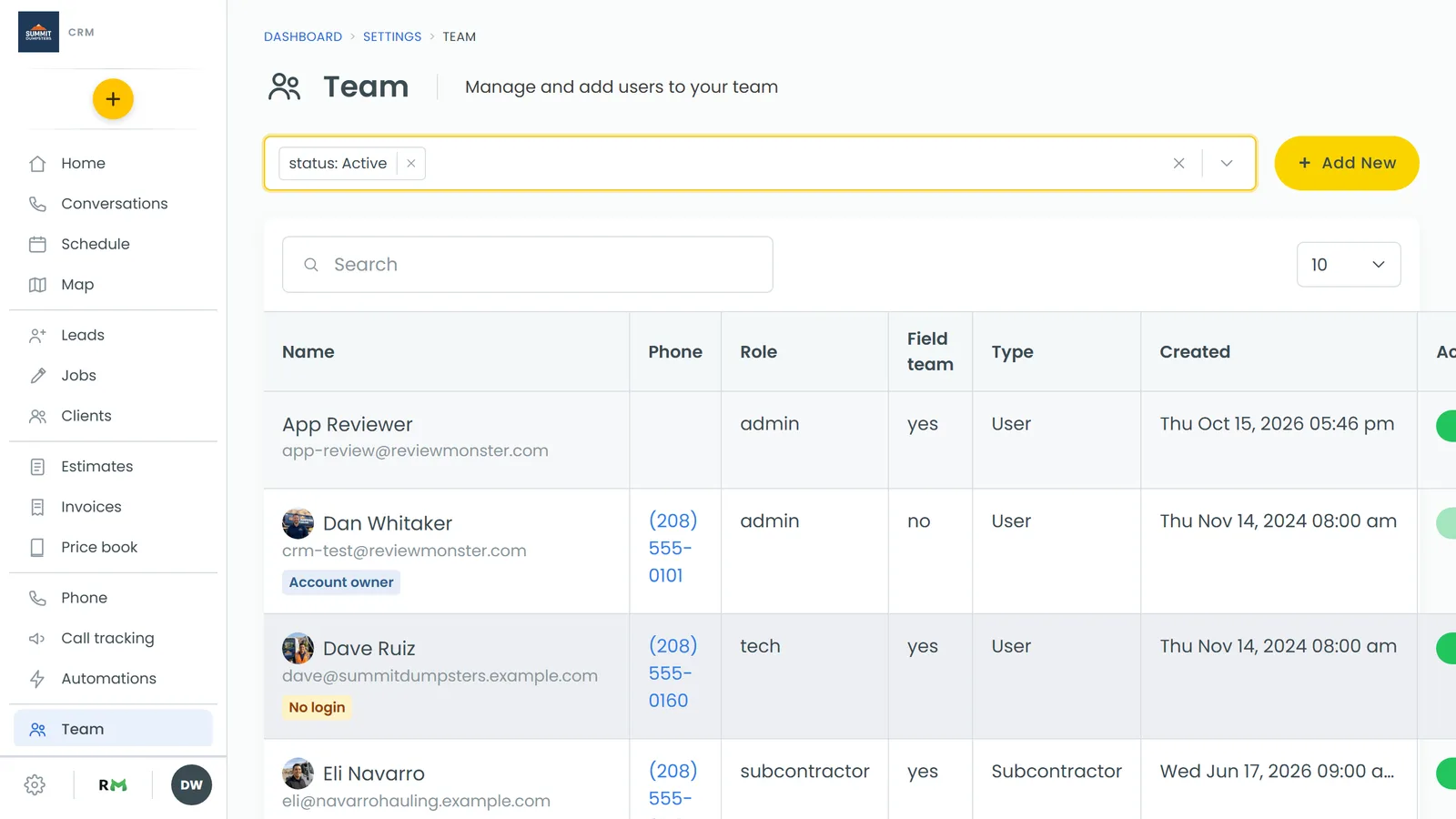
- In the menu, click Team. You can also get there from Settings, under Users & roles › Team management.
- Click the person's row. Their User Profile opens.
- Click the Availability tab.
Give someone their own hours
At the top of the tab is a switch labeled User availability same as business hours. It's on for everyone until you change it. While it's on, that person simply follows your business hours.
- Turn off User availability same as business hours. A grid of days appears, Monday through Sunday.
- For each day, tick or untick Working?. Untick any day they never work.
- For a day they do work, pick their hours from the Start at: and End at: dropdowns. Times go in half-hour steps.
- Click Save at the bottom of the page.
If this person has never had their own hours, the grid starts at 9:00 am to 5:00 pm Monday to Friday, with Saturday and Sunday off. Change whatever doesn't fit.
Add a split shift
If someone works two separate windows in one day, give that day more than one time slot.
- Make sure the day is ticked under Working?.
- Click + Add time slot under that day's times. A second pair of Start at: and End at: dropdowns appears.
- Set the hours for each slot. For example, 8:00 am to 11:00 am, then 3:00 pm to 6:00 pm.
- To get rid of a slot, click the X at the end of its row. The X only shows once a day has two or more slots.
- Click Save.
Go back to business hours
Turn User availability same as business hours back on and click Save. The person follows your business hours again, and the custom hours you'd set are cleared.
On the phone app
The app has the same Availability tab.
- In the menu, tap Team.
- Tap the person, then tap Availability.
- Turn off Same as business hours.
- For each day, use the switch to mark it as a working day, then pick the start and end times.
- Tap Save.
How availability is used
Availability feeds your Team Schedule:
- When you add a shift for someone, the shift panel shows their hours for that day next to the shift's length, or "Not available" if they're off that day.
- Draft schedule (under Tools on the Team Schedule) skips a shift for anyone who isn't available for it. A shift is only copied in if it fits inside one of that person's time slots for that day. People who follow business hours are never skipped for this reason.
- When a crew member asks for an availability change from the Team Schedule and a schedule admin approves it, the new hours land on this tab automatically.
Availability doesn't stop you from putting someone on a job or a shift by hand. It's there to guide you and keep the drafted schedule realistic.