In this article, you'll learn how your subcontractors take payment on a job and close it out from their crew portal. The balance and the job's status update in the CRM the moment the work is finished, and nobody has to call the office to report back.
To find your subcontractors:
- In the menu, click Subcontractors.
- Click the People tab.
Getting your subcontractor into the portal
A subcontractor gets their portal login by text. Once they sign their W-9, the CRM texts them the portal link and tells them to sign in with their phone number and the password they picked on the W-9 form. If they lose that text or forget the password, you can send a fresh one.
To resend a subcontractor's login:
- In the menu, click Subcontractors.
- Click the People tab.
- On the person's row, click Resend invite.
- Click Send.
They get a text with the portal link, their username (their phone number) and a new password. Their old password stops working. Someone who hasn't signed their W-9 yet shows Resend link instead, which sends the W-9 form again.
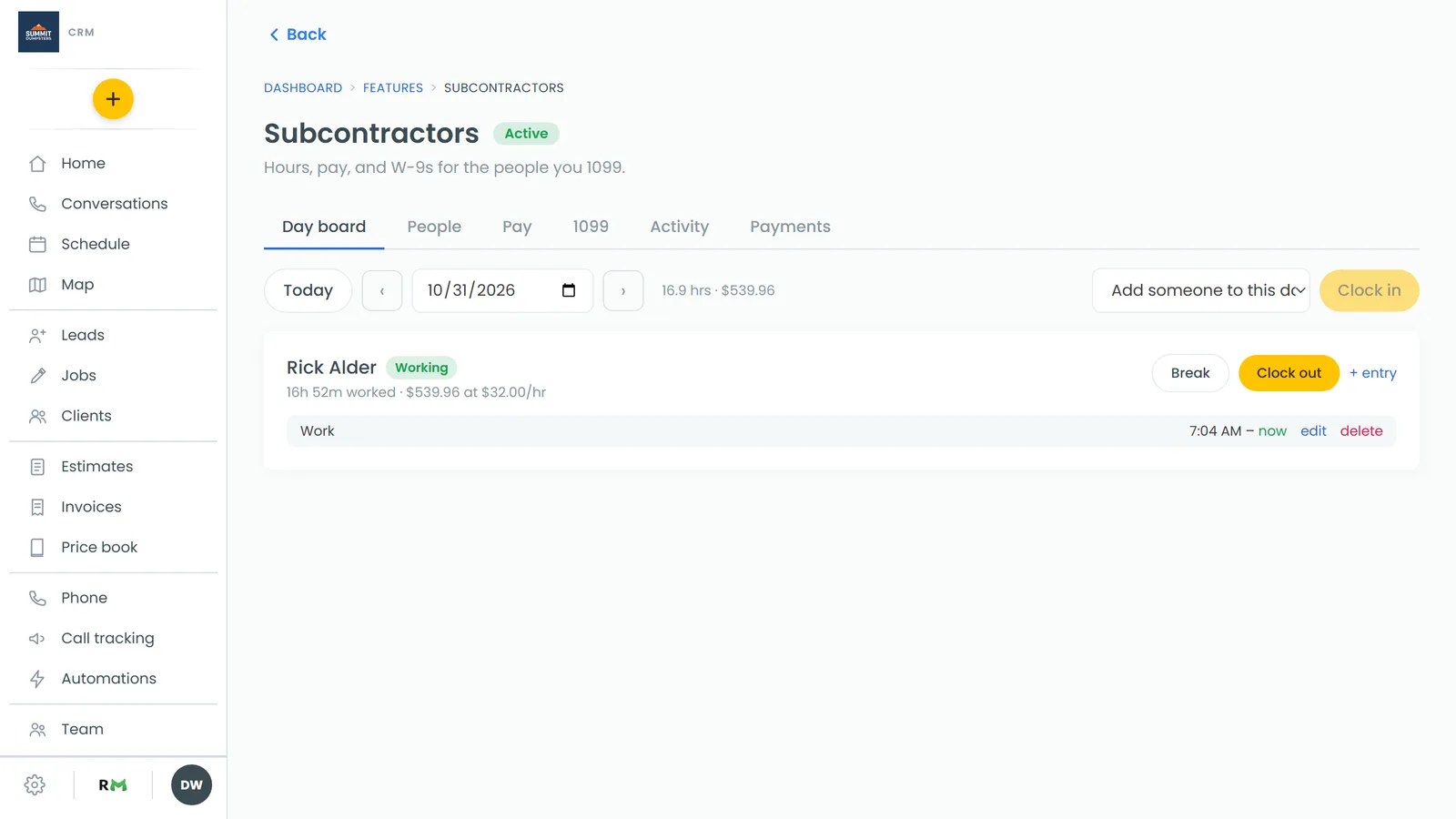
On the phone app, the sign-in screen says Email, or your phone number if you're on a crew. A subcontractor types their phone number and password there, and the app opens the same crew portal.
Opening a job
- The subcontractor opens the portal and signs in with Phone number and Password.
- Under Upcoming work, they tap the job.
The job has three tabs along the top: Job, Images and Payments. The Status box is on the Job tab, right under Navigate. Payments are on the Payments tab.
Collecting a payment
The Payments tab shows Still owed in big numbers, with the job total and anything already paid under it. Your subcontractor can see the balance but can't change it. Once nothing is owed, it says This job is paid in full and the payment buttons go away.
Cash or a cheque
- Tap Payments.
- Tap Cash or Check.
- How much fills in with the full balance. Change it if the customer paid less.
- For a cheque, type the Cheque number.
- Tap Record.
A card
- Tap Payments, then Card.
- Type the customer's card into the form. The card goes straight to the payment processor and is never stored on the phone or in the CRM.
- Tap Charge.
The charge is for what's still owed on the job's invoice. If you haven't connected Stripe yet, they see a message telling them to take cash or a cheque instead.
Every payment shows up under Paid so far with the date and who took it. It's saved to the job exactly like a payment you record in the office, so the balance, the invoice and your reports update right away. If the job didn't have an invoice yet, one is created for it.
Changing the job's status
On the Job tab, tap the Status box to pick a status:
- Pending: puts the job back to Pending.
- On my way (listed under In progress): texts the customer that your crew is on the way. A subcontractor's location is never shared, so the text has no tracking link. If the customer already got an on-the-way text in the last six hours, the portal asks Text them again? first.
- Done: closes the job (see below).
- Canceled: asks Cancel this job? first. Tapping Yes, cancel it cancels the job, and any invoice with nothing paid on it is voided.
Closing a job
- Tap the Status box and pick Done.
- The portal asks Send the customer a review request?
- Tap Yes, send it to close the job and send the review request. Or tap Done, no review to close it without one.
Even after Yes, send it, the request won't go out if the job's tags, its job type or your review settings say to skip it. The portal tells your subcontractor when that happens.