In this article, you'll learn how to connect your company's own Stripe account to the CRM. Every card payment runs through it: customers paying online, cards your office types in, saved cards and Tap to Pay on the phone app. None of them work until Stripe is connected.
To open the Payments settings:
- Click the Settings gear at the bottom of the menu.
- Under Money, click Payments.
On the phone app, open the menu, tap the gear at the bottom, then tap Payments under Money. The gear only shows if you're an admin or your role has the Account Settings permission. Only an admin can start the Stripe connection itself.
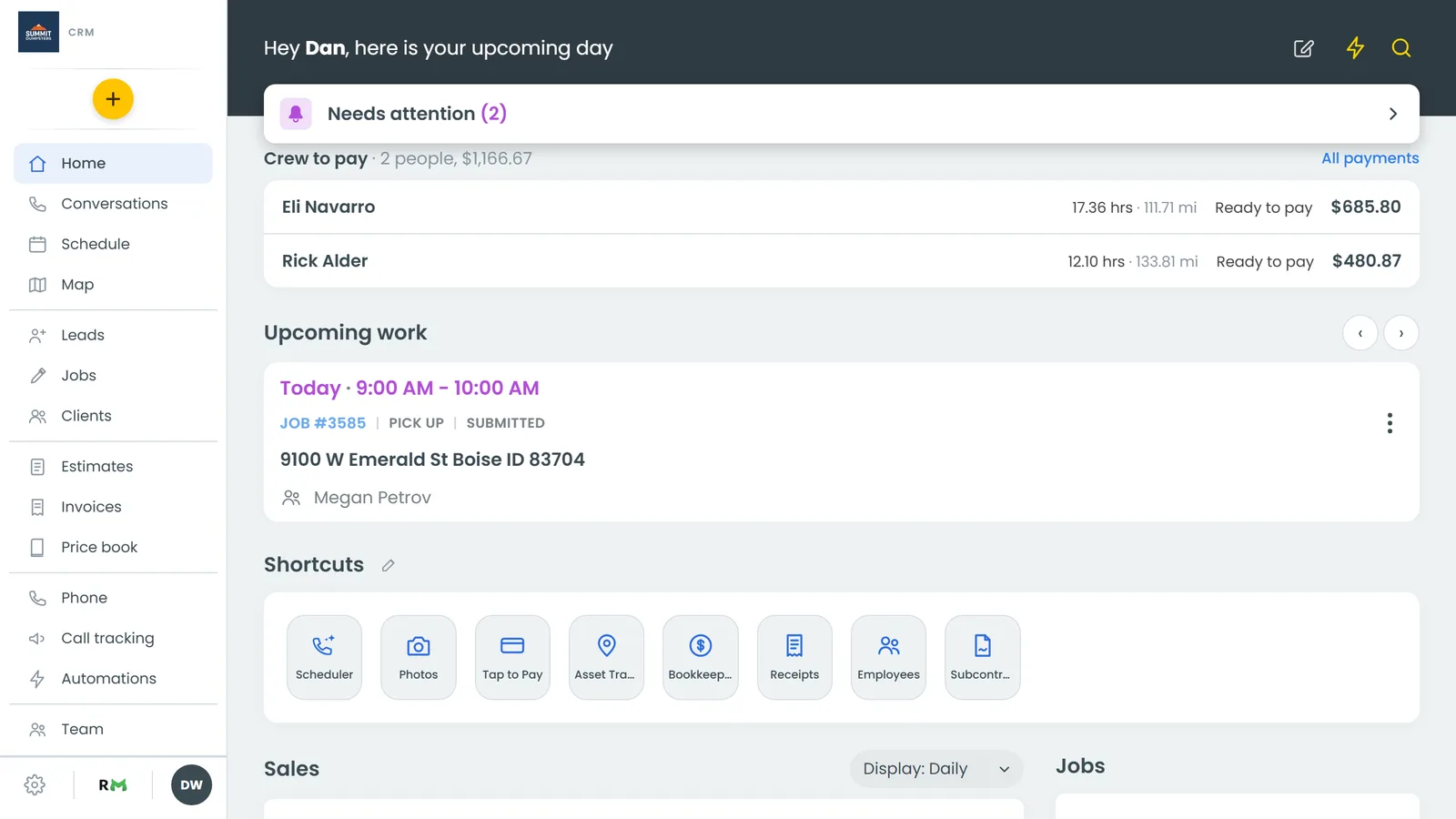
How payments work here
Card payments go through your own Stripe account. The money lands in your bank, and you keep the full Stripe dashboard for payouts, refunds and disputes. You never paste a key into the CRM. When you connect, Stripe hands us your account ID, and that's all we keep.
There's nothing to switch on in Features first. Payments is there for every company and sits idle until you connect.
Once Stripe is connected:
- Customers can pay invoices and deposits by card from their customer portal.
- On the web, a job's Collect payment panel shows Pay by credit card, plus Card on file when the customer has a saved card.
- On the phone app, Collect payment offers Tap to Pay, Type card manually and Send payment link, plus a charge button for a saved card.
Until you connect, a customer who opens an invoice's pay page sees Online payment isn't set up yet, with a note asking them to get in touch with you. On the web, the Collect payment panel shows a Tap to Pay and card payments box with a single Set up Stripe button that takes you to the Payments page. On the phone app, tapping Tap to Pay or Type card manually before Stripe is connected takes you straight to the Payments screen.
Connect your Stripe account
You finish setup on Stripe's own site, and it takes about five minutes. Have your EIN handy (or your SSN if you're a sole proprietor), plus the bank account you want payouts sent to.
- On the Payments page, click Connect Stripe. The button reads Opening Stripe… for a few seconds while your account is created.
- Fill in Stripe's form with your business and bank details.
- When you're done, Stripe sends you back to the Payments page.
On the web, a note at the top of the page tells you how it went: Stripe is connected, Stripe is reviewing your details, or you left before finishing. If something went wrong, the error shows in red instead.
On the phone app, Connect Stripe opens Stripe's form in a browser inside the app. When you close that browser, the screen checks your status again and the Stripe card shows where things stand.
Check your connection status
The Stripe card on the Payments page always shows one of four states. Once an account exists, its ID shows under the state.
- Not connected: you haven't started yet. The button says Connect Stripe.
- Setup not finished: you left Stripe's form early. Click Continue setup to pick up where you stopped.
- Under review by Stripe: Stripe has your details and is checking them. To change something, click Open Stripe form.
- Connected: you can take cards. Two boxes show Card payments and Payouts to your bank, and the button changes to Open Stripe dashboard.
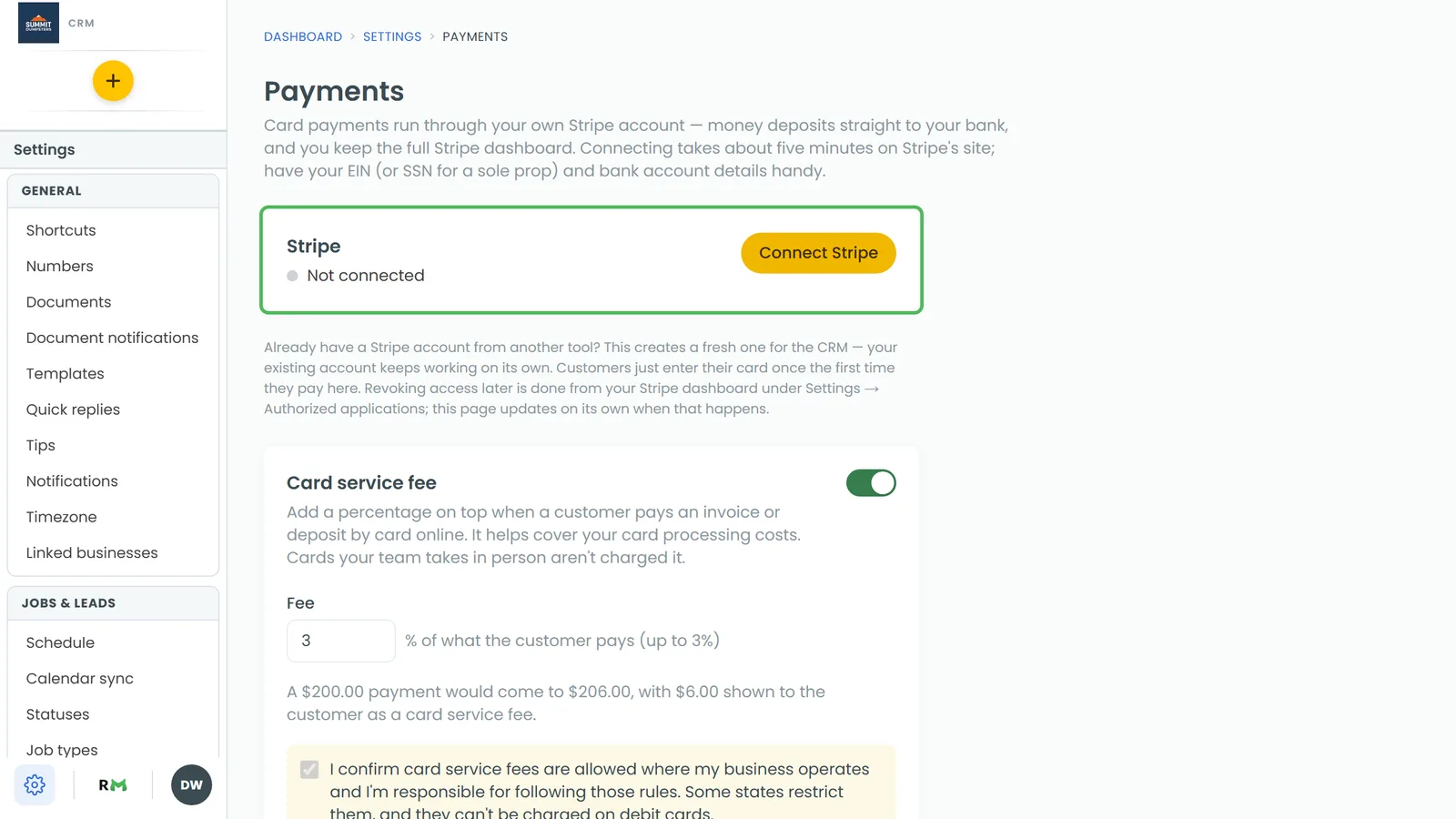
If Stripe still needs something from you, a Stripe still needs: list appears on the card, sometimes with a Reason: line under it. Click Finish in Stripe → to fill it in.
For the latest status from Stripe, click Refresh status. The time of the last check shows next to the button.
Disconnecting
To disconnect, open your Stripe dashboard and remove the CRM under Settings → Authorized applications. The Payments page notices on its own and goes back to Not connected.
What else is on this page
The Card service fee setting sits further down the same page, on both the web and the app.
On the phone app, once Stripe is connected, a Tap to Pay card also shows below the Stripe card. On an iPhone it's called Tap to Pay on iPhone, and its button says Set up Tap to Pay on this iPhone. On Android it's called Tap to Pay, and the button says Set up Tap to Pay on this phone. Both have a How Tap to Pay works button too.