In this article, you'll learn how to put team members on a job, either while you're creating it or later from the job page, and how to take someone off.
You won't always know who's taking a job when you book it. That's fine. Leave the crew empty and fill it in once you know.
To open a job:
- In the menu, click Jobs and click the job. You can also open it from the schedule or the client's page.
- The job page opens on the Details tab.
Assigning the crew while you create a job
On the web, the New Job form has the crew picker in its Scheduled card, under the start and end times.
- Fill in the client and job details as usual.
- In the Scheduled card, set the start and end times.
- Click Assign team members and pick a name.
- Do the same for anyone else who's going. The field shows the names you've picked, and each person gets a chip under it.
- Click Create.
To take someone off before you save, click the x on their chip. If you've picked everyone, the list says Everyone's on this job. If nobody's on your field team yet, it says No team members yet.
Assigning someone to a job you've already created
- Open the job.
- On the Details tab, scroll down to the Team section, under the schedule.
- Click Assign team members.
- Click a name.
There's no Save button for this part. The person goes on the job the moment you click their name. Anyone already on the job drops out of the list, so you can't add the same person twice. Once everyone's on, the list says Everyone's already on this job.
On the phone app it works the same way. Open the job, scroll to Team, tap Assign team members and pick a name. If nobody's on the job yet, you'll see Nobody assigned yet. The Assign team members button only shows while there's someone left to add.
Taking someone off a job
- Open the job and go to the Team section on the Details tab.
- Click the x on the person's chip.
They're off the job right away. On the phone app, tap the person's chip.
Who shows up in the list
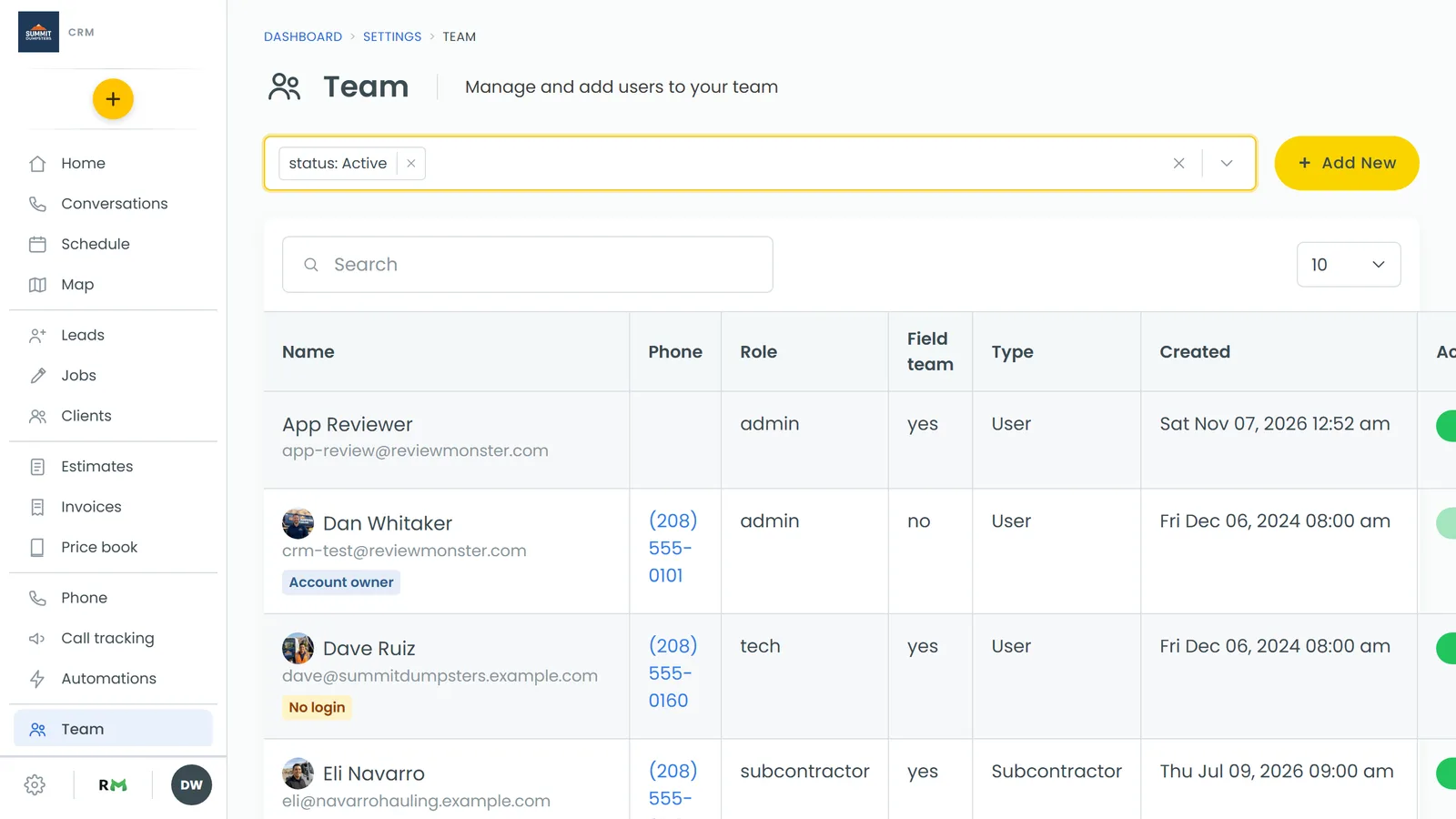
The names come from your Team page. To be offered on a job, a person has to be active and have Field team member ticked. Open the Team page, click the person, and you'll find the tick box under Roles and permissions. The phone app has the same switch when you open a person from its Team screen.
If the person you want isn't in the list, click Manage team at the bottom of the dropdown. It takes you to the Team page.
If you're a one-person company
If you're the only active field team member, you don't have to pick yourself every time. On the web, the New Job form starts with you already picked, and the CRM puts you on each new job automatically on the web and on the app. Once there's a second person on the field team, it stops doing that and leaves the choice to you.
Done jobs are locked
Once a job is marked Done, the Team section is read-only, so you can't add or remove anyone. To change the crew, change the job's status to reopen it, make your change, then set it back to Done.
How your crew finds out
There's no send button for this. Team members who use the phone app get a push notification automatically when:
- you add them to a job from the job page (Job assigned to you)
- you take them off a job (Taken off a job)
Tapping the notification opens that job.