In this article, you'll learn how to get around the Schedule page. It's where every booked job lives, so it's the quickest way to see who's busy, move work around and book something new without leaving the calendar.
The Schedule shows your jobs. Canceled jobs are kept off it unless you ask for them in the filter.
To open the schedule:
- In the menu, click Schedule.
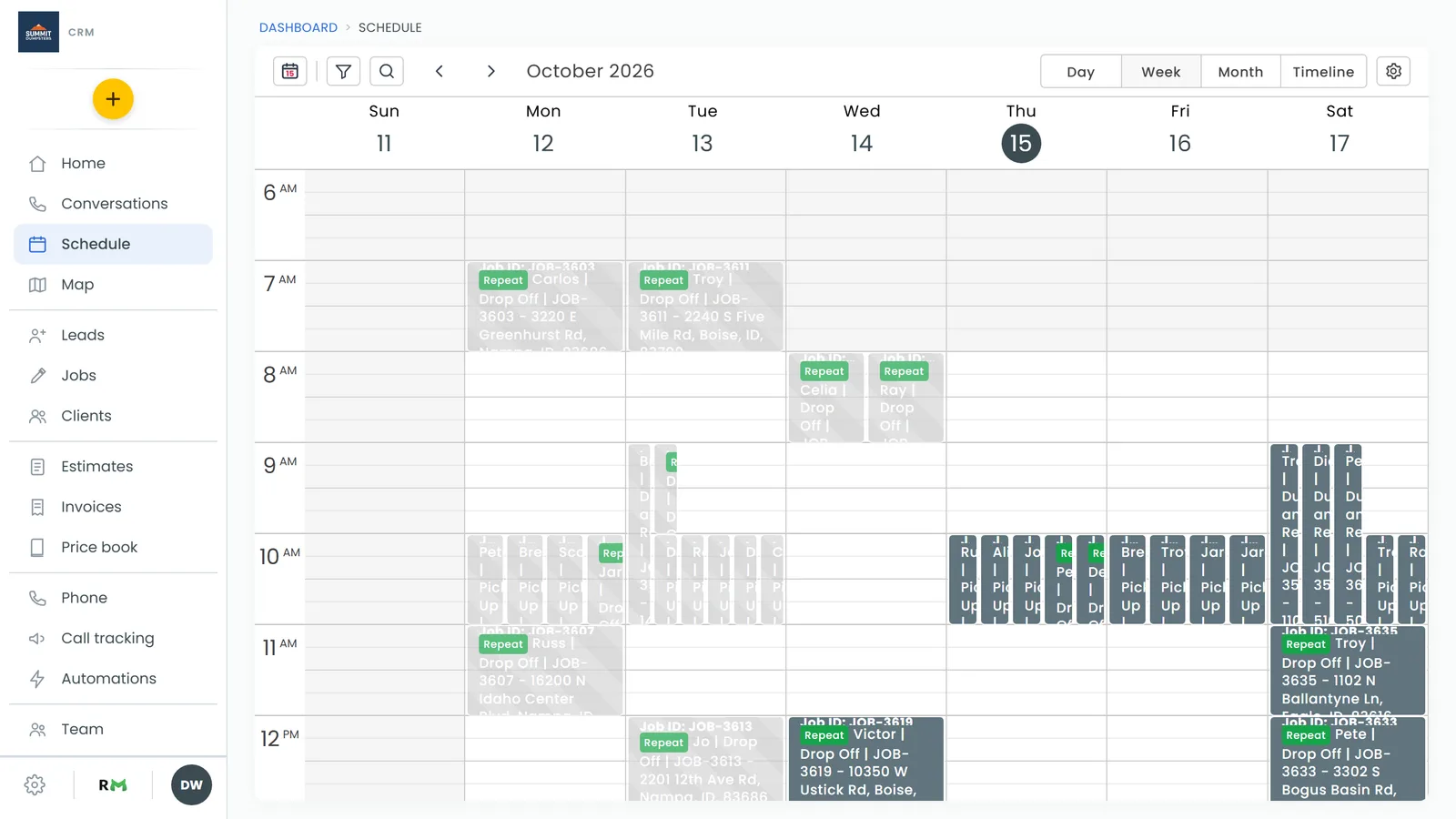
The toolbar
Along the top of the calendar, from left to right, you'll find:
- Today (the calendar icon): jumps back to today.
- Filter (the funnel): opens Filter the calendar, where you can narrow the view by team member, job type, status, tag or source. A small yellow number on the funnel shows how many filters are on.
- Search (the magnifying glass): opens a box that says Search names, numbers, addresses…. Type to show only the jobs that match.
- The previous and next arrows: step back or forward a day, week or month, depending on the view.
- The date you're looking at.
On the right side are the view buttons, Day, Week, Month and Timeline, and the gear for Calendar settings.
Switching views
- Click Day, Week, Month or Timeline at the top right.
- Day and Week show your jobs on an hour-by-hour grid. Jobs that overlap sit side by side.
- Month shows the whole month, one box per day.
- Timeline shows one day as a row per team member, with an Unassigned row on top. It only spans your open hours for that day, stretched to fill the screen.
Done jobs stay on the desktop calendar, shaded grey so you can tell them apart. For more on picking a view, see Customizing your schedule.
Seeing a job's details
- Click any job on the calendar.
A small card opens with the job number, the client (with text and call buttons when there's a phone number), when it's scheduled, its status, the address, tags and description. You can change the status right there from the dropdown.
- Click the pencil to go to the job.
- Click the open-in-new-tab icon to open the job in a new browser tab.
- Click the address to open it in Google Maps.
Moving and resizing jobs
- To move a job, drag it to a new time or day. In Month view, dragging to another day keeps the same start time.
- To make a job longer or shorter, drag its edge: the bottom edge in Day and Week, the right edge in Timeline.
Times snap to the nearest quarter hour when you let go, and the change saves on its own. If the save fails, the job jumps back to where it was.
Booking a job from an empty slot
In Day or Week view:
- Click an empty spot to start a one-hour job there, or click and drag down to cover a longer stretch.
- The New job form opens with the date, start and end times already filled in.
- Fill in the rest and save as usual.
Business hours and calendar settings
- Click the gear at the top right.
- Set your Business hours, the Schedule visible hour range, and whether to show done jobs.
- Click Save.
The same settings are also under Settings > Schedule.
It keeps itself up to date
The calendar quietly refreshes every minute while it's open, so a job someone else books or moves shows up without you reloading the page.
On a phone
On a phone, and in the phone app, the Schedule has its own layout with Timeline, Day and Map views instead of the desktop grid. See Managing your schedule on the phone app.
Related articles
- How to schedule and manage jobs
- How to create jobs
- Assigning team members to jobs
- Managing your schedule on the phone app
- Switching between your businesses