In this article, you'll learn how to read your weekly summary report. It's a one-page recap of what got done for your business over the past week, so you can see the work and the results without opening every other report.
To open your summary:
- In the dashboard menu, click Reports.
- Click Summary.
Every plan includes the summary, so you'll always see the Summary tab in Reports.
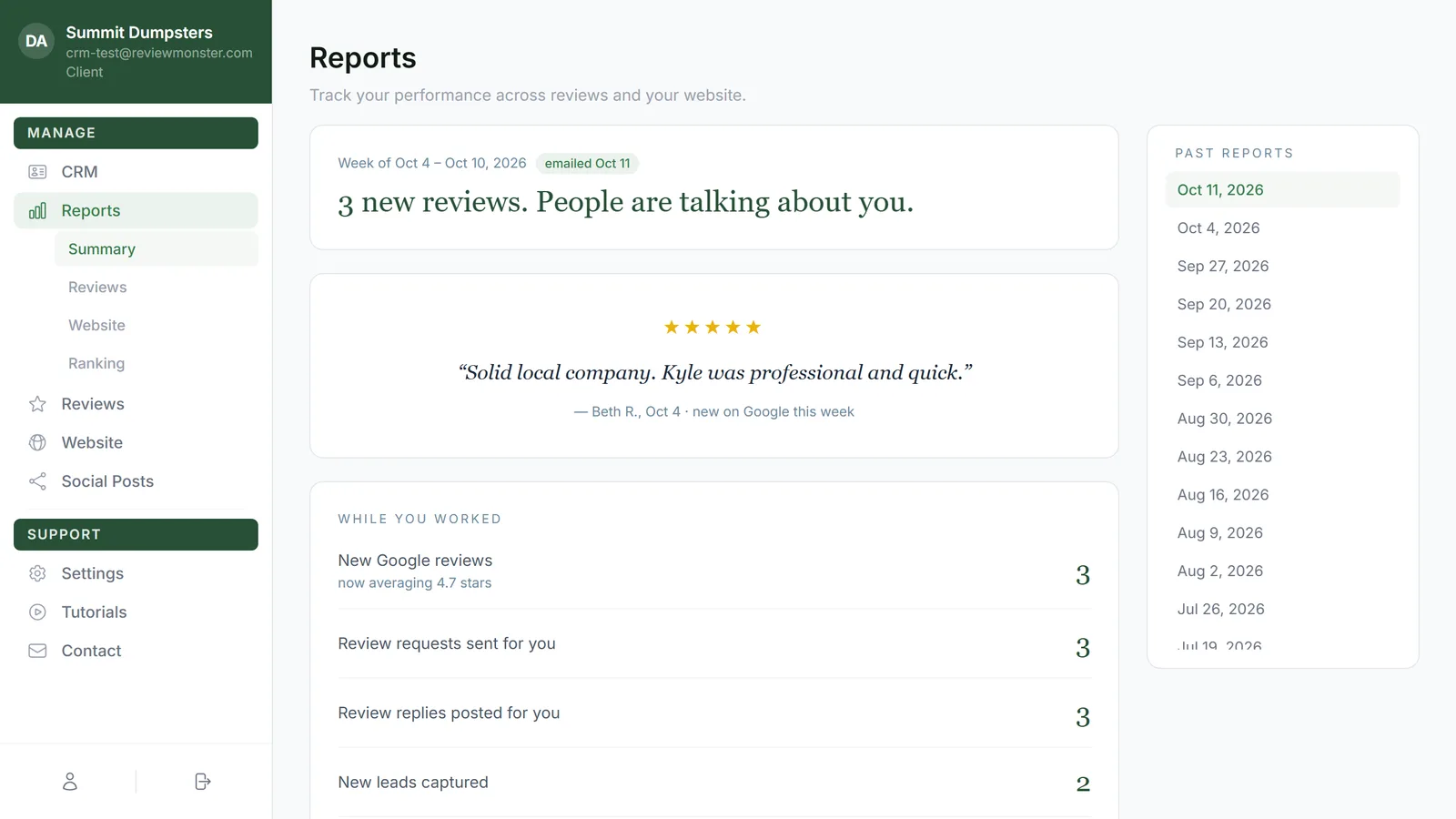
The week and the headline
At the top of the report is the week it covers, like Week of Oct 4 – Oct 10, 2026. If that week's summary was also emailed to you, a small green emailed badge sits next to it with the date it went out.
Under that is a one-line headline that picks the biggest news of the week:
- New reviews, if any came in
- That you moved up in the rankings, if no reviews came in but your average map rank improved
- How many new leads found you, if neither of those happened
If it was a quiet week, the headline just says Here's what we handled for you this week.
The featured Google review
When a new four- or five-star review shows up on Google that week, it gets its own card: the stars, the review in quotes, the reviewer's name and the date, marked new on Google this week. If there's more than one, a five-star review is picked first, and very long reviews are trimmed.
While you worked
This is the list of what was done for you that week, with a number beside each line. Which lines you see depends on your plan, and some only show up in a week when there's something to count.
- New Google reviews: how many new reviews you got. When there's a rating to show, a note under it says what you're averaging now. Shown on plans that include reviews.
- Review requests sent for you: how many review request texts and emails went out to your customers. Shown on plans that include reviews.
- New leads captured: new leads that came in that week.
- Google Business posts published: posts that went live on your Google Business Profile.
- Blog articles published: new articles added to your website's blog.
- New backlinks earned: new links to your website from other sites.
- New directory listings built: directories you were newly added to, with up to three of their names and how many directories you're listed on now.
- Listings updated to match your profile: existing listings that were corrected to match your business details, with up to three of their names.
Where you rank on Google Maps
If your plan includes ranking tracking, this section shows how you're showing up on Google Maps. When there's a main search term, it's named in the section title.
- Average map rank: your average position in the map results. Lower is better, so 2.5 beats 4.0. When there's an earlier scan to compare with, you'll see the old number, an arrow and the new one.
- Showing in the top 3: the share of searched spots where you landed in the top three map results.
When things improve, a green badge appears under the number, like ↑ 1.5 spots better or ↑ up 12 points.
Past reports
On the right (or below the report on a phone) is the Past reports list. Each date is one week's summary, newest first. Click a date to open that week. The one you're looking at is highlighted.
Before your first summary
If you've just signed up, the page says Your first weekly summary lands this Sunday. Check back then. Nothing's wrong. Your first report shows up once it's made on Sunday.
Related articles
- Reports in your dashboard: an overview
- Understanding the Reviews report
- Reading the Website report
- Seeing the review requests you've sent
- Turning on daily Google Business Profile posts