In this article, you'll learn how to check which Review Monster plan you're on, what it includes, and what you'd get by moving up a plan. It's also where you go if you want to cancel.
This page is in your Review Monster dashboard on the web. The phone app doesn't have it.
To open your subscription:
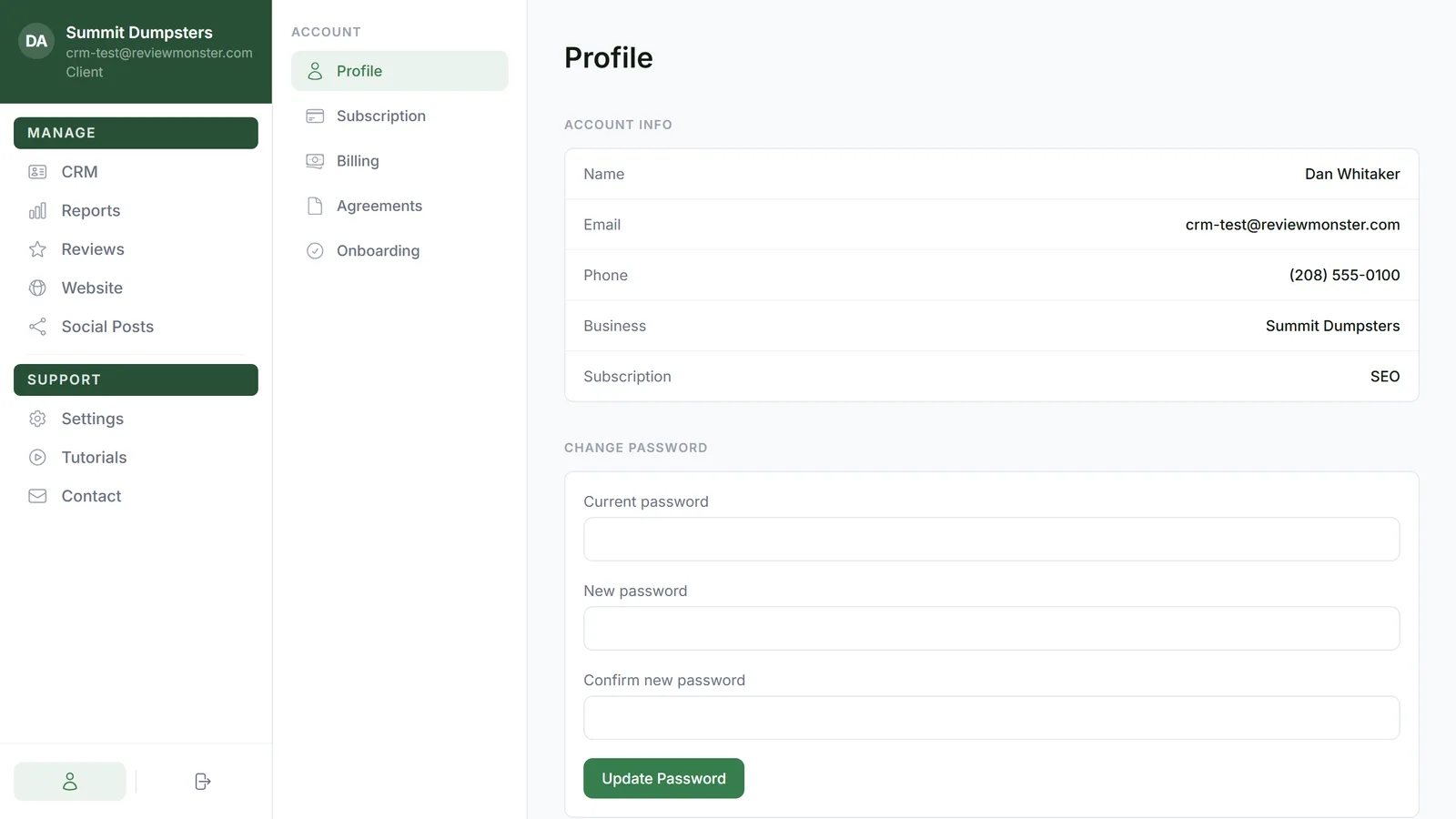
- In the dashboard menu, click Account.
- In the Account menu, click Subscription. On a computer the Account menu runs down the left side of the page. On a phone it's a row across the top that you can swipe sideways.
Your current plan
The first box on the page, Current Plan, shows:
- The name of your plan
- Active subscription under the name
- Your monthly price on the right
- A checklist of everything your plan includes
These are the four plans and their monthly prices:
- Review Automation: $195/mo. 5-star smart filter, re-engage past customers, smart timing and messaging, reviews on your website and auto social posting.
- Website: $195/mo. A custom 20-page website, lead auto-reply, online scheduling, lead capture forms and an AI chatbot.
- Reviews + Website: $295/mo. Everything in both plans above.
- SEO: $395/mo. A full SEO package, 20-page website, custom AI chatbot, review automation, Google Business Profile optimization, local keyword targeting, citation building and management, monthly performance reports and a dedicated SEO specialist.
Upgrade options
Under your current plan, Upgrade Options lists every plan that costs more than yours. Each card shows:
- The plan name and its monthly price.
- The features you already have, in grey and marked (included).
- A You'd also get list with the features you'd add by moving to that plan.
To ask for an upgrade
- Find the plan you want under Upgrade Options.
- Click Contact us to upgrade on that card. This opens the Contact page.
- Tell us which plan you'd like and we'll switch you over.
Upgrades don't happen from this page by themselves. Someone on our team sets up the new plan once you've asked.
Canceling your subscription
The Cancel subscription link sits at the very bottom of the page.
- Click Cancel subscription.
- Read the Are you sure? box. It explains that your review history and customer data will be permanently deleted, all automated review workflows will stop, and the cancellation can't be undone. On a plan with a website, it also says your website will be taken down. Click Never mind to back out, or Continue canceling.
- On Reviews + Website or SEO, you'll see Would a different plan work better? with the smaller plans you could switch to. Click Contact us to switch to change plans instead, or No, I want to cancel to keep going.
- Type why you're canceling in the box. It has to have something in it before you can send.
- Click Submit cancellation, or Keep my subscription if you've changed your mind.
You'll see Request received. This sends a request rather than canceling on the spot. Someone on our team will follow up with you.
Related articles
- Reading and signing your service agreement
- Website overview
- How review requests work
- How to customize your account settings
- Getting help with the CRM