In this article, you'll learn how to collect tips from your clients. Lots of customers are happy to tip a crew that did good work. They just need to be asked while they're paying.
Tips come in two ways:
- Online, when a customer pays an invoice from the link you sent them
- In person, when you take a card with Tap to Pay in the phone app
Both use the same setting, and in both the customer chooses the tip.
Turning tips on
To open your tip settings:
- In the menu, click Settings.
- Click Tips.
The Ask for a tip switch decides whether customers get asked at all. When it's off, paying goes straight from the invoice to the signature. The switch saves as soon as you click it.
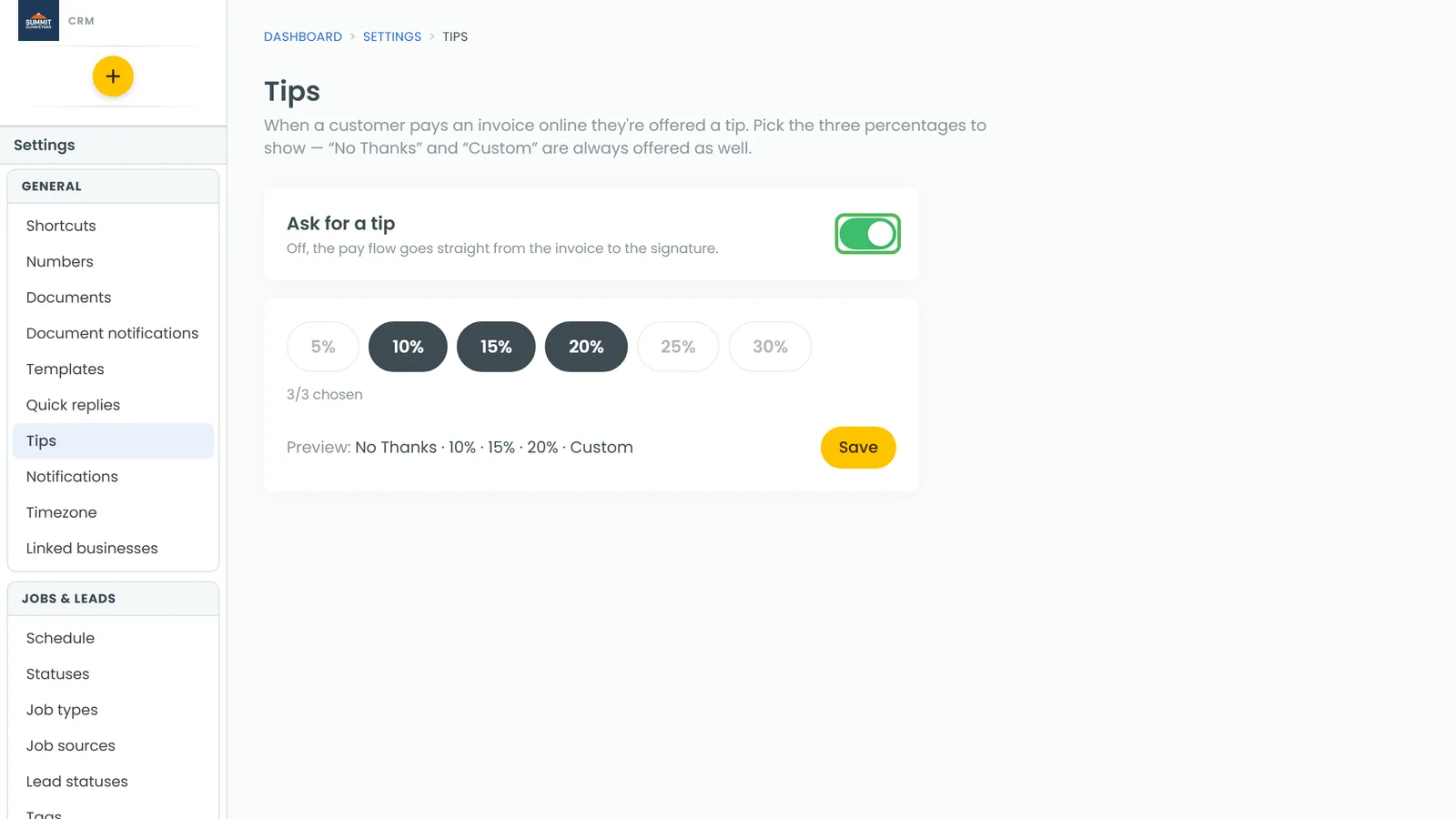
Under the switch you pick the three percentages customers see. To change them, see Customizing the suggested tips your clients see.
Collecting tips online
There's nothing extra for you to do here. When a customer opens an invoice you sent them and goes to pay, the first step asks Add a tip?
What the customer sees:
- The amount due, then a row of buttons: No Thanks, your three percentages, and Custom.
- If they pick Custom, a box opens where they type a dollar amount.
- Once they've picked a tip, a line under the buttons shows the tip and the new total.
- They tap Continue, sign under Add your signature, then pay under Make a payment. The amount there notes how much of it is the tip.
Collecting tips in person on the phone app
In the phone app, the tip comes up when you take the card with Tap to Pay. You hand the phone to the customer and they choose.
To take a payment with a tip:
- Open the job and tap Finance.
- Under Payments, tap Add payment. The Collect payment screen opens.
- Tap Tap to Pay on iPhone (on Android it just says Tap to Pay).
- The Tap to Pay payment screen shows the amount under Review your payment summary. Hand the phone to the customer and have them tap Approve Amount.
- They'll see Would you like to add a tip? with a tile for each of your percentages. Each tile shows the dollar amount too.
- They tap a tile, or tap Custom tip amount, type their own and tap Save, or tap No tip.
- The summary updates to show the tip and the new total. They tap Add tip (it says Continue if they didn't add one).
- Under Add your signature, they tap the Tap to sign box and sign.
- They tap Pay (the button shows the total), then hold their card to the phone.
Seeing the tip on the job
Once the payment goes through, the tip is added to the job's total. In the job's totals, a Tip line shows up just above Total (on a phone, you'll find it on the Finance tab). It only appears once a customer has left a tip.
To see all your tips in one place, see Tracking tips collected from clients.