In this article, you'll get short answers to the questions people ask most about online booking. If you're wondering why a time didn't show up, whether a booking needs your OK, or who gets told when one comes in, you'll probably find it here.
Most of these answers come down to one settings page in your Review Monster dashboard.
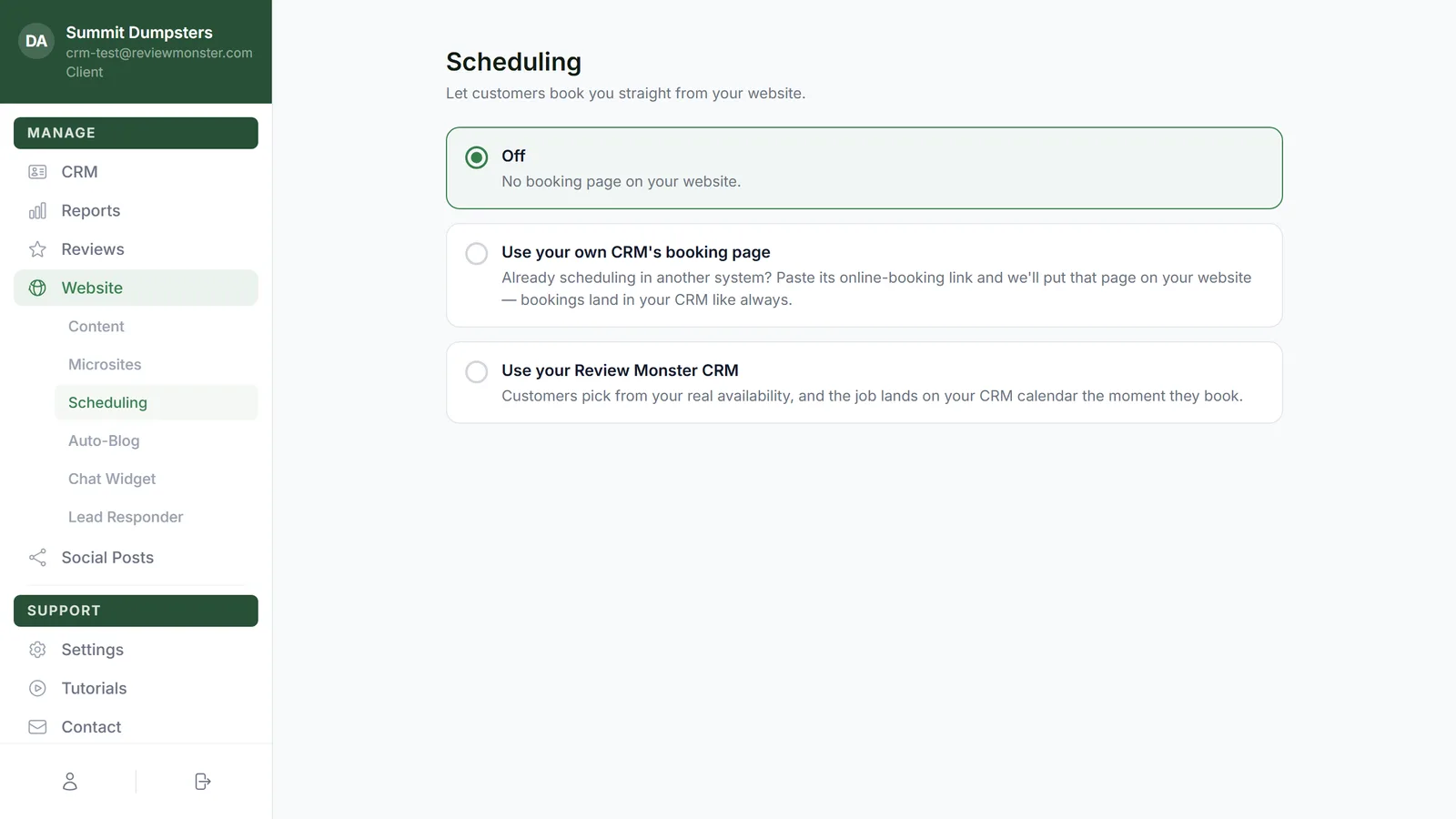
To open your booking settings:
- In the dashboard menu, click Website.
- Click Scheduling.
Can I make customers pay or leave a deposit to book?
No. The booking page doesn't take a payment or a deposit. The customer picks a time, gives their details, and that's it.
If you want money up front, collect it through an estimate instead. You can ask for a deposit on the estimate, and the customer pays it when they approve. See How to request deposits on estimates.
Does a booking know if the customer is new or returning?
Yes. The booking is matched to your clients by phone number first, then by email address. If it finds a match, the job or lead goes on that client's record. If it doesn't, a new client is created.
That means a returning customer who books with a different phone number and email ends up as a second record. You can tidy that up afterward. See How to merge duplicate clients.
Do new bookings need my approval?
That's your call. Under New bookings are… pick one:
- Scheduled instantly. The job is created and lands on your calendar the moment the customer picks a time. It arrives with the status Submitted.
- Requests you approve. The pick comes in as a lead with the requested time on it. The request also shows up in Conversations as a message from the customer, so you can answer them right there. Your office alert says it's waiting in the CRM as a lead to confirm.
Either way, the app sends a New online booking push. For an instant booking, tapping it opens the job.
Is the booking assigned to someone on my team?
Only when there's exactly one active field team member in your CRM. Then they go on the job automatically, the same as a job you create yourself. With two or more people, the job comes in unassigned and you pick who takes it.
To find unassigned jobs, open the Schedule and switch to the Timeline view. There's a row for each team member, and the Unassigned row sits at the top.
Can two people book the same time? What if my team's already busy?
The booking page only offers times with room left. A few settings decide what "room" means:
- Bookings per time slot, under Appointment slots, is how many jobs can share one time before it stops being offered. Set it to 0 if you're fine with double-booking.
- Buffer between bookings (minutes) keeps space around jobs already on your calendar, so back-to-back bookings don't land on top of drive time.
- Jobs already on your calendar count against a slot. Canceled jobs don't.
- If you've connected a Google Calendar under Settings › Calendar sync, busy events there take up slots too.
When a customer confirms, the time is checked one more time. If someone else just took the last opening, they see "That time was just taken — pick another." and nothing is booked for them.
Do holidays block booking?
Not unless you tell them to. Bookable on holidays, in the When customers can book section, is on by default. Turn it off and customers can't book on US federal holidays.
Can I change the confirmation message?
Yes. The Message to the customer card has three boxes: Confirmation text, Confirmation email — subject and Confirmation email — message. You can use {{first_name}}, {{business_name}} and {{time}} in any of them. Leave the text or the email message blank and that one isn't sent.
Two things to know:
- Confirmations only go out when New bookings are… is set to Scheduled instantly. With Requests you approve, the customer sees "Request received" on the page and waits to hear from you.
- The email only goes out when the customer gave an email address.
Is an email address required to book?
Name and phone are always required. Everything else is up to you. In the What the form asks for card, set Email address to Don't ask, Optional or Required. The same three choices apply to Service they need, Service address and Job details.
What if the customer's number can't get texts?
The booking still saves. The customer just doesn't get a confirmation text. The office alert for that booking notes that the number can't receive texts and no confirmation was sent, so you know to reach out another way. The same goes for an email address that bounces.
If the phone number doesn't look real and there's no working email either, the booking isn't taken. The customer is asked to check their details and try again.
Who gets told about new bookings?
The New online booking row in your Notifications grid. Its Text and Email switches are both on to start, and they go to the company's notification phone numbers and email addresses. You'll find the grid in the CRM under Settings › Notifications, and in the dashboard under Settings › Notifications.
Can I see where a booking came from?
Yes. A booking records where the visitor came from before they booked, and that becomes the client's Source. Details are in Seeing where your online bookings come from.
Can I put online booking on a website you didn't build?
Yes. The CRM gives you a snippet to paste into any site.
- In the CRM, go to Settings › Online booking and turn on Let customers schedule online. Click Save settings.
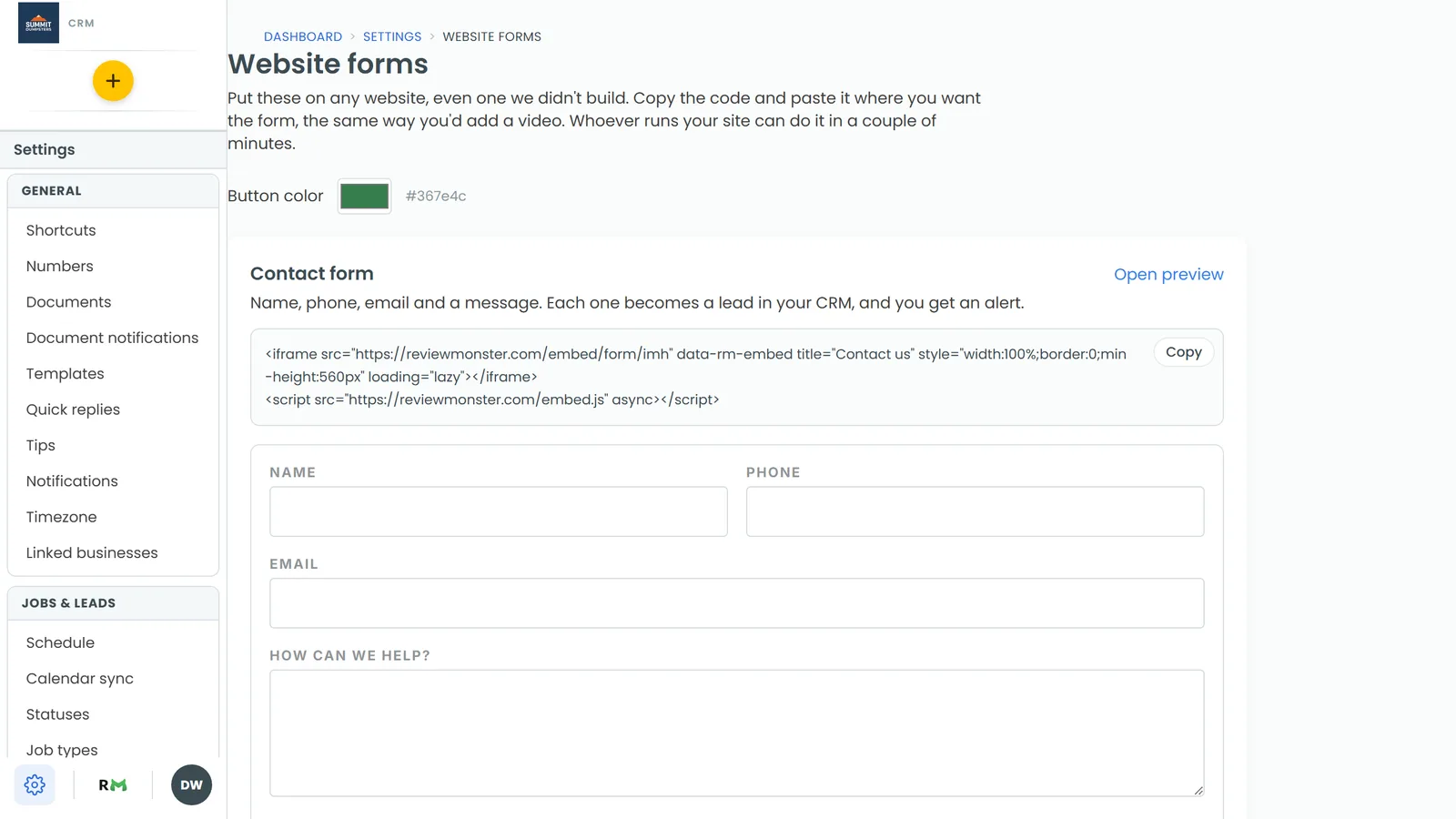
- Go to Settings › Website forms.
- Under Online booking, click Copy.
- Paste the code into your site where you want the booking form to appear.
Pick a Button color at the top of the page before you copy if you want the form to match your site. Open preview shows you what visitors will see. The embedded form follows your Online booking settings: hours, services, and whether bookings need your OK.
Can I use another system's booking page instead?
Yes. If you already schedule somewhere else, you can put that system's booking page on your website.
- On the Scheduling page, click Use your own CRM's booking page.
- Paste the link into Booking page link. It has to start with https://.
- Click Save.
Look for "online booking" or "booking widget" in your other system's settings to find the link.
Do my microsites get online booking?
They follow your main site. A booking made from a microsite uses the same calendar and the same settings as your main website, and the booking notes which microsite it came from.
Is there a Google or Reserve with Google connection?
No. Online booking works through the booking page on your website, or the snippet you paste into another site. It doesn't connect to Google's booking features.