In this article, you'll learn how to keep an automation from reaching certain clients. Maybe a customer asked you to stop texting, or you don't want a commercial account getting the same "thanks for choosing us" message as everyone else. You've got two ways to handle it.
- A job tag condition on the rule. The rule skips any job that carries the tag, so it's the right choice when you only want to quiet one or two automations.
- Do Not Disturb on the client. This blocks every text or email to that person, from automations and from your office too.
Conditions in this CRM look at the job, not the client. There's no "client tag" condition, so tags on the client's own page won't stop a rule. Use a job tag, or use Do Not Disturb.
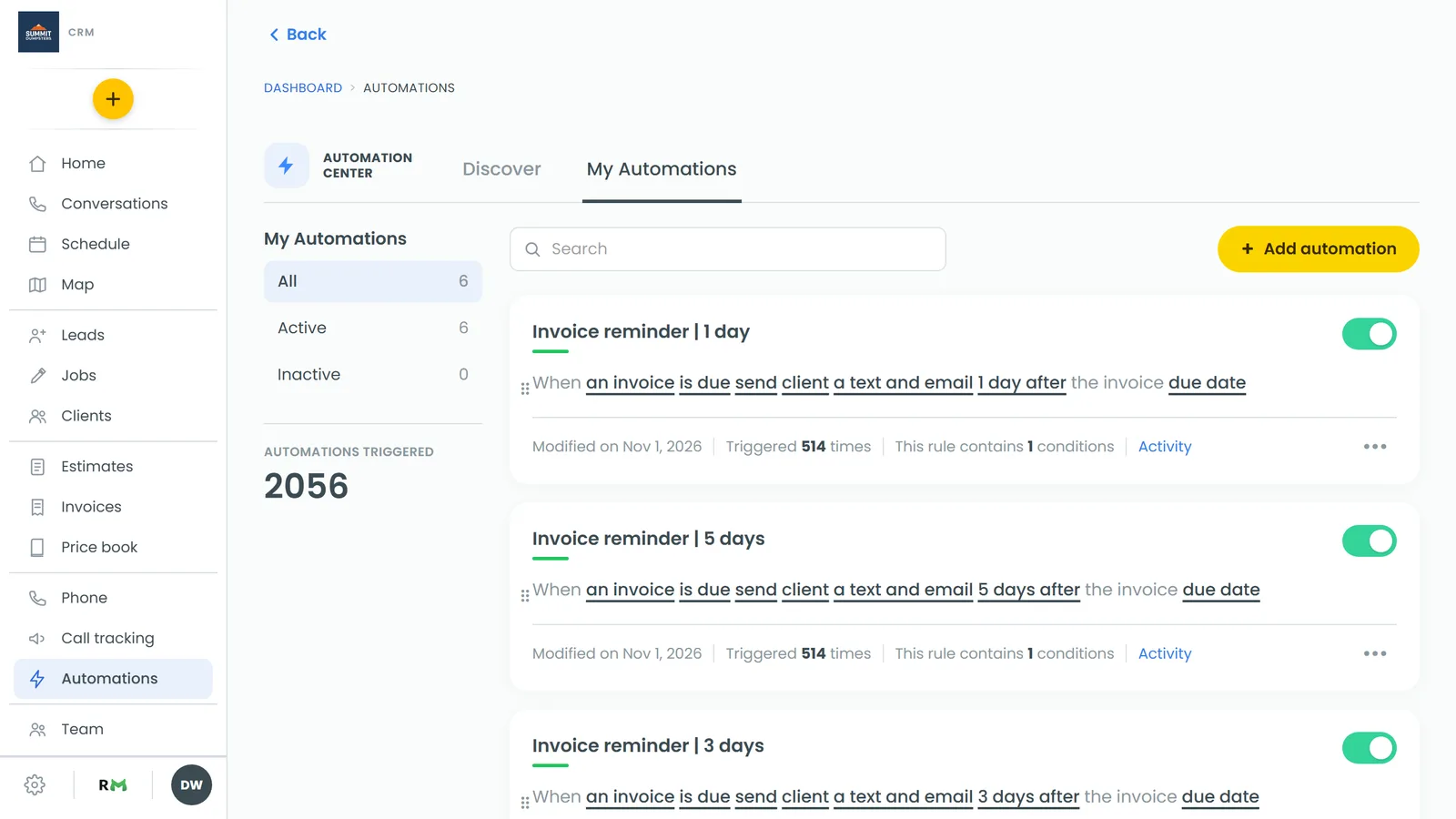
To open your automations:
- In the menu, click Automations.
Option 1: Skip clients with a job tag
Create the tag
First you need a tag to mark these jobs with, something like "No automations". If you haven't made one yet, follow Creating tags for jobs.
Add the condition to the rule
- On the Automations page, find the rule you want to limit.
- Click ••• on its card, then click Edit. You can also click the rule's sentence to open it.
- Below the rule, click Add condition.
- In the Only if… box, open the first drop-down and choose job tag.
- Click ≠ is not.
- Open the Select property drop-down and pick your tag.
- Click ✓ Apply. The rule now reads "Only if job tag is not No automations".
- Click Update automation.
On the phone app it works the same way. Tapping Add condition opens the Only if… panel from the bottom. Tap the first pill and pick job tag, tap ≠ is not, tap Select property and pick your tag, then tap ✓ Apply.
Tag that client's jobs
Now put the tag on the client's jobs. When the rule fires for a job with that tag, it doesn't send anything. Every other job still gets the message, including jobs with no tags at all.
If you pick = is instead, it works the other way: the rule only sends for jobs that have the tag.
Option 2: Turn on Do Not Disturb for the client
Do Not Disturb sits on the client's own record. While it's on, no automation can text or email that person.
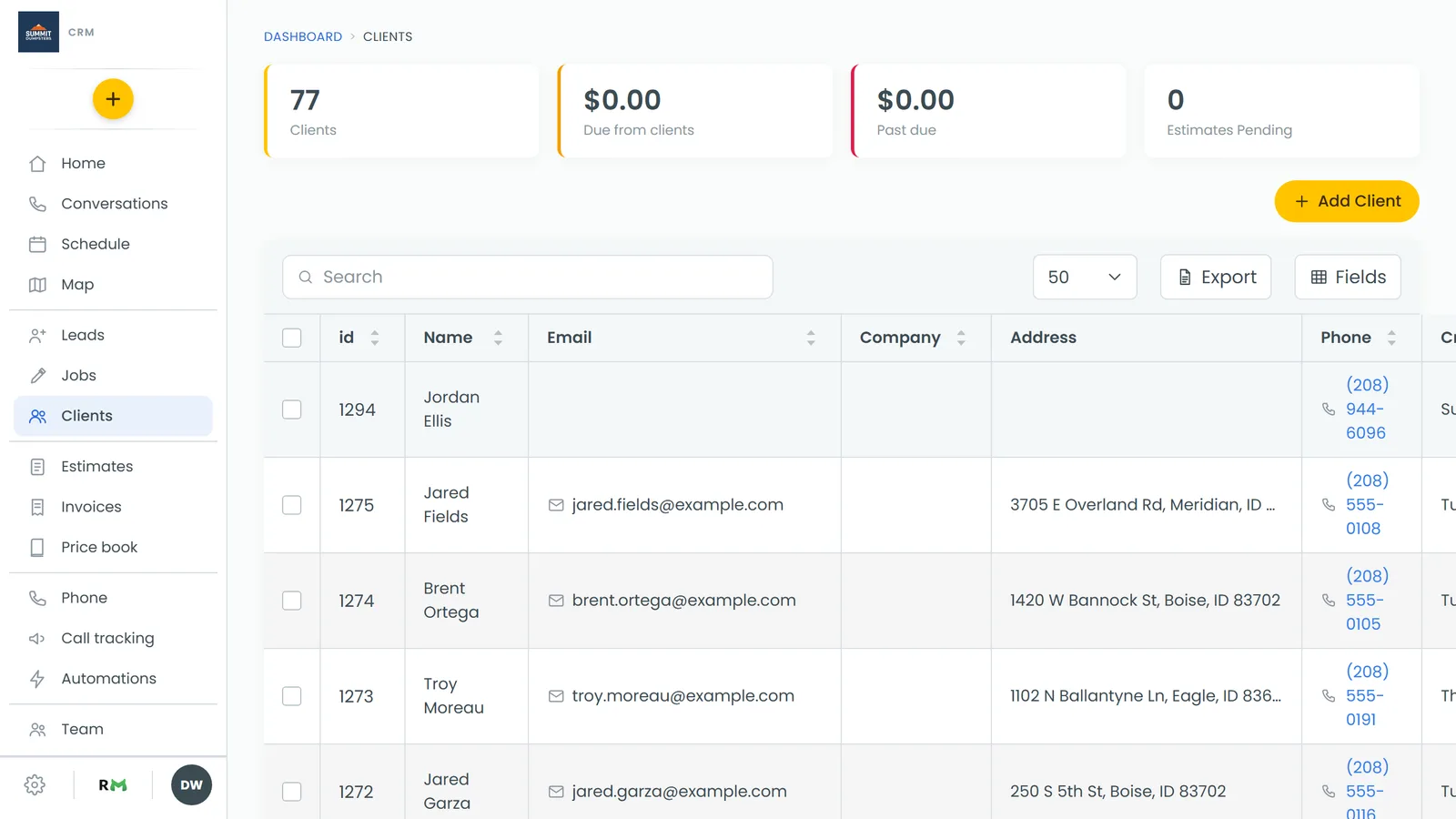
- Open the client's page.
- On a computer, open the Do not disturb section in the left column, below Payment methods. On a phone, tap the Do Not Disturb row under Estimates.
- Switch on DND for all channels to stop everything. Or leave that off and switch on just the channel you want to stop: DND for emails, DND for text messages, DND for calls & voicemails, DND for Facebook messages or DND for review requests.
Each switch saves as soon as you flip it. On the phone, the Do Not Disturb row turns red and reads "Do Not Disturb — on" while any switch is on.
What happens when an automation hits DND
The rule still fires, but the message is held back. Click Activity on the rule's card and you'll see that send marked Failed. Nothing reached the client.