In this article, you'll learn what happens when a customer texts STOP to your business, how they opt back in, and where to see or change it yourself. It matters because once someone opts out, the CRM won't send them anything until that's lifted.
To see a client's opt-out settings:
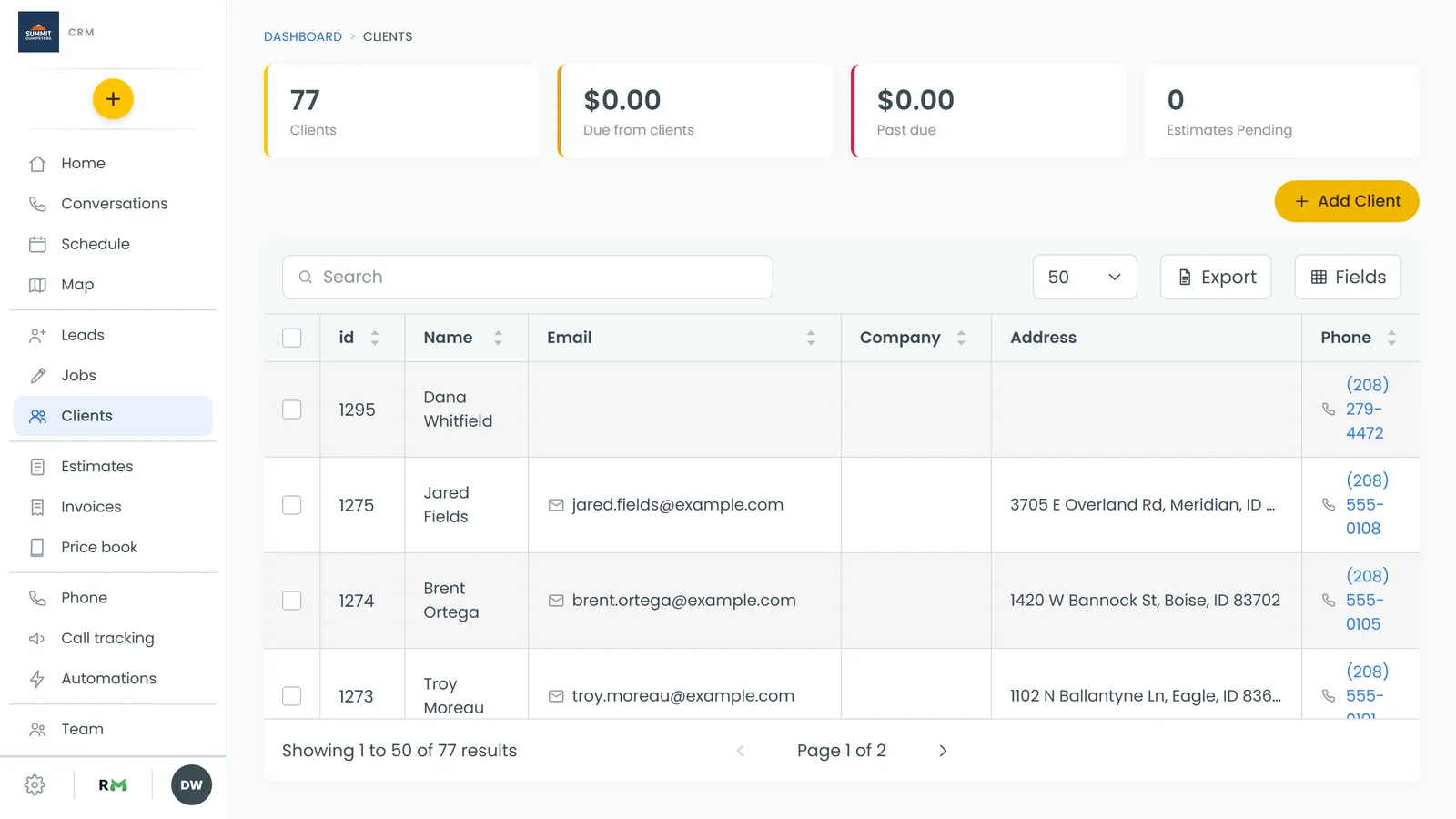
- In the menu, click Clients.
- Open the client.
- On the left, click Do not disturb to open it.
On a phone, it's the Do Not Disturb row under Estimates on the client's page. It reads Do Not Disturb — on in red when any switch is on. The phone app has the same row.
How customers opt out
A customer opts out by texting any of your CRM numbers a message that starts with one of these words:
- STOP
- STOPALL
- UNSUBSCRIBE
- CANCEL
- END
- QUIT
Capitals don't matter, and only the first word is checked. "Stop" and "stop texting me" both count.
When that happens, the CRM:
- Turns on DND for all channels for that client.
- Adds a dnc tag to them.
- Stops any review requests that were queued or in progress for them.
The text itself still lands in your conversation with them, so you'll see what they wrote.
Replies to review requests
If a customer you've asked for a review writes back asking you to stop, says you've got the wrong number or the wrong person, or is upset with your business, the CRM treats that the same way. It turns on Do Not Disturb, adds the dnc tag and stops their review requests. This works for review requests sent by text and by email.
After a customer opts out
With DND for all channels on, the CRM refuses to contact that client. If you or an automation tries to text them, the text doesn't go out and you'll see Client has DND selected for texting. The same switch also blocks emails, calls and Facebook messages from the CRM, not just texts.
If your number runs on a SIM line, the CRM texts the customer a short confirmation saying they've been unsubscribed and can reply START to opt back in.
If you still need to email them, open Do not disturb on their page, turn off DND for all channels, and turn on DND for text messages instead. That keeps texts blocked and lets email through.
How customers opt back in
If the customer later texts START or UNSTOP as the first word, the CRM turns off the Do Not Disturb their opt-out turned on and removes the dnc tag. You don't have to do anything. On a SIM line, they get a short text confirming they're opted back in.
Turning it on or off yourself
The Do not disturb section on the client's page has one switch for everything, then OR, then one switch per channel:
- DND for all channels
- DND for emails
- DND for text messages
- DND for calls & voicemails
- DND for Facebook messages
- DND for review requests
Click a switch to change it. It saves straight away. While DND for all channels is on, the channel switches below it are greyed out, because everything is already blocked.