In this article, you'll find short answers to the questions people ask most about automations: what's included, who gets the messages, how to check what a rule did, and what happens when a job changes after a message is already queued.
To open your automations:
- In the menu, click Automations.
- Click the My Automations tab to see your rules. Discover holds the ready-made templates.
On the phone app, tap the bolt at the top of the Home screen, or Automations in the menu. The tabs, cards and editor match the web.
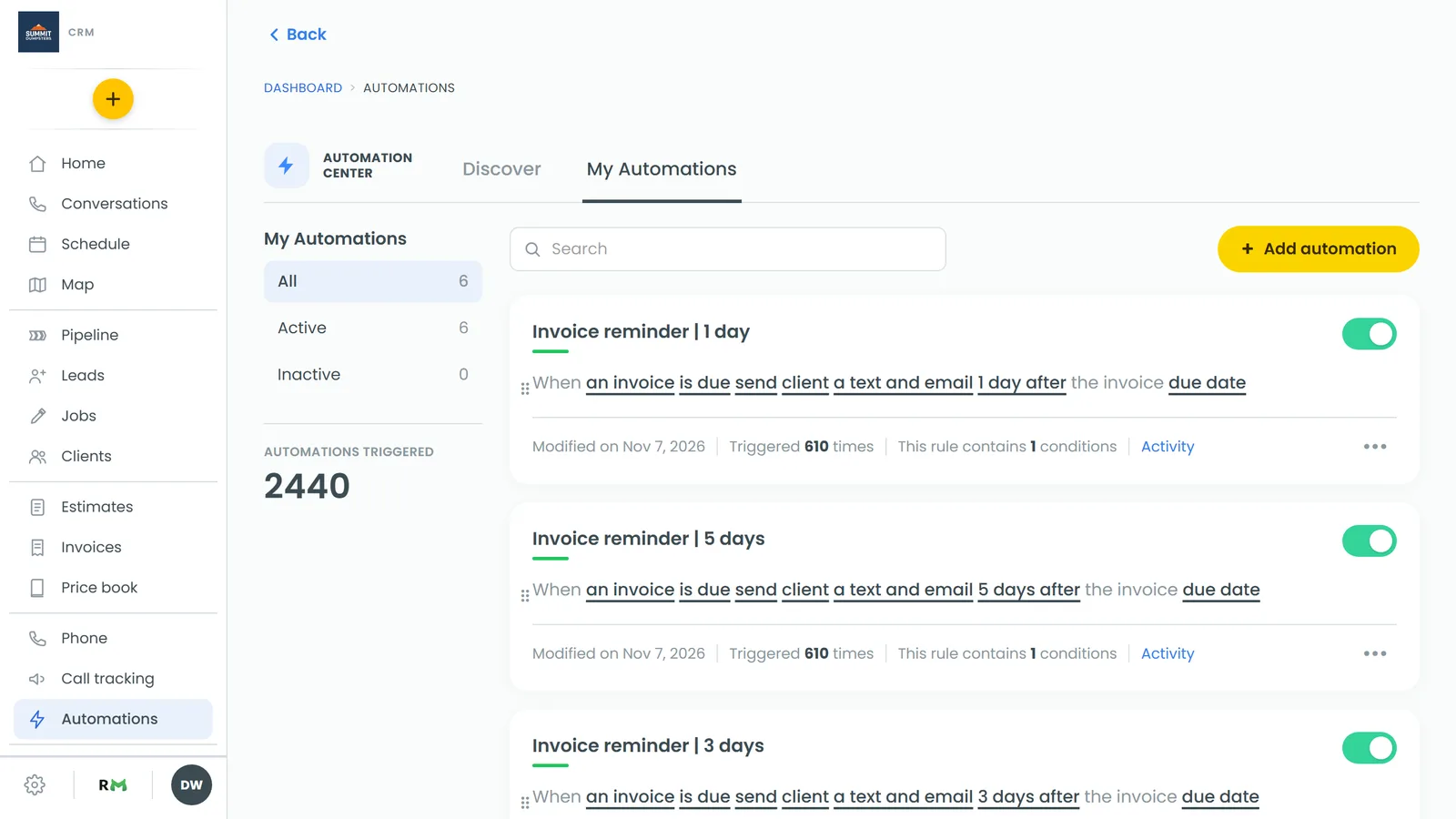
Is Automations an add-on I have to turn on?
No. Every account has it, on the paid and free plans. You won't find it in Features, and there's no limit on how many rules you can make.
Who gets a message sent to "your team"?
The people you pick. When a rule sends to your team, a row of names appears under the sentence after to:. Click a name to add or remove them. If you pick nobody, the message goes to the account owner. Each person is reached at the phone or email on their team record. If none of the people picked has a number or address for that kind of message, the rule is skipped and Activity says so.
How do I see what a rule actually did?
Click Activity on the rule's card. Each entry has a label:
- Sent: it went out, with the message and who got it.
- Scheduled: it's waiting, with the date it's due.
- Skipped: it didn't go, with the reason. Common reasons are "conditions not met", "no date to count from yet", "message is empty", "no contact on file", "job cancelled" and "invoice already settled".
- Failed: the send was tried and didn't go through.
A sent message also lands in the customer's conversation thread like any other text or email.
Does a customer who opted out still get texts?
No. Every customer send is checked against that customer's Do Not Disturb settings before it goes out. A blocked send shows in Activity as Failed. Messages to your team aren't checked against the customer's settings, so your tech still hears about the job.
What happens to a queued reminder if the job moves or is canceled?
- Moved: the reminder moves with it. A "4 hours ahead of" text counts from the new time.
- Canceled: the reminder is skipped. Activity shows "job cancelled".
- Date removed: the reminder is skipped with "job no longer has a date to count from".
A rule on a pipeline column works the same way. If the tile has left that column before the message comes due, it's skipped with "moved on from that column".
If I edit a rule, does it change messages already scheduled?
Yes. A scheduled message is written when it comes due, not when it was queued. At that moment the rule's current wording, conditions and send window are used, and the conditions are checked again against the record as it is now. An "estimate not opened" rule won't nudge someone who has looked since. If you've turned the rule off by then, the message is skipped with "rule inactive". An invoice reminder is also skipped if the invoice has been paid or voided since it was queued.
Scheduled messages are checked every 10 minutes, so a change you make lands within that window.
Does a new rule run on jobs I already have?
No. A rule fires when its trigger happens after the rule exists. A "when a job is done" rule won't text customers of jobs already marked Done. It fires the next time a job is moved to Done.
Does updating a rule switch it on?
No. The toggle on the card is the only on/off switch. Clicking Update automation saves your changes and leaves the toggle as it was. A brand new rule does start switched on, whether you built it with Add automation or picked a template with Use. A copy made with Duplicate starts switched off until you flip it.
Can I control when a message goes out?
Yes, in two places. The underlined timing word in the rule's sentence sets immediately, ahead of or after, with a number of minutes, hours or days. Under the sentence, the Automation will be sent box and its two times set the hours a message may go out. A new rule starts with 9:00 AM to 9:00 PM. A message that comes due outside those hours waits for the next opening, in your business's time zone.
Can a rule send a review request?
Yes. When you pick what the rule does, choose send client a review request. The wording and image come from your Review settings, not from the rule. Click Preview/edit message to see a sample. On the web, Edit in Review settings opens the page where you change it. The phone app shows the sample only.
Can a rule send an On My Way text?
Not from here. On My Way texts are set up on the OMW page under Send automatically, where you turn a job status on or point it at a truck. OMW is switched on in Features first.
How do "and" and "or" conditions work?
Conditions are read in order. Every condition joined by and must be true. An or starts a new group that can match on its own. The rule fires if any one group has all its conditions true. Click the small and / or pill between two conditions to flip it, or use + Add "or" condition in the condition panel.
Why is part of my message blank?
Short codes fill in from the record. If the data isn't there yet, the spot is empty. A tech code on a job with no crew, or a job date on an unscheduled job, comes out blank. The client first name code falls back to "there" when the customer has no first name.
What's different on the free plan?
Rules run the same way, but the free plan has no texting line. A rule's text waits in the customer's thread as Ready to send from your phone with a Send from my phone button, and the app gets a push so you can send it. Emails go out on their own. See How texting works on the free plan.