In this article, you'll learn how to set up job types: the choices in the Job type field on every job. When each job says what kind of work it is, your schedule and reports are easier to read. You can also pick which kinds of work ask the customer for a review once the job is done.
Only admins can add or change job types.
To open your job types:
- Click the gear icon at the bottom of the menu. The Settings list opens above it.
- Under Jobs & leads, click Job types.
You can also go straight to Settings › Job types.
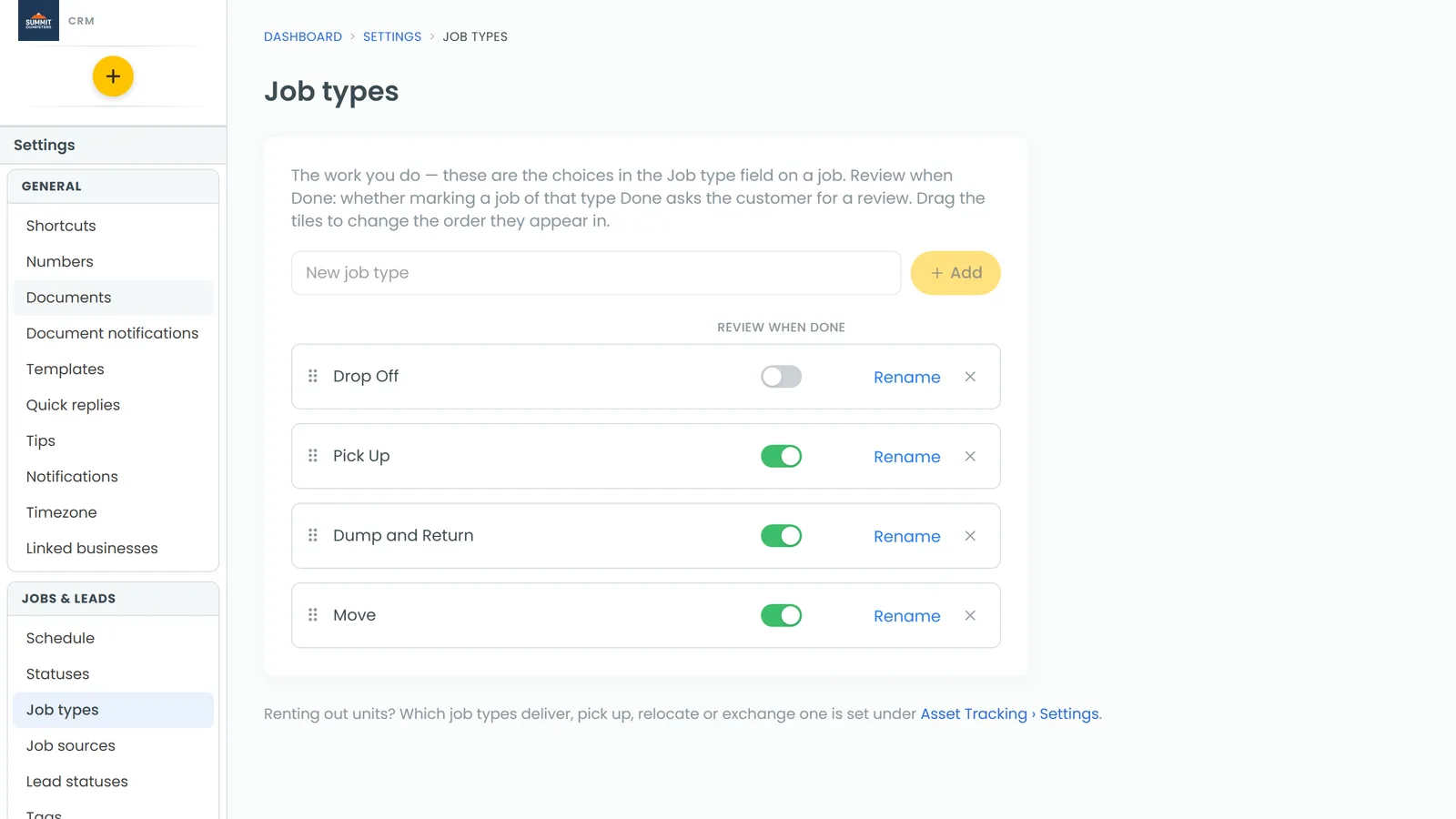
Adding a new job type
- In the New job type box at the top, type the name of the work, like "Junk removal" or "Move-out clean".
- Click Add, or press Enter.
The new type shows up in the list right away. The next time someone creates or edits a job, it's in the Job type dropdown.
Changing the order
The Job type dropdown on a job lists your types in the same order as this page. Move the ones you use most to the top.
- Click and hold a tile. The ⠿ on its left shows where to grab it.
- Drag it where you want it and let go.
The new order saves as soon as you drop the tile.
Renaming a job type
- Click Rename on the tile.
- Type the new name.
- Click Save, or press Enter. To keep the old name, click Cancel or press Escape.
Choosing which job types ask for a review
Every job type has a Review when Done switch, and it starts on for each new type.
- On: when a job of this type is marked Done, your review request goes out like it normally would.
- Off: when a job of this type is marked Done, no review request goes out, no matter what your review automation or the job's tags say.
To change it, click the switch on that type's tile. It saves right away. Turn it off for work where asking for a review doesn't fit, like warranty callbacks or internal jobs.
Deleting or archiving a job type
To remove a type, click the X at the right of its tile. What happens next depends on whether any jobs use it.
- No jobs use it: it's deleted.
- Jobs still use it: it's archived instead. It moves to an Archived list at the bottom of the page, and a note tells you how many records still use it. Those jobs keep their job type, but nobody can pick an archived type on a job anymore.
The Archived list stays closed until you click it. To bring a type back, open Archived and click Restore next to it. It goes back into your list and the dropdowns.
Doing it from the phone app
The same list is in the app.
- Open the menu and tap the gear icon at the bottom.
- Under Jobs & leads, tap Job types.
Adding, renaming, the Review when Done switch and Restore work the same as on the web. Two things are different:
- Deleting: after you tap the X, the app asks you to confirm. Tap Delete.
- Reordering: tap the ⠿ on a tile, then tap the tile you want to put it in front of.
If you rent out units
If you use Asset Tracking, you don't set which job types deliver, pick up, relocate or exchange a unit on this page. That's under Asset Tracking › Settings, and while the feature is on, the Job types page has a link to it.
Related articles
- How to create jobs
- How to create sub-statuses
- Creating tags for jobs
- Asking customers for reviews
- Tracking your rental units with Asset Tracking