In this article, you'll learn how to switch on Asset Tracking, get through its setup, and find your way around the page. It's built for dumpster, portable storage and equipment rental companies. You can see which unit is where, how long it's been out, and what's free on any day.
Asset Tracking follows numbered units. Each dumpster, container or trailer gets its own number. It doesn't count parts or supplies you use up, like bags or screws. There's no QR code or barcode scanning either. When a unit goes out, your driver picks it from a list on the job.
Switching on Asset Tracking
Asset Tracking is in Features, and it's off until you switch it on.
To switch it on:
- In the menu, click Features.
- Find Asset Tracking under Trucks & equipment. If you want to read what it does first, click the card.
- Click the switch on the Asset Tracking card.
The CRM opens the Asset Tracking page straight away, and Asset Tracking now shows in your menu. The phone app's Features screen has the same switch.
Setting it up
The first time you open the page, you get a short setup with six steps. The numbered circles across the top show where you are, and you can click any step you've already reached to go back to it.
- Inventory: under What is it?, type a kind of thing you rent out, like "20 yard dumpster". Then fill in the First unit # and Last unit # (and a Prefix if you use one) and click Add to inventory. Do this for each kind, then click Continue. This is the only step you have to do.
- Rental pricing: set a price for each rental length. You start with 1 day, 1 week and 1 month, and + Add a length adds more. For each price, choose what happens when the rental ends: One time: it just ends, One time: schedule the pickup, or, for whole weeks or months, Recurring: renews and bills again. Leave a price empty to skip that length. Each price becomes an item in your price book.
- Extra charges: tick the extras you bill on top of the rental and set your price. The ones marked Automatic add themselves to a job when they apply. If you tick the travel charge, you also enter your yard address and how many miles are free. You can add your own extras under Add your own.
- Contract: choose whether customers sign a rental contract on their phone before you take payment. You start with a standard contract you can edit.
- Job types: pick the job type that takes a unit out to the customer, the one that brings it back, and (optional) the one that dumps a unit and returns the same one. If you don't have one yet, choose Create "Drop Off", Create "Pick Up" or Create "Dump and Return".
- You're set: a summary of what's in place, with Set up next to anything you skipped. Click Open Asset Tracking, or Book your first delivery to start a job.
Every step after Inventory has Skip for now. Each step saves as you leave it, so you can close the page and pick up where you left off.
Getting around the page
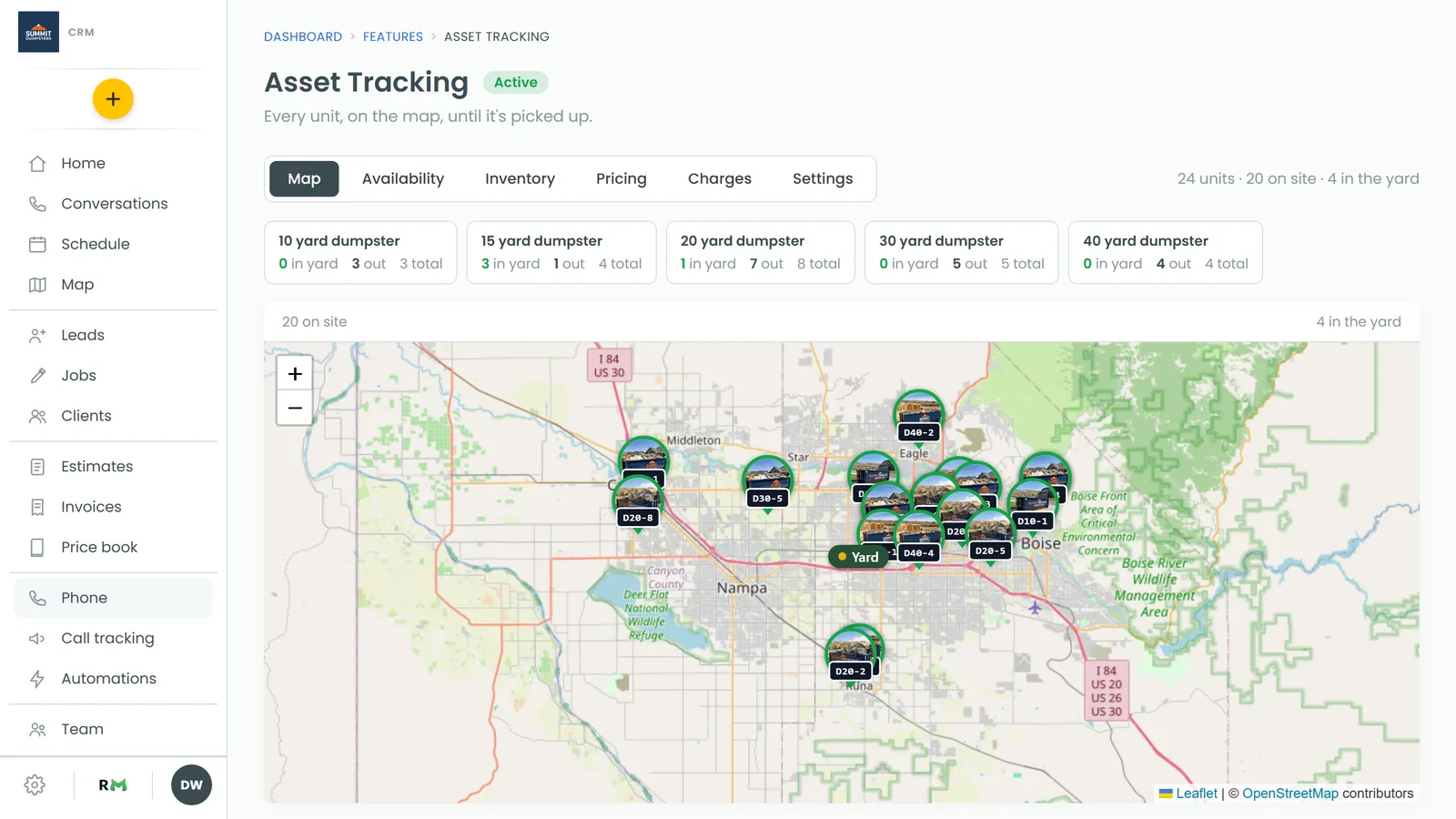
The page has six tabs, on the web and in the phone app:
- Map: every unit that's out, pinned at the customer's address, colored by how many days it's been there. On the web, your yard has its own pin, and clicking a unit shows its photo, its job and Open in the list. In the app, tapping a pin shows the unit and its job.
- Availability: how many units of each kind are free on each of the next 28 days.
- Inventory: your full list of units. Filter by kind, or by In the yard, Out and Untracked (out, but with no spot on the map). Click + Add units to add more. On the web, each unit that's out has Move and Release.
- Pricing: your rental prices by item and length, on top of the price book itself. In the phone app, this tab opens the price book.
- Charges: the extras that add themselves to jobs.
- Settings: your Yard, Unit categories, Job types and Contracts.
How the counts work
You never type in a count. On the Map and Inventory tabs, each kind of unit shows how many are in yard, how many are out, and the total. Those numbers come straight from the units themselves. Putting a unit on a delivery takes one out of the yard, and releasing it puts it back.
Bookings count too. A delivery holds a unit of its size for the length of the rental, and the Availability tab adds those up. If a booking would leave you short on a day, it waits for an admin to approve it.
Related articles
- How to add units to your inventory
- Putting a unit on a job
- Booking more units than you have free
- Linking price book items to your units
- How to add job types