In this article, you'll learn how to use the CRM on an iPad, a Galaxy Tab or any other Android tablet. A tablet gives you more room than a phone, which is handy in the truck, at a customer's kitchen table or on the office counter.
You have the same two options you have on a phone:
- The Review Monster CRM app, from Google Play.
- The web CRM, opened in your tablet's browser.
Both use the same login and show the same jobs, clients and conversations, so pick whichever suits you.
Using the app on your tablet
There's one Review Monster CRM app for phones and tablets.
To install the app and sign in:
- On your Android tablet, open Google Play.
- Search for Review Monster CRM and install it.
- Open the app.
- Type your email and password, then tap Sign in.
Forgot your password? Type your email first, then tap Forgot password? under the Sign in button. A reset link goes to your email.
Upright and sideways
The app turns with your tablet, and the layout changes with it.
- Held upright, it looks like the phone app. On Home, Conversations, Schedule and Contacts, a bar along the bottom has those four tabs, with the yellow + button on the right. Every other screen has the menu button (three lines) or a back arrow in the dark bar at the top instead.
- Turned sideways, the bottom bar becomes a rail down the left edge with the same four tabs, and the + button sits at the foot of the rail. The rail stays on every screen.
- Sideways on Conversations and Contacts, the list and the open item sit side by side. Tap a conversation and the thread opens on the right. Tap a contact and their page opens on the right.
In the app, the + button opens New job, New lead, New note, New client and Contact.
The menu
Tap the menu button (three lines) at the top left and the full menu slides in: Home, Schedule, Map, Leads, Jobs, Clients, Estimates, Invoices, Price book, Reports, Help Center and the rest, depending on your role. At the bottom of the menu are three icons: your account, the gear for Settings (if your role allows it) and sign out.
Using the web CRM in your tablet's browser
You don't need the app at all. The CRM works in Safari, Chrome or any other browser. A few tools only work on the web. For example, the template designer for estimates and invoices is under Settings > Documents in the web CRM. In the app you can preview, add, duplicate and delete templates, and the Document designer (web) row in the app's settings opens the designer in your browser.
To open the web CRM:
- On your tablet, open your web browser.
- Go to reviewmonster.com/crm/login.
- Enter your Email and Password, then tap Sign in.
What you'll see on a tablet
On most tablets, the web CRM looks the same as it does on a computer. The menu stays pinned open down the left side, with Home, Conversations, Schedule, Map, Leads, Jobs, Clients and the rest of your pages.
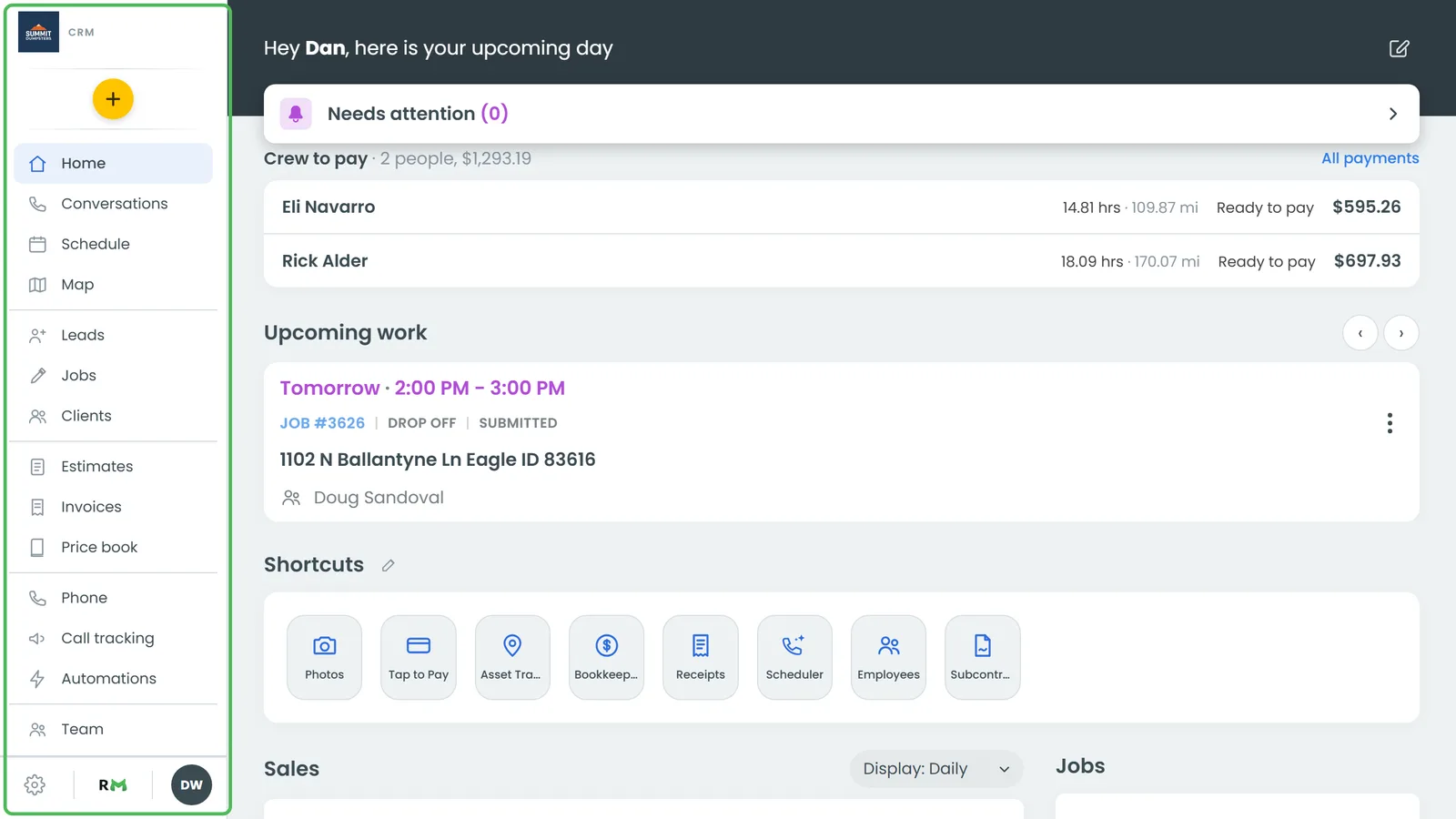
- The yellow + under your logo opens New job, New lead, New client and Contact. On a client's page it offers New estimate for that client instead of New client.
- The gear icon at the bottom of the menu opens the Settings list, if your role allows it.
- Your initials, also at the bottom of the menu, open a small menu with Account and Log out.
When the screen gets narrow
The pinned menu shows whenever the browser window is at least 640 pixels wide, which covers most tablets, even held upright. If the window is narrower, the web CRM switches to its phone layout:
- A dark bar across the top has the menu button, the page name, a refresh button, a search button and your initials.
- Tap the menu button and the menu slides in from the left. Tap outside it, or the X at its top, to close it.
- On Home, Conversations, Schedule and Contacts, a bar along the bottom has those four tabs and the + button.