In this article, you'll learn how to build your own list of lead statuses. Job statuses come with a fixed core, but lead statuses are your sales pipeline, so the list can match how your office actually works a lead.
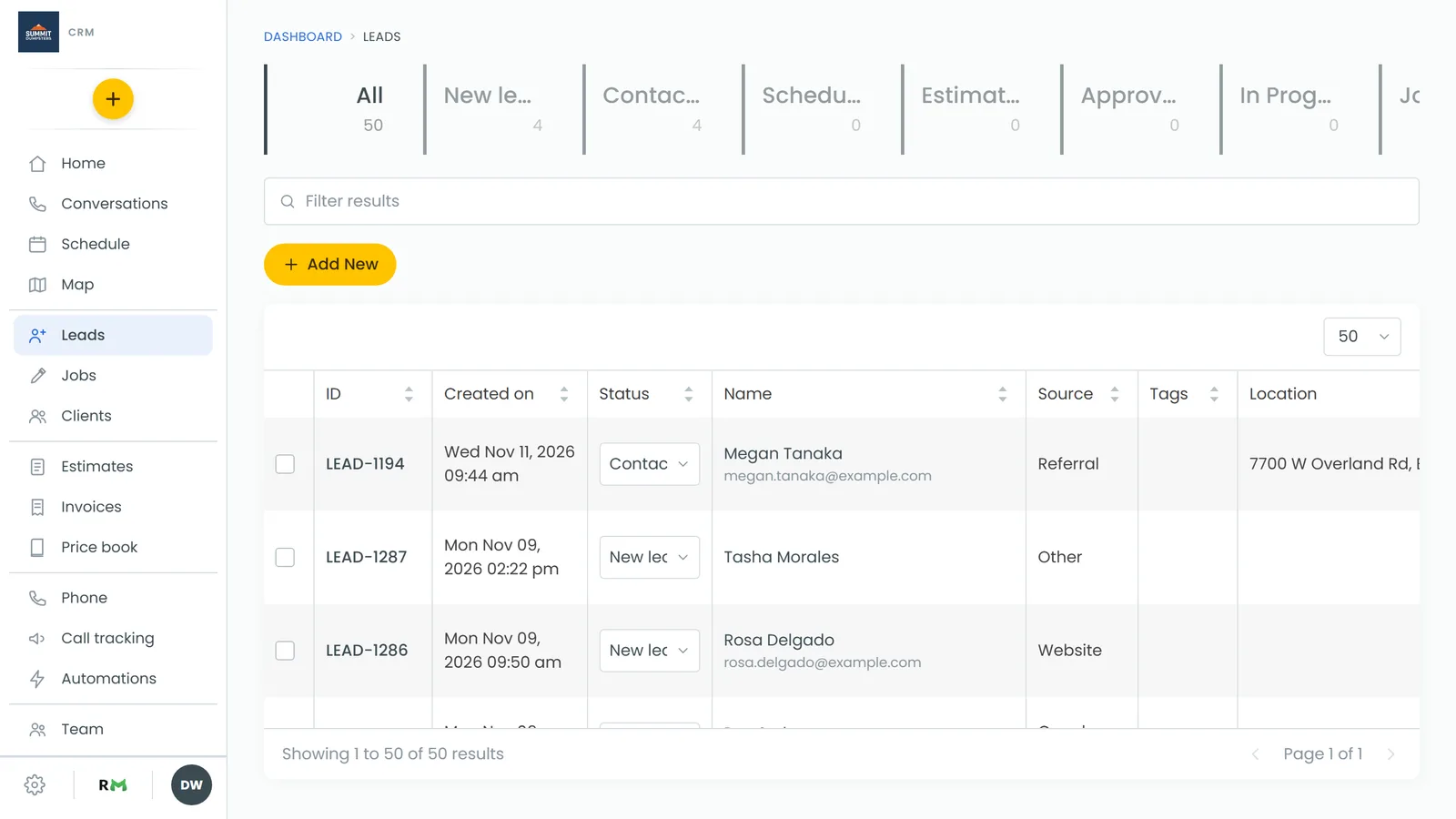
Your lead statuses are the tiles across the top of the Leads page, in the same order as this list. They're also the choices you get when you change a lead's status, and the columns on the Pipeline page if you've turned Pipeline on in Features.
To open Lead statuses:
- In the menu, click the gear at the bottom (Settings).
- Under Jobs & leads, click Lead statuses.
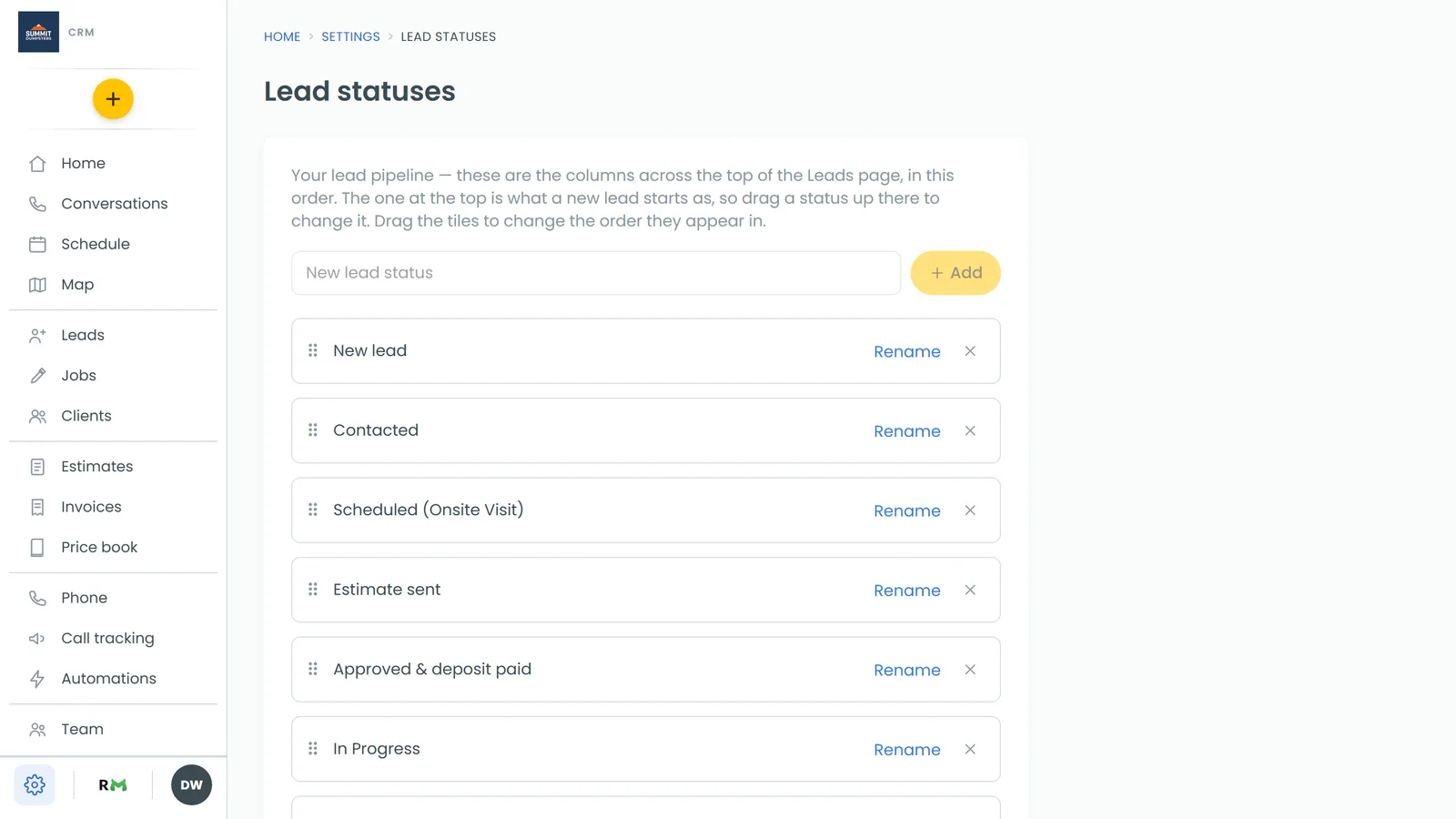
Add a status
- Type a name in the New lead status box.
- Click Add (or press Enter).
The new status lands at the bottom of the list, so it also shows up as the last tile on the Leads page. If you type a name that already exists, nothing is duplicated.
Change the order, and the starting status
Drag a tile and drop it where you want it. The order saves as soon as you let go, and the Leads page tiles follow.
The status at the top of the list is where every new lead starts. To change what a new lead starts as, drag a different status to the top.
Rename a status
- Click Rename on the tile.
- Change the name and click Save (Enter also saves, Escape cancels).
Leads already sitting on that status move to the new name with it, so nothing gets stranded.
Delete or archive a status
- Click the X at the right end of the tile.
- Click Delete to confirm.
- If no leads are on that status, it's deleted.
- If leads still use it, the status is archived instead. You'll see a line saying how many records still use it, and the tile drops into a collapsed Archived list at the bottom of the page.
An archived status leaves the Leads page tiles and the status choices, but the leads on it keep their status text.
Restore an archived status
- Click Archived at the bottom of the page to open the list.
- Click Restore next to the status.
It comes back into the live list and onto the Leads page.
On the phone app
The phone app has the same screen. Open the menu, tap the gear at the bottom, then under Jobs & leads tap Lead statuses. You land on the Lead statuses tab of the Settings screen, with the same New lead status box, Rename, X and Archived list with Restore.
Reordering works a little differently on a phone: tap the ⠿ handle on the tile you want to move (it turns blue), then tap the tile you want it to sit in front of. The web CRM on a phone works the same way.
Good to know
Lead statuses don't have sub-statuses. That's a job status thing only.
Automatic moves only ever go forward in your list, never back. A lead on a lost, won or no-response column is treated as finished and won't move anywhere on its own.