In this article, you'll learn how to turn a lead into a job once the customer says yes. Everything you entered on the lead is copied onto the new job, so you don't type any of it twice.
A lead is work you might get. Maybe someone asked for a price, or you're going out to look at the job before you quote it. When the customer agrees to book, you convert the lead and it becomes a real job.
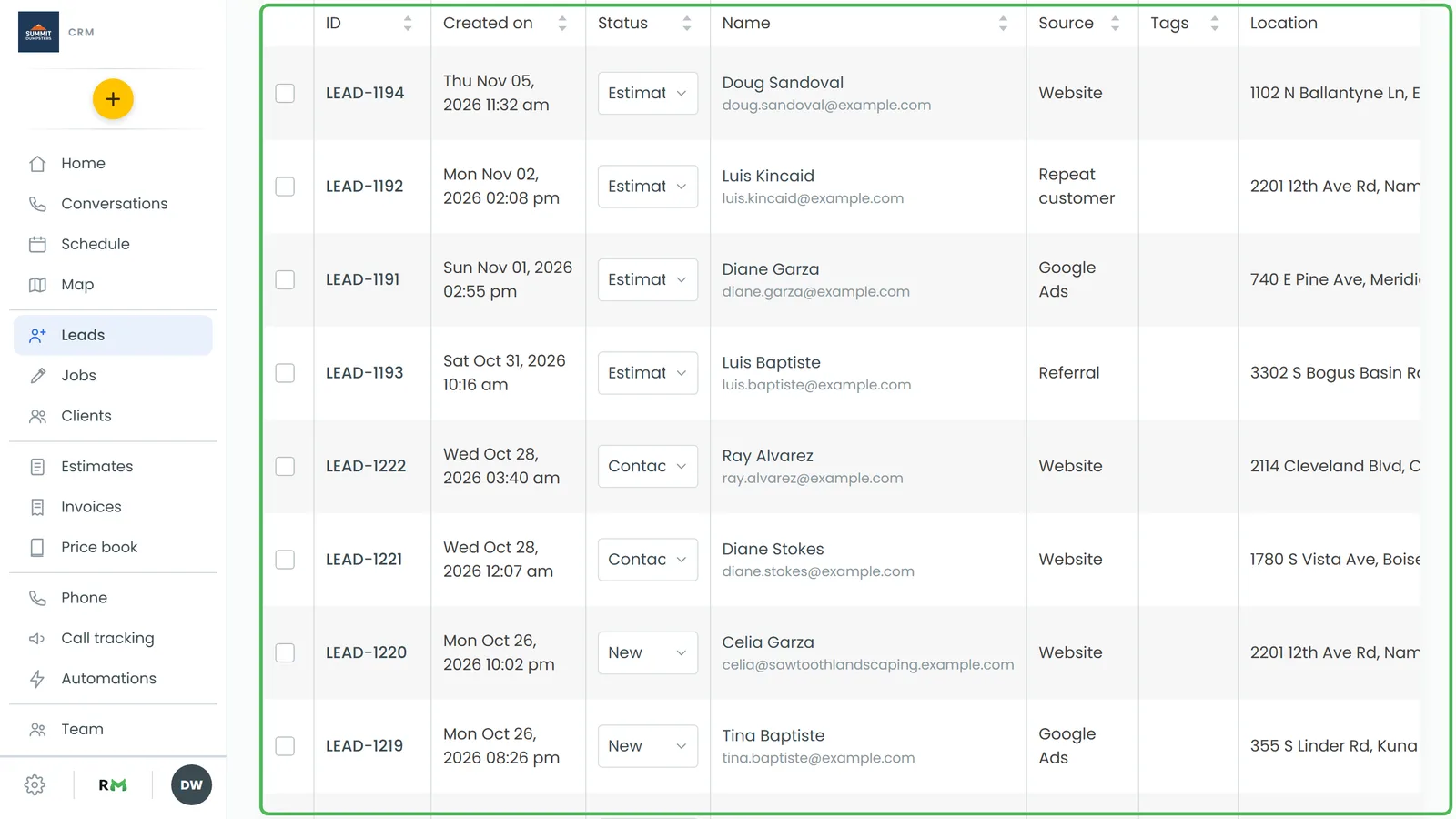
To open your leads:
- In the menu, click Leads.
Convert a lead on the web
- On the Leads page, click the lead's row. Its panel opens on the right.
- Click Convert to job.
The CRM creates the job and takes you straight to it. If something stops it, the reason shows in red at the top of the lead's panel.
Convert a lead on a phone
The phone app and the web CRM on a phone-sized screen work the same way here.
- Open the menu and tap Leads.
- Tap the lead. Its sheet slides up.
- Tap Convert to job.
The job is created and opened for you. If something stops it, you'll see a Couldn't convert message with the reason.
What comes across to the job
The new job gets:
- The client
- The job type and the source
- The phone numbers and the email
- The service address
- The lead's notes, which become the job's description and its name
- The comments and any custom fields
- The date and time, if the lead was scheduled
- The lead's tags
- The team members assigned to the lead
The job starts in the Submitted status with its own new JOB- number. If nobody was assigned to the lead and your company has only one field team member, that person is put on the job. If the customer had no address on file, the job's address is saved to their record too.
What happens to the lead
The lead isn't deleted. It moves to Won and keeps its LEAD- number, so your Leads report can still count how many leads turned into work.
- On the web, the lead's panel shows This lead already became a job. The Convert to job button, the Move to stage list and Mark lost are gone. Edit details stays.
- On a phone, the lead's Status column reads Won in green, and Convert to job no longer appears when you tap it.
A lead can only be converted once.
Automations run like it's a new job
Converting runs the same automations as creating a job by hand. Any rule set to run when a job is created will fire. If the lead had a date, rules set to run when a job is scheduled fire too, so the customer may get a confirmation or reminder right away.
Things to know
- A lead needs a client. If there's no customer on the lead, you'll see "the lead has no customer on it" and no job is made. Add the client to the lead first.
- Estimate items don't come across from the Leads page. Converting a lead gives you a job with no items on it. If you quoted the work, convert the approved estimate instead, and its items come onto the job with it.